Browse and enable frameworks
Find the frameworks your team can report on, pin the ones you use, and request the ones you do not have yet.
Four NextSDS frameworks are enabled for every team. Everything else, from REACH to VLAREM, is switched on per team, and that is what the two tabs of the Frameworks page separate: what you can report on today, and what you could add.
Browse available frameworks
The page has two tabs. Organisation holds the frameworks already enabled for your team, ready to report on. General is the catalogue of everything else.
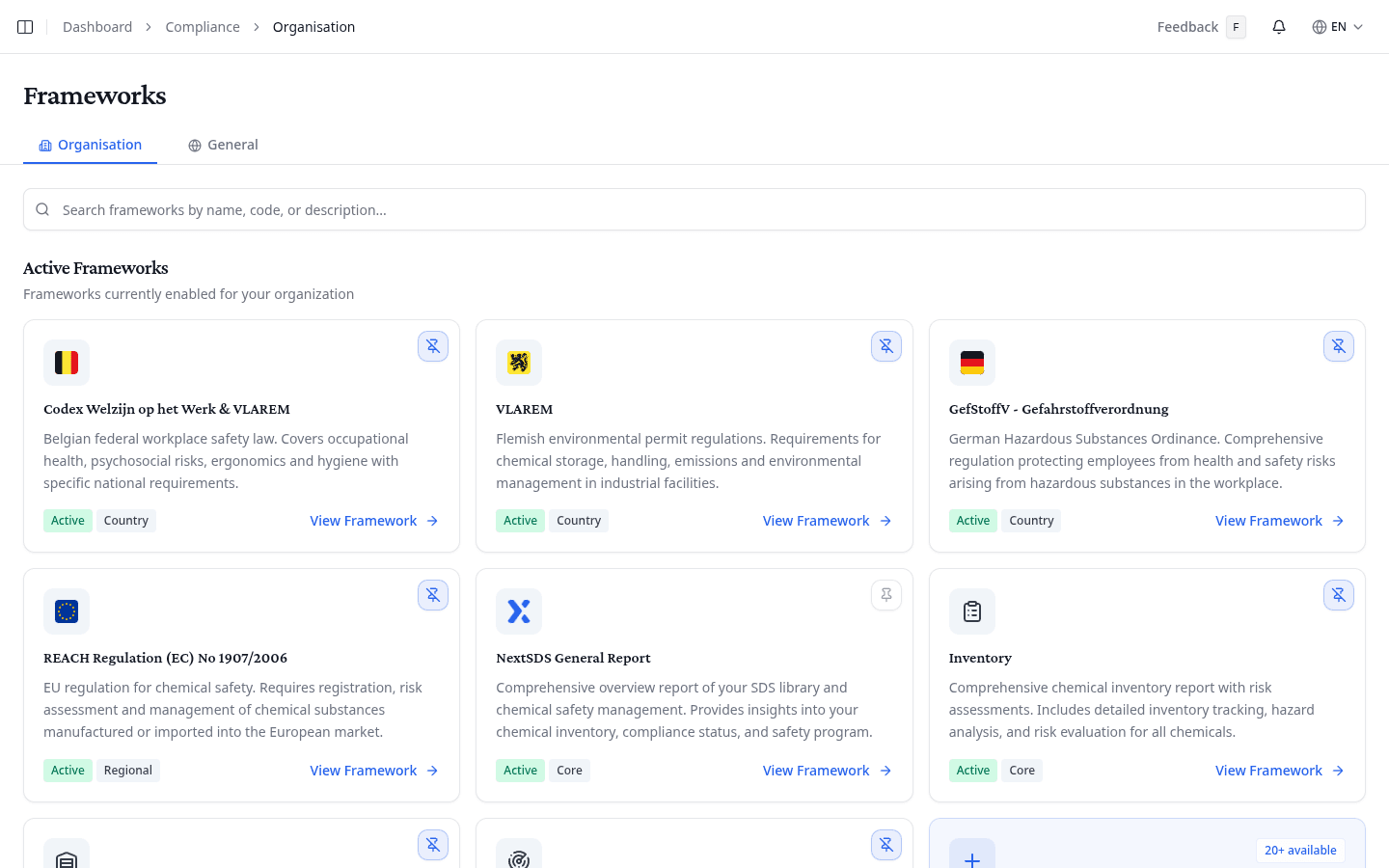
Each card carries the framework's name, what it covers, and two badges: Active when your team may use it, and its scope.
| Badge | Meaning |
|---|---|
| Core | A built-in NextSDS framework, enabled for every team |
| Regional | Covers several countries, such as an EU regulation |
| Global | An international standard, such as an ISO |
| Country | National legislation for one country |
Select View Framework to open a framework. Search by name, code, or description to narrow the list, which then tells you how many of the total still match. The framework catalogue lists everything NextSDS supports.
Pin the frameworks you work in
Select the pin on an active card to put that framework in the sidebar, and select it again to take it out. Only active frameworks can be pinned. The same control sits in the framework header, so you can pin one while reading its report.
Request a framework you do not have yet
General groups the catalogue into Regional Regulations, Global Standards (ISO) and Country-Specific.
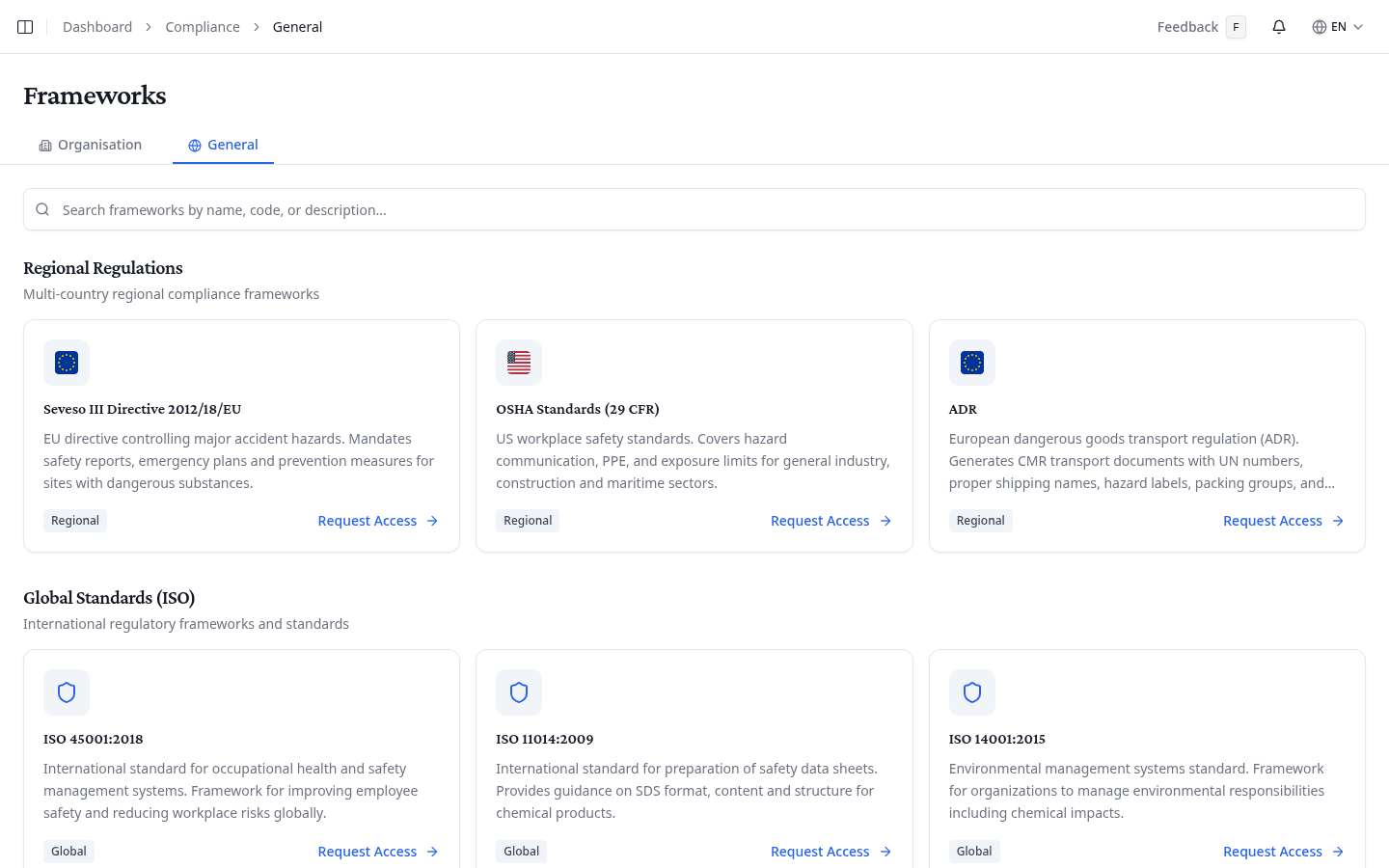
Every card here reads Request Access. Select it to ask your account manager to enable that framework for your team. On the Organisation tab, the Add a new framework card at the end of the list is a shortcut to the same catalogue.
On a trial plan, selecting one of the four core frameworks opens an upgrade prompt instead of the framework. It offers to schedule a meeting or send a message, so you can ask for the plan that includes it.
Open a framework
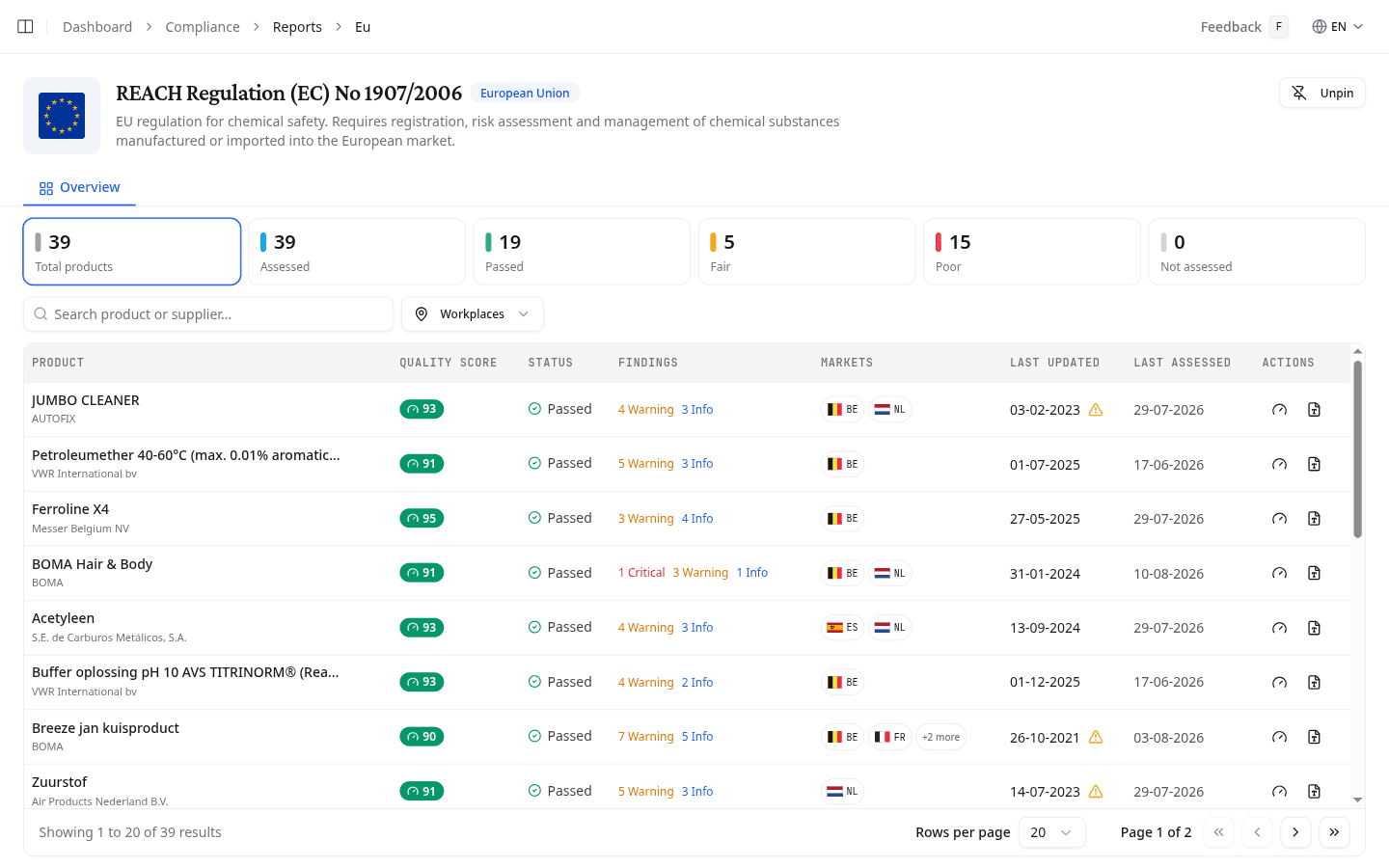
Every framework has its own set of tabs. A framework that produces documents gives you Generate Report and Reports. A framework that tracks a live picture of your library gives you an Overview instead.
| Tab | What it is for |
|---|---|
| Overview | A live view of your library through this framework's lens |
| Generate Report | Produce a new report |
| Reports | Your report history and downloads |
| Settings | Team values this framework calculates with |
| Controls | The framework's own checklist of requirements |
The Overview shows what matters for that framework, so it looks different in each one:
| Framework | Its Overview shows |
|---|---|
| REACH | The data quality of every SDS, with cards for passed, fair, and poor |
| Horizon Scan | Your products against the regulatory lists their components appear on |
| Storage | Your products with GHS pictograms, physical state, ADR class, and storage conditions |
| Codex / GefStoffV | Library views for that country: CMR status and working language for Codex, LGK and WGK storage classes for GefStoffV |
| VLAREM | Your products with their rubriek classification, labelled Products |
A framework without an Overview opens on the Reports tab.
Select Pin to sidebar in the framework header to keep a framework one click away. It reads Unpin once pinned. Where a framework has a published legal text, Legislation opens it in a new tab, so you can check the wording behind a requirement without leaving your report.
What to do next
Open a framework and generate your first report.