Set up your workplaces
Create workplaces that represent your physical locations, worker profiles, or work processes.
Register every area, worker profile, or process where chemicals are used so you can track inventory, run risk assessments, and generate compliance reports per workplace. Each workplace holds its own inventory of products and assessment data.
Create a workplace
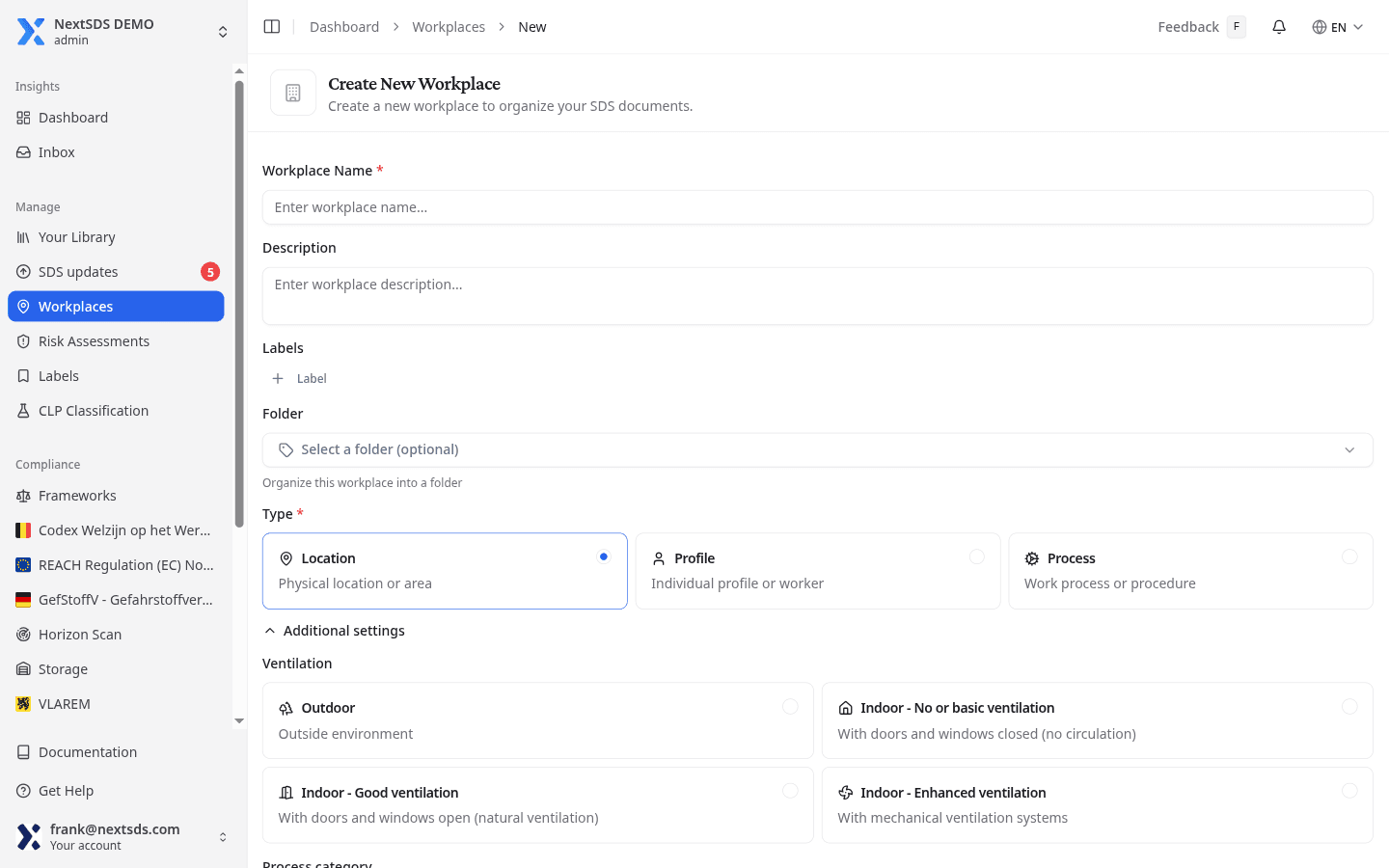
Create Workplace opens a page of its own rather than a pop-up window, so you can fill it in without losing the list behind it.
- Enter a Workplace Name. It is the only required field besides the type.
- Add a Description and any Labels you already use for grouping workplaces.
- Assign a Folder if you want the workplace nested in your hierarchy straight away.
- Choose the Type:
- Location: a physical location or area
- Profile: an individual profile or worker
- Process: a work process or procedure
- Select Create Workplace.
Record the ventilation and the process category
Both sit under Additional settings, collapsed until you open it. Neither is required, and both feed later risk work rather than the workplace record itself.
Ventilation is the one worth setting on a physical location, because exposure modelling reads it:
| Option | What it describes |
|---|---|
| Outdoor | Outside environment |
| Indoor - No or basic ventilation | Doors and windows closed, no circulation |
| Indoor - Good ventilation | Doors and windows open, natural ventilation |
| Indoor - Enhanced ventilation | Mechanical ventilation systems |
Process category carries the ECETOC process category, for workplaces that represent one specific task.
Browse workplaces
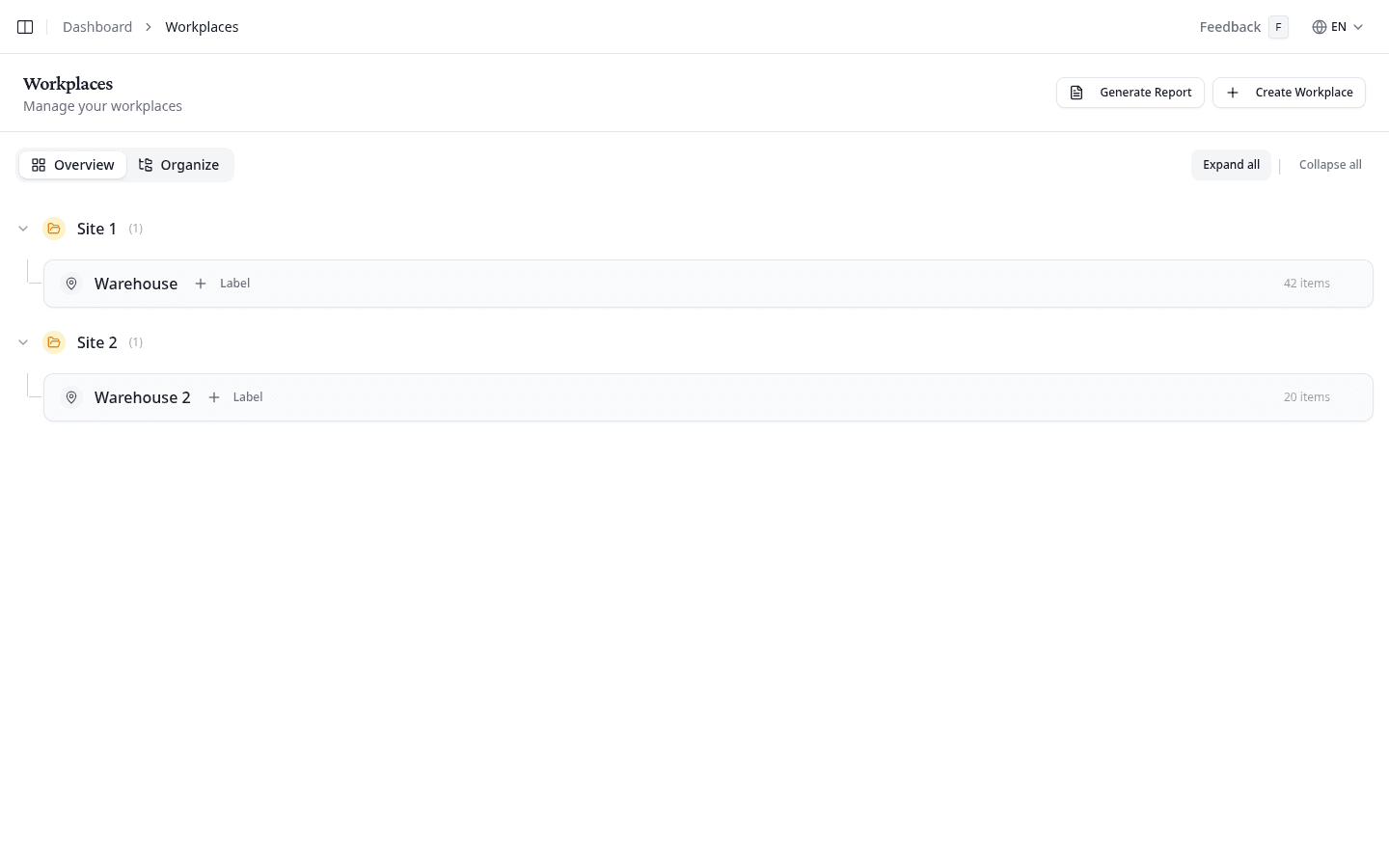
The Overview tab shows all workplaces grouped by folder. Top-level folders are expanded by default, and their sub-folders start closed. Select Expand all or Collapse all to open or close every folder at once.
Each workplace card shows its name, labels, and item count. Select a workplace name to open its chemical inventory and risk assessments.
Edit or delete a workplace
Open the options menu (⋯) on any workplace row for Edit and Delete. The menu is on the workplace rows of both the Overview and the Organize tab.
Edit opens the workplace form, the same fields you filled in when you created it. Delete asks you to confirm first.
Deleting a workplace also deletes its inventory data, including the risk assessments recorded against it. This cannot be undone.
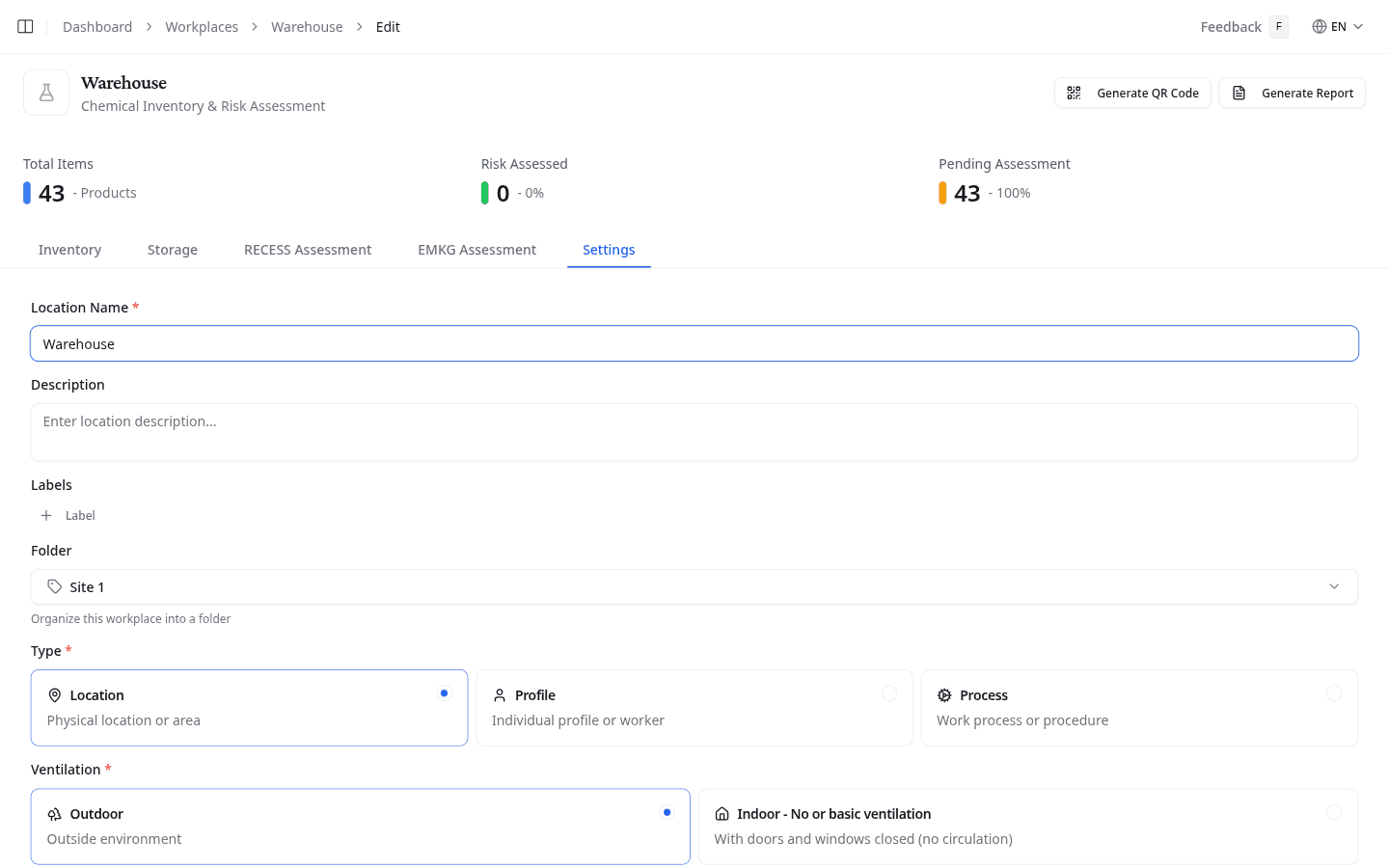
The workplace's own Settings tab offers both as well. It updates the name, description, type, ventilation level, and process category, with Update workplace to save. Delete sits in the Danger Zone at the bottom of that tab.
Generate a compliance report
Select Generate Report to open the inventory report generator for all workplaces.
What to do next
Group your workplaces into folders and labels, or open one to view its chemical inventory.