Compare two SDS versions
Check whether classifications, hazard statements, substance concentrations, or supplier details have changed between two Safety Data Sheets.
Sections with differences expand automatically when the page loads. Sections where the two documents are identical stay collapsed.
How to get here
Open a product in your library, select the Related SDSs tab, then open the options menu on any sheet that is not the primary and select Compare with Primary.
The primary sheet's own row has no such entry, because there is nothing to compare it against. A product with a single linked sheet therefore offers no comparison at all.
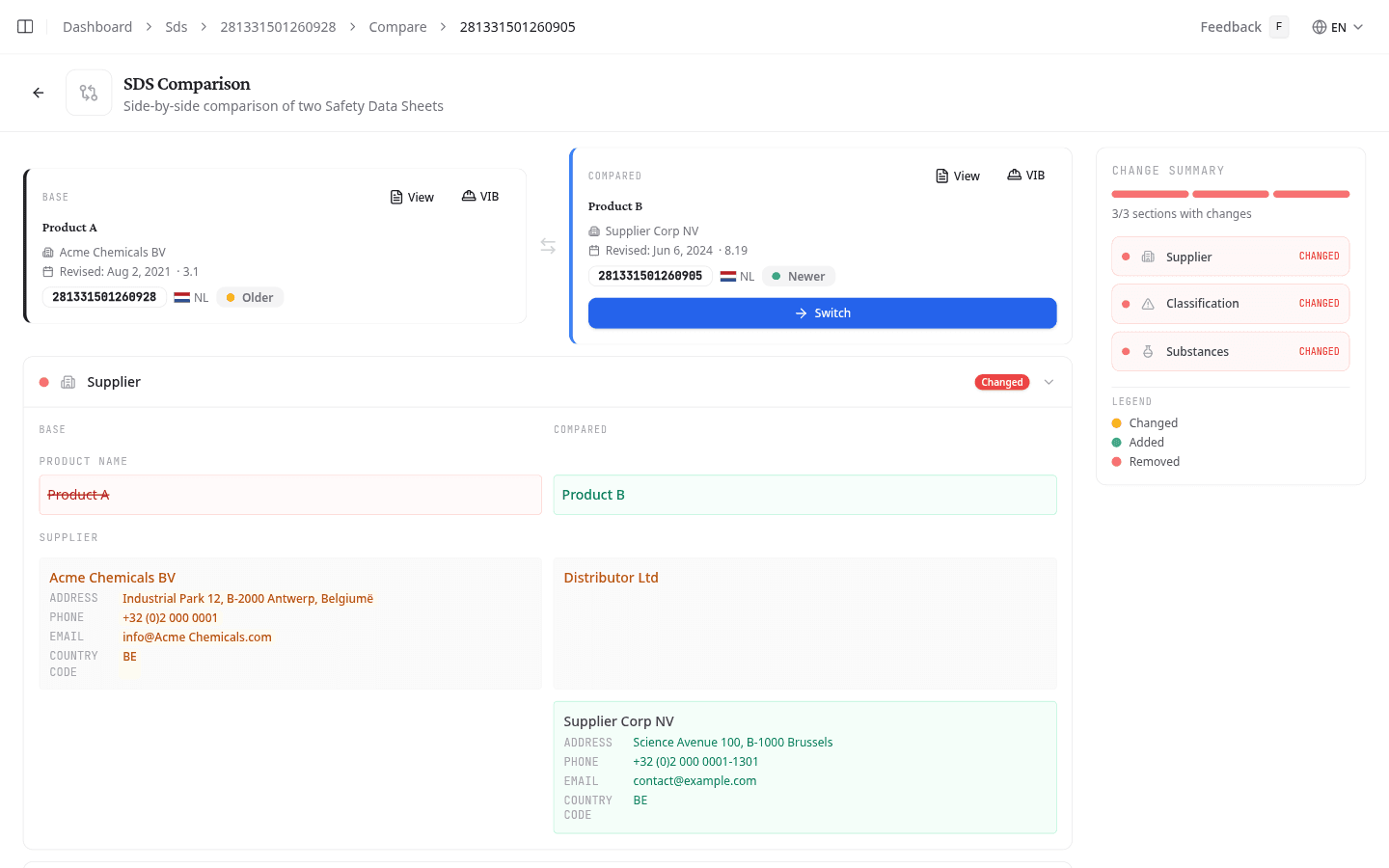
Read the comparison summary
The sidebar shows a coloured bar and a section-by-section status. Each section is marked either Changed or Equal.
Use the colour legend to read the detail sections:
| Colour | Meaning |
|---|---|
| Green highlight | Added in the compared document |
| Red highlight with strikethrough | Removed from the base document |
| Amber highlight | Value changed between the two documents |
Each document card shows the document id, product name, version, revision date, language, target markets and supplier. Read the revision dates to tell which sheet is the more recent: the cards carry no newer or older marker of their own.
Review supplier changes
The Supplier section shows the product name and each organisation's name, address, phone, email, and website side by side. Changed fields are highlighted in amber.
Review classification changes
The Classification section compares:
- Signal Word: DANGER or WARNING from each document
- GHS Pictograms: added pictograms show a green plus badge; removed pictograms are faded with a red minus badge
- Hazard Statements: H-codes and statement text, colour-coded for added, removed, or changed entries
- Precautionary Statements: P-codes, same colour coding as hazard statements
Review substance changes
The Substances section shows a side-by-side table with the chemical name, CAS number, EC number, and concentration for each component. Rows added in the compared document appear in green. Rows removed from the base document appear in red with strikethrough. Changed values are highlighted in amber.
View the original documents
Select View SDS on either document card to read that source PDF without leaving the comparison.
Act on what you found
The comparison is not only a diff. Once you have read it, it offers the moves that are actually valid for this pair of sheets:
| Action | What it does |
|---|---|
| Replace with this | Swaps the compared sheet in for the one your product uses now |
| Add as variant | Keeps both, with the compared sheet as an additional variant of the product |
| Add to product | The same move, shown instead when the compared sheet is not in your library yet |
| Make primary | Promotes the compared sheet to the product's primary, leaving the other linked |
| Merge into this product | Pulls the compared sheet across when it belongs to a different product |
You will usually see just one of these, because the entry point already decided what you came to do. Arriving through Compare with Primary offers Make primary alone. The full list appears only when the intended action does not apply to this pair, for example when the compared sheet sits on another product and has to be merged first.
What to do next
After changing which sheet a product uses, regenerate its Safety Instruction Card and CLP label so both carry the new classification.