Check your library's health
Review outdated SDS revisions and duplicate products in your library, then resolve them.
Library health has two halves: products whose SDS has a newer revision, and products that look like duplicates of each other. NextSDS works both out for you, so the page is current whenever you open it. There is no scan to start and nothing to wait for.
Open Library health
Select SDS updates under Your Library in the sidebar. The page opens on two tabs, SDS updates and Duplicates.
Each tab leads with its own figures. SDS updates counts Outdated SDS, the products with a newer revision waiting, against Scanned, how many active products NextSDS checked. Duplicates counts Clusters and the Products involved in them. All four describe your whole library, not just the rows on screen.
Apply a newer SDS revision
The SDS updates tab lists one row per product with a newer revision available.
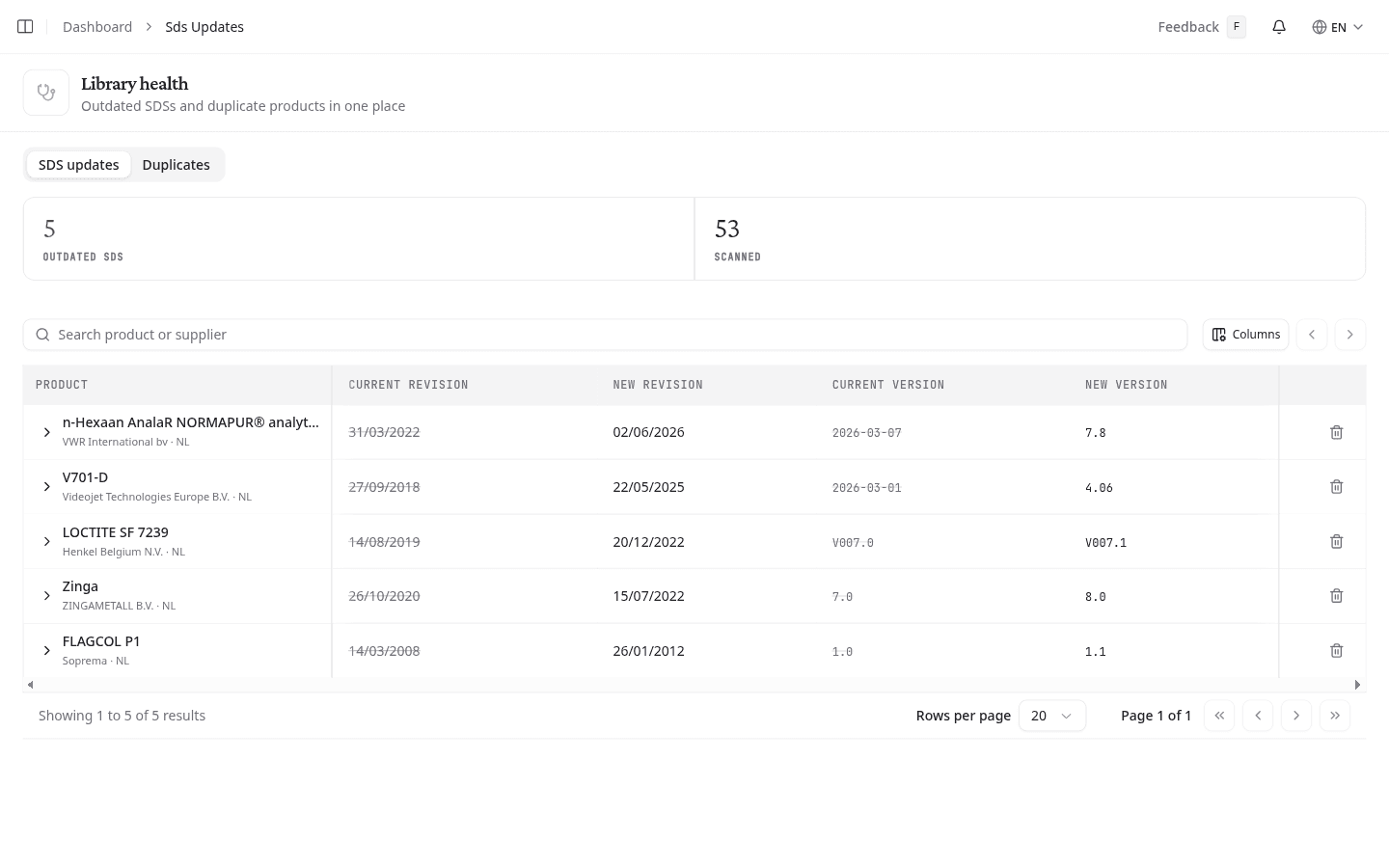
Each row pairs what you hold now against what is waiting. Current revision and Current version are struck through, because the update replaces them. New revision and New version are what you get.
- Select a row to open it.
- On New version, compare your current revision against the newer one. View SDS on either panel opens that document, so you can read the new revision before you take it.
- On Changes, review what changed. NextSDS counts how many sections differ, then marks each of Supplier, Classification, Substances, and Dates & version as changed or equal.
- On Confirm, select Confirm & apply.
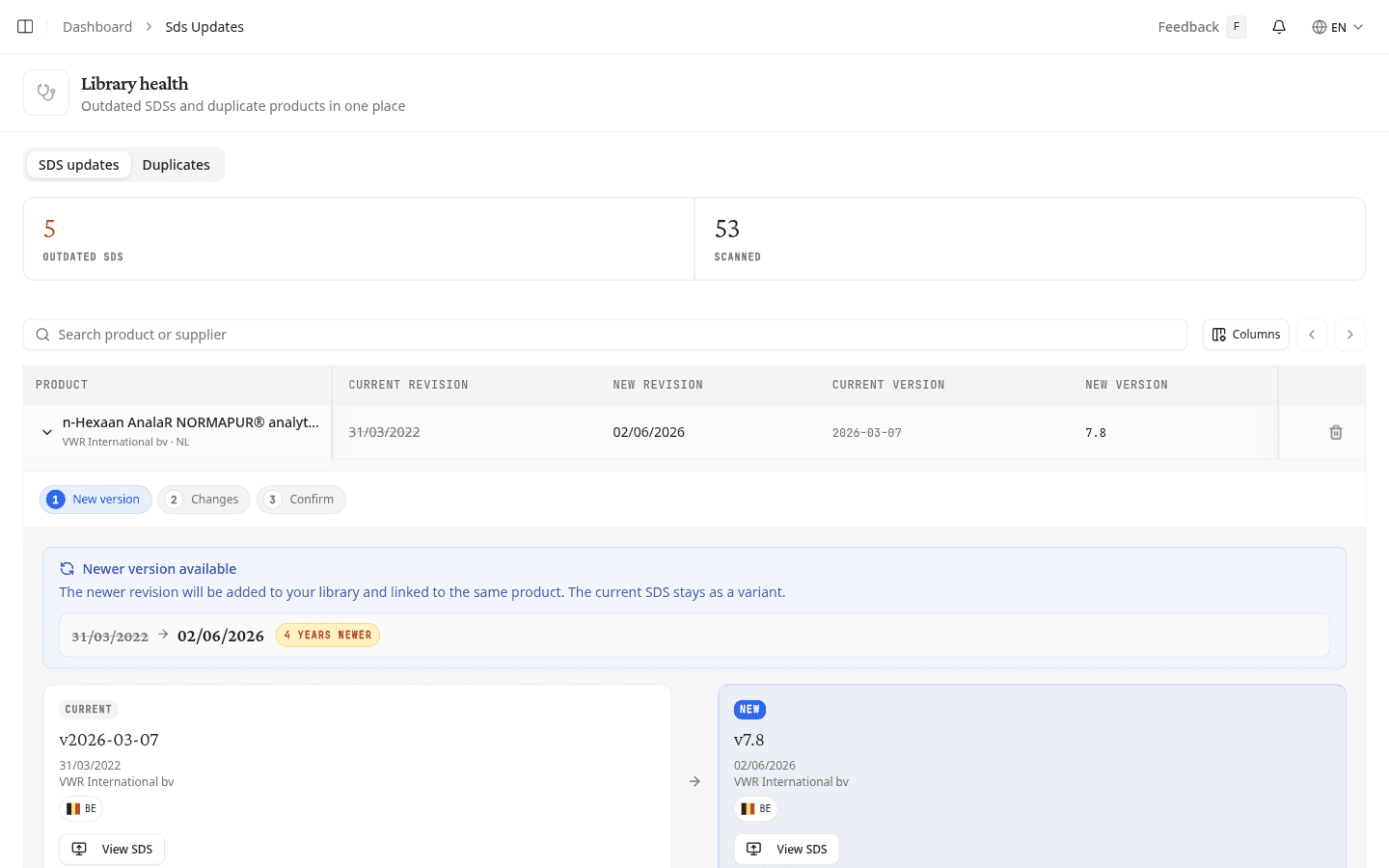
NextSDS adds the newer revision as the active SDS and keeps the previous version as an archived variant.
After applying a newer revision, create a new Safety Card and review linked risk assessments. Check the new revision for different hazards, controls, or exposure limits.
Select the trash icon on a row to clear it from view without applying the update. The row comes back the next time you open the page. To take a product off the list for good, archive it.
Merge duplicate products
The Duplicates tab groups products that share matching identifiers. Each row is one group.
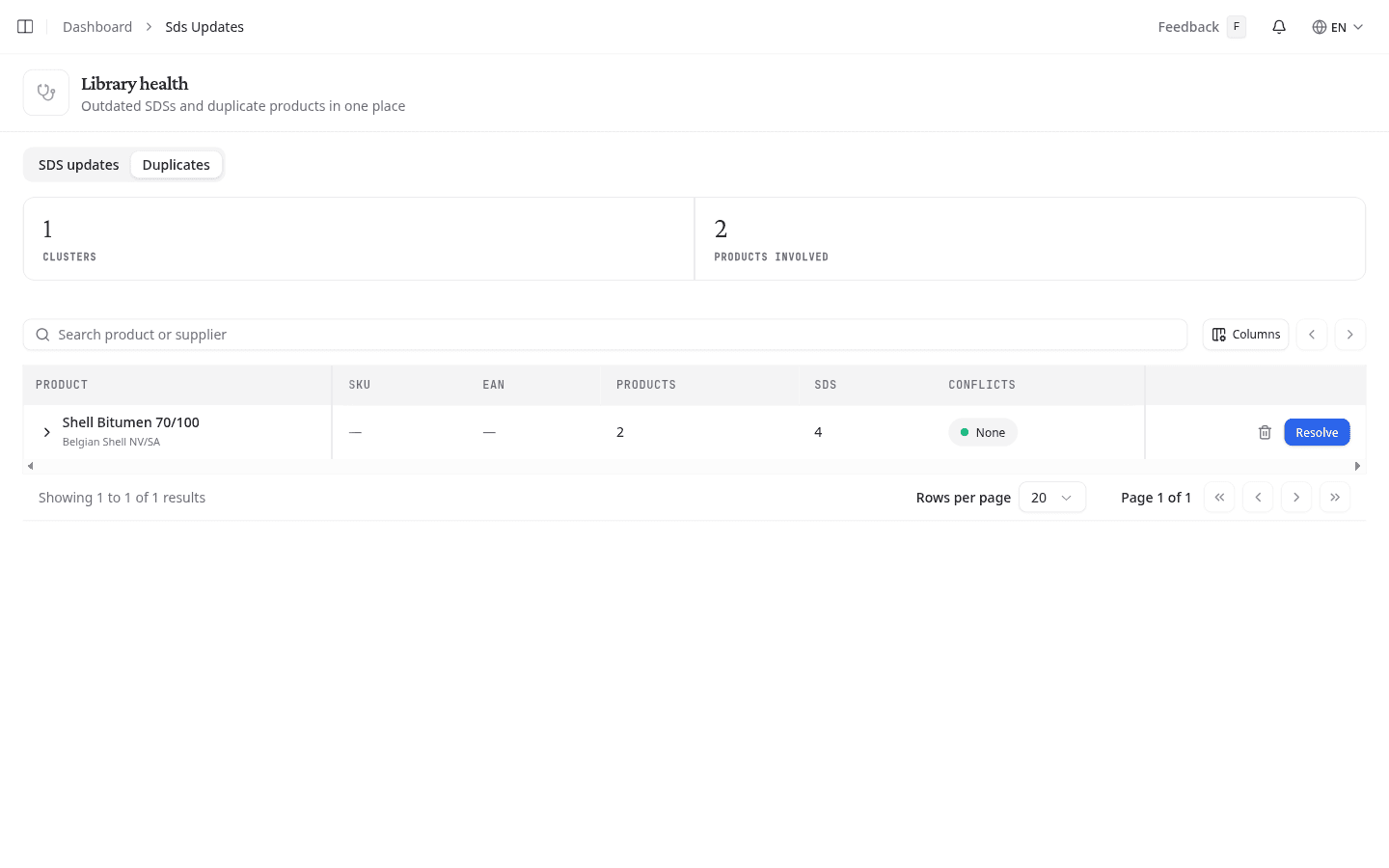
Check Conflicts before you open anything. None means the products in that group agree on every field, so the merge needs no decisions from you. A number of fields is how many values you will have to choose between. Products is how many products the group holds, and SDS how many safety data sheets they carry between them.
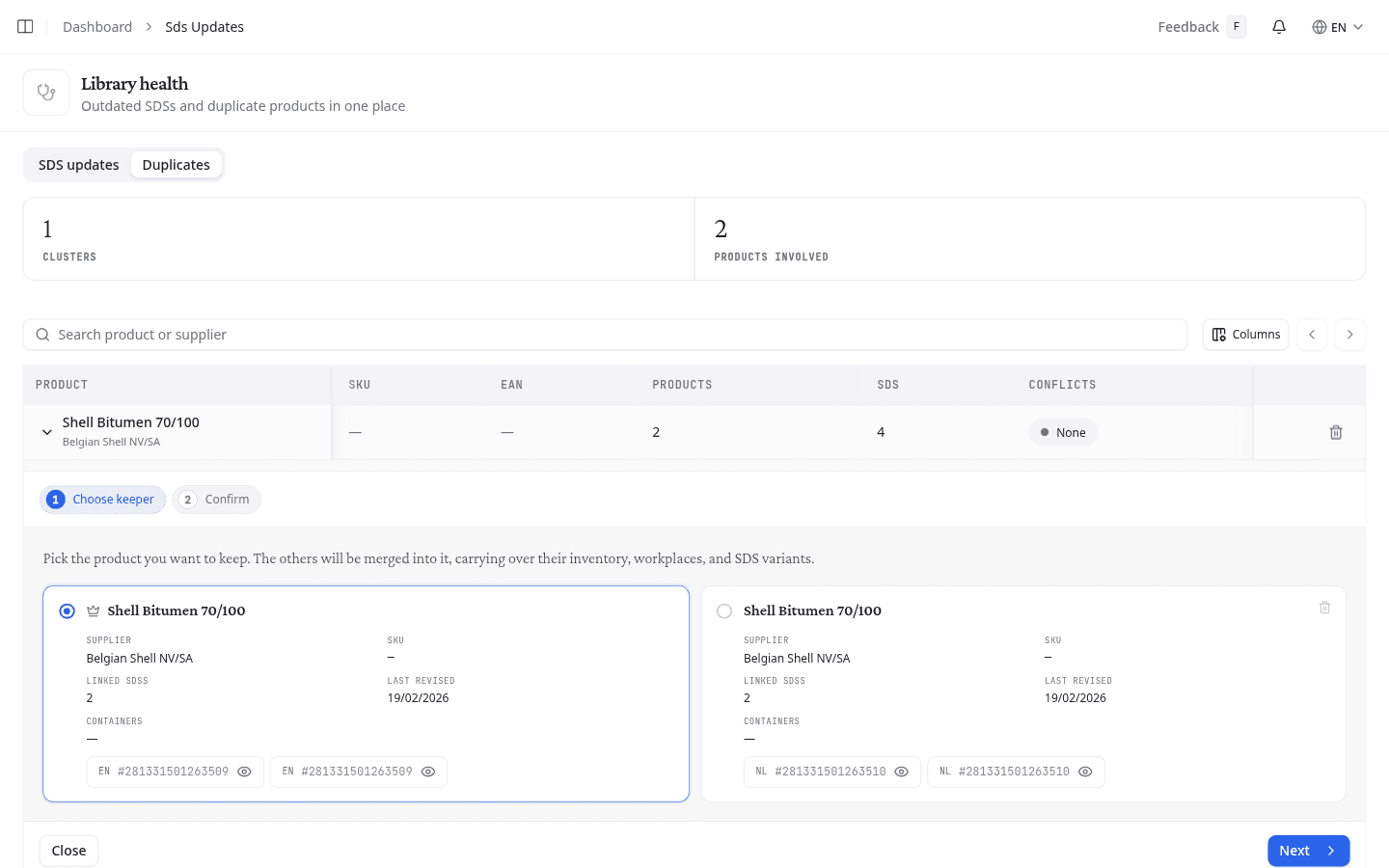
- Select Resolve on a group.
- On Choose keeper, select the product to keep. Each candidate lists its supplier, SKU, linked SDSs, last revision date, and containers. Select one of those SDS documents to read it before you decide. The others merge into the keeper, along with their inventory, workplaces, and SDS variants. Select the trash icon on a candidate to exclude it from the merge.
- On Confirm, review the result. If a field differs between products (product name, SKU, or EAN), choose whether the keeper's or the duplicate's value wins.
- Select Run merge.
| Workplace status | Meaning |
|---|---|
| Stays | Only the keeper is stored there |
| Moves to keeper | Only the duplicate is stored there; its stock moves to the keeper |
| Both have stock | Choose whether the keeper's or the duplicate's stock survives |
Labels always merge: NextSDS keeps every label from every product in the cluster.
Select Remove from this cluster to leave a product out of the merge, or Restore to bring it back before running the merge.
Select the trash icon on a group to clear it from view without merging. As on the other tab, the group returns the next time you open the page.
Take a product off both lists for good
Archive the product in your library. An archived product leaves the SDS updates list and the Duplicates list, and drops out of Outdated SDS, Scanned, Clusters and Products involved with it. The number on the SDS updates sidebar item drops too.
Archiving a single safety data sheet does not do this. A product you still hold needs the newer revision either way, so its row stays.
Archiving one of two matching products dissolves the group. A duplicate needs a partner, so the remaining product stops appearing on Duplicates even though nothing merged.
Narrow a long list
Both tabs show 20 rows at a time. Page through the rest, or raise Rows per page to see more at once.
Search runs against your whole library rather than the rows on screen. On SDS updates it matches the product name and either supplier. On Duplicates it also matches SKU, your internal product code, and EAN, the barcode number.
Columns hides a column you do not need, and lets you drag the rest into the order you read them in. Each column header repeats those options in its own menu: Move left, Move right, and Hide. Drag a column's edge to make it wider, and NextSDS remembers that width next time.
What to do next
Review the merged product in your library, or open its product record to confirm workplaces and quantities are correct.