Review your team's risk assessments
See every RECESS and EMKG assessment in one list, and find the workplaces that need attention first.
Each row is one product at one workplace. A product stored in three workplaces appears three times, because its risk depends on how each team uses it.
Open Risk Assessments in the sidebar.
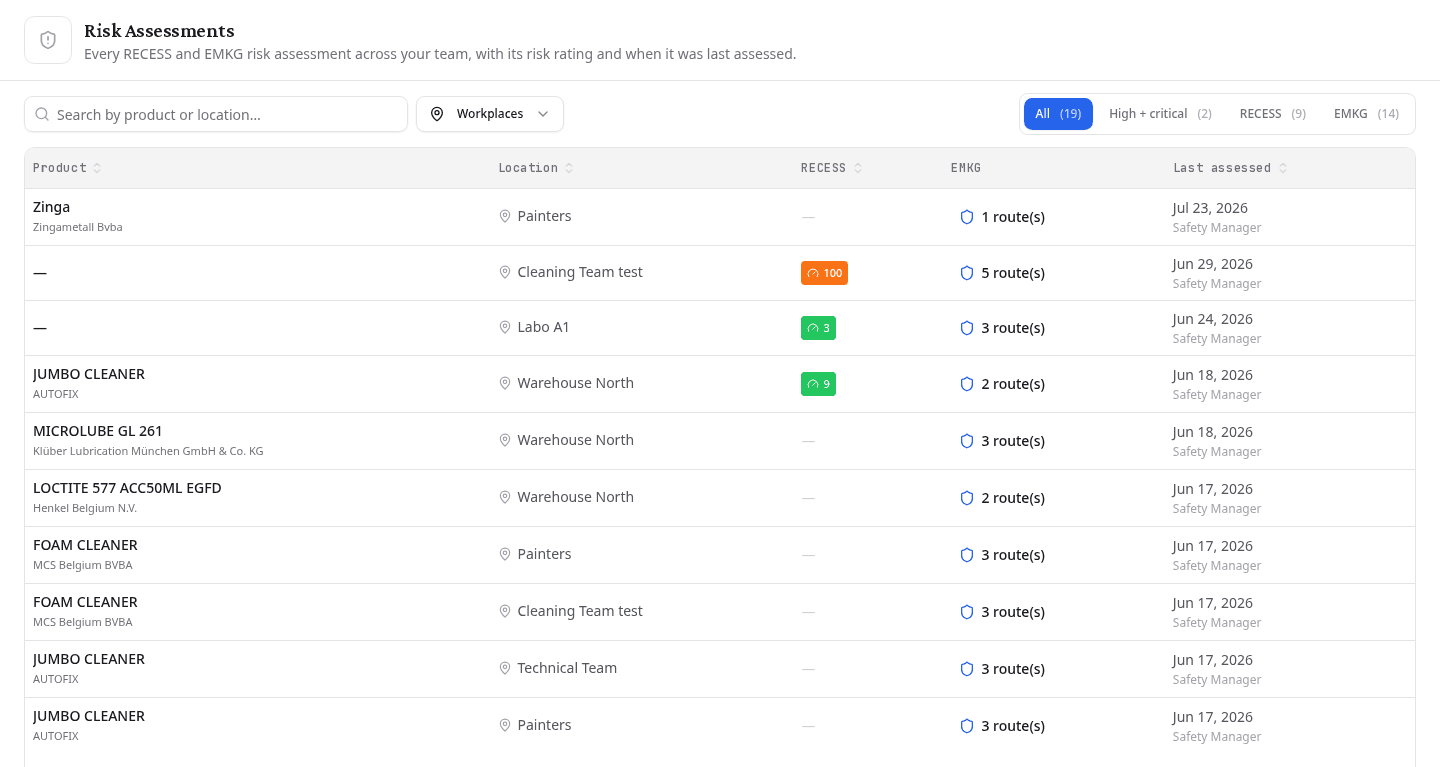
The Product column carries the product's GHS pictograms beside its name, so you can read the hazard class off the list without opening a row.
Find the assessments that need attention
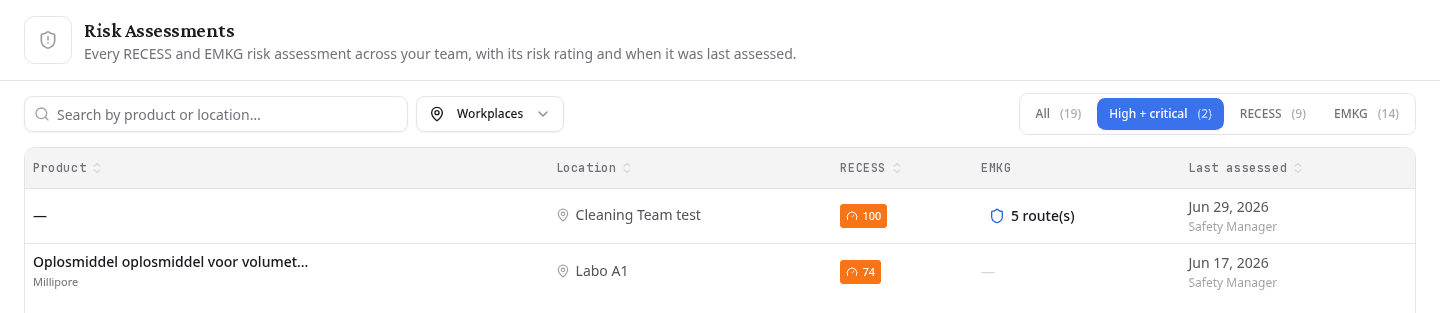
Select High + critical. The list then shows only the rows rated high, critical or stop. A row qualifies on either method, so a high RECESS score is enough on its own.
Every button shows a live count, so you see the size of the problem before you filter.
| Button | What it shows |
|---|---|
| All | Every assessment across your team |
| High + critical | Rows rated high, critical or stop on either method |
| RECESS | Rows that have a RECESS assessment |
| EMKG | Rows that have an EMKG assessment |
Read the risk ratings
The RECESS column shows the risk score, coloured by band:
| Score | Rating | Colour |
|---|---|---|
| 20 or less | Low | Green |
| 21 to 70 | Medium | Yellow |
| 71 to 200 | High | Orange |
| 201 to 400 | Critical | Red |
| Over 400 | Stop | Purple |
The EMKG column shows how many exposure routes the assessment covers. Its rating comes from the worst control level across those routes:
| Worst control level | Rating |
|---|---|
| 1 | Low |
| 2 | Medium |
| 3 | High |
| 4 or higher | Critical |
A dash means that method was never used for that product at that workplace.
Narrow the list
- Type a product or workplace name into the search box. Results update as you type.
- Select Workplaces to pick one or more workplaces from your location tree.
Sort the list
The list opens with the most recently assessed row first. Select Product, Location, RECESS or Last assessed to sort on that column. Select the same column again to reverse the order. The EMKG column does not sort.
Move through the list
The list shows one page at a time, with a running count of how many assessments matched your filters. Step through the pages, jump straight to the first or last one, or change how many rows each page holds.
Open an assessment
Select any row to open that product's risk assessments. Select the workplace name instead to open that workplace's inventory.
The Last assessed column also names the person who made the assessment, so you know who to ask about it.
What to do next
Assess a product that shows a dash. Run a RECESS assessment at the workplace, or an EMKG assessment for each exposure route.