Safety Card sections
Every section a Safety Instruction Card can hold, what each one prints, and how to translate or rearrange them.
Complete and approve, the last step of the Safety Card wizard, is where a card stops being a template and starts being the sheet a worker reads on the wall. This page covers what you can put on it.
The sections a card can hold
Which sections a card holds depends on the template you picked. These are the ones available:
| Section | What it shows |
|---|---|
| Hazard Pictograms | GHS hazard pictograms |
| Custom Pictograms | Pictograms your team has added itself |
| Hazard Identification | H-phrases with GHS classification and signal word |
| Precautionary Statements | P-phrases for safe handling |
| Personal Protection | Required PPE icons. Footwear protection shows as Safety Shoes or Safety Boots based on the footwear type in SDS section 8. |
| First Aid | Measures for inhalation, skin contact, eye contact, and ingestion |
| Emergency Contacts | Who to call, with phone numbers |
| Exposure & Health | Occupational exposure limits and health effects |
| Composition | The hazardous components and their concentrations |
| Physical & Chemical Properties | Physical state, pH, flash point, and the rest of SDS section 9 |
| Handling & Storage | Safe handling precautions and storage conditions |
| Fire Fighting Measures | Extinguishing media and special hazards |
| Stability & Reactivity | Conditions and materials to avoid |
| Accidental Release Measures | What to do about a spill or leak |
| Transport Information | UN number, hazard class, and ADR orange plate |
| Disposal Considerations | Waste handling requirements |
| Additional Information | Text and images you add yourself |
Section names follow the card's Document language, not the language you use NextSDS in. A Dutch card shows Dutch section headings even if you are working in English.
When the SDS carries no data for a section, that section shows Not available and offers Process. Select it to have NextSDS read that SDS section, then reopen the card.
Choose what each section prints
Open a section's Settings to control its content. The choices differ per section, and several of them change what a worker actually reads on the wall:
| Section | What you can set |
|---|---|
| Hazard Pictograms | Items per row, Show GHS Pictograms, and Show Pictogram Labels to print each pictogram's name |
| Hazard Identification | Hazard Codes and Hazard Statements independently, plus Signal Word and Supplemental Hazards (EUH) |
| Precautionary Statements | Show Precautionary Statements and Show Precautionary Codes |
| Personal Protection | Which PPE icons appear, and Show PPE Labels to print each item's name under its icon |
| First Aid | Which first aid measures to include |
| Transport Information | Show Orange Hazard Plate (UN/Kemler), Proper Shipping Name, and Transport Class |
Codes and statements are separate switches. A card can print H315 without its wording, or the wording without the code, so check the preview before you post it.
Add your own content
Four sections carry content the SDS cannot supply, so you fill them in yourself.
- Emergency Contacts: Add Contact for each number, then classify it as Poison Center, Emergency or Other and fill in the organisation, phone number, hours and any notes.
- Personal Protection: Select Personal Protective Equipment opens the full list grouped by body part. Tick what this job needs, and rename any item so the card matches the equipment your workers actually have.
- Custom Pictograms: Add Custom Pictogram to upload a sign the GHS set does not cover, such as a house rule or a site-specific warning. Give it a label, and switch Enabled off to keep it without printing it.
- Additional Information: Add Section for a block of your own text, and Add Image under Images (optional) for a photo or diagram. Upload Image takes a file from your computer. Leave a section's title empty and the card prints the default heading.
Free-text fields carry two helpers. Summarize with AI shortens SDS wording that is too long for a wall card, and Translate converts a single field without touching the rest. Read what comes back before you keep it.
Set the header and footer
The Header section holds Document Options. Switch the Company Logo, Generated Date, Signal Word, Identified Uses, Restricted Uses, and Identifiers on or off. Use In Headline to lift an identifier into the title.
Product Name and Supplier can be overridden when the SDS values are not what belongs on a workplace card. Add a Custom Header Image, Warning Text, or Additional Text for anything the SDS does not provide.
The Footer section has Footer Display Options for the dates: VIK Last updated, SDS Creation date, SDS Version, and SDS Revision date. It prints a standard "quick reference only" disclaimer, which you can replace by switching on Custom Footer Text under Custom Text.
Translate card content
When the card's Document language differs from the language of the SDS, NextSDS warns you and offers Translate Content. Select it to translate the card text. The pop-up window shows the SDS source language and lets you select a target language.
If the two languages already match, there is nothing to translate and the button does not appear.
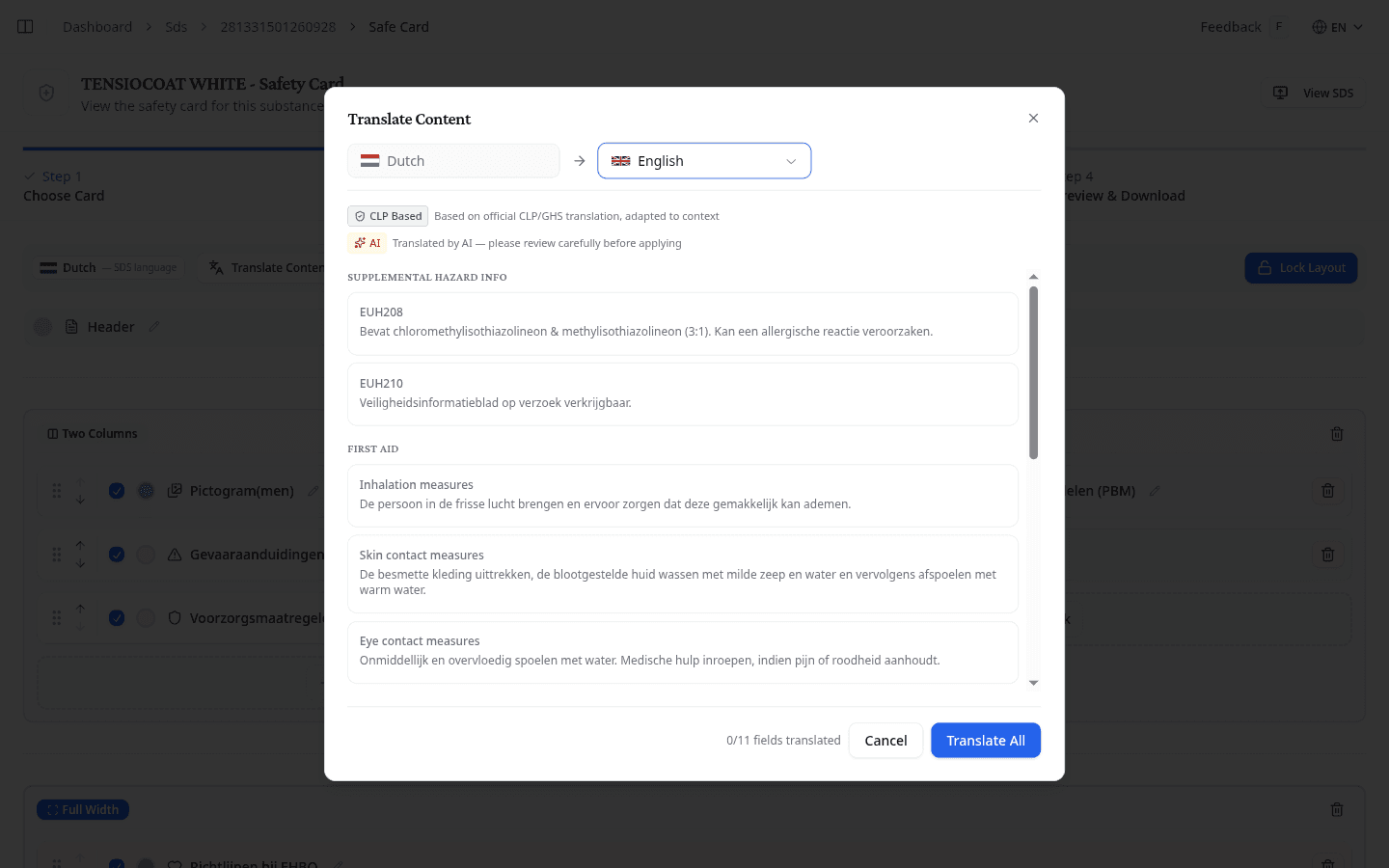
Each translated field is labelled with the source of the translation:
- CLP Based: drawn from official CLP/GHS regulatory texts, adapted to context
- AI: generated by AI. Review these carefully before applying, especially for hazard and precautionary statements.
Select Translate All to generate translations for all fields at once. Edit any field if needed, or Reset to drop your edits and go back to what NextSDS produced. Select Apply Translations to copy the translations into the card.
Edit the layout
Select Edit Layout to unlock the card structure. In this mode you can:
- Drag a section between rows and columns by its grip handle, or move it with the up and down arrows
- Remove a section from the layout with its delete button
- Add block puts another section into a row that has space
- The round plus button between two rows adds a row there, either Full Width Row or Two Column Row
- The trash icon on a row deletes it. NextSDS asks first when the row still holds sections.
- The colour swatch on a row header sets that row's header colour on its own
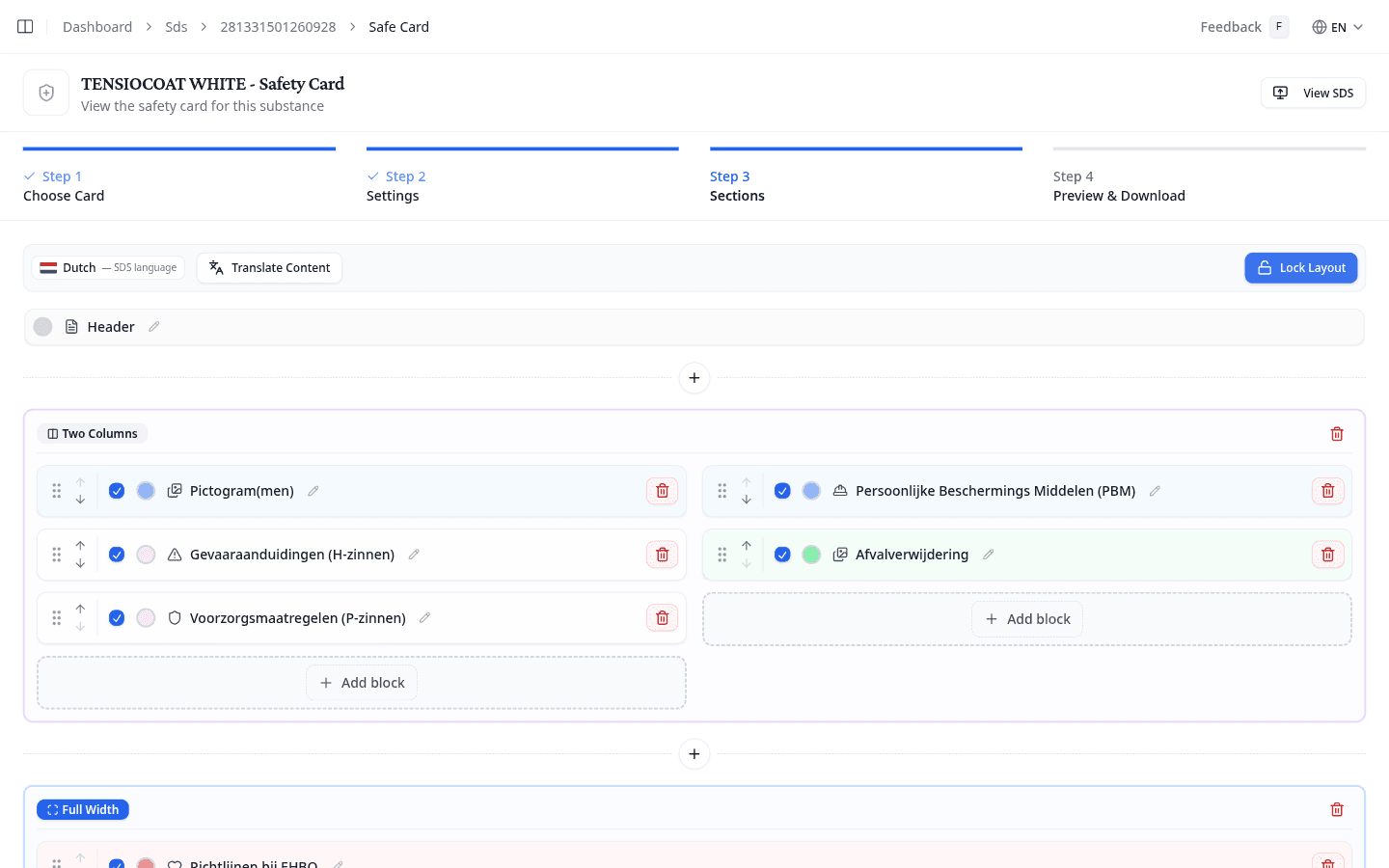
Select Lock Layout when finished to return to the section settings view.
What to do next
Back in the wizard, preview and download the card to check the result before you post it.