Generate a Safety Instruction Card
Create a printable workplace safety card showing key hazard, PPE, and first aid information for a product.
A Safety Instruction Card (SIC) is a single-page summary posted at workstations where a product is used. It shows hazards, required PPE, first aid measures, and handling instructions. You pick a template, check what the card says, and save or download the result as a PDF.
How to get here
Open a product from your library, then select Generate Safety Card from its options menu. The product's Safety cards tab offers the same thing as New safety card.
Choose a template
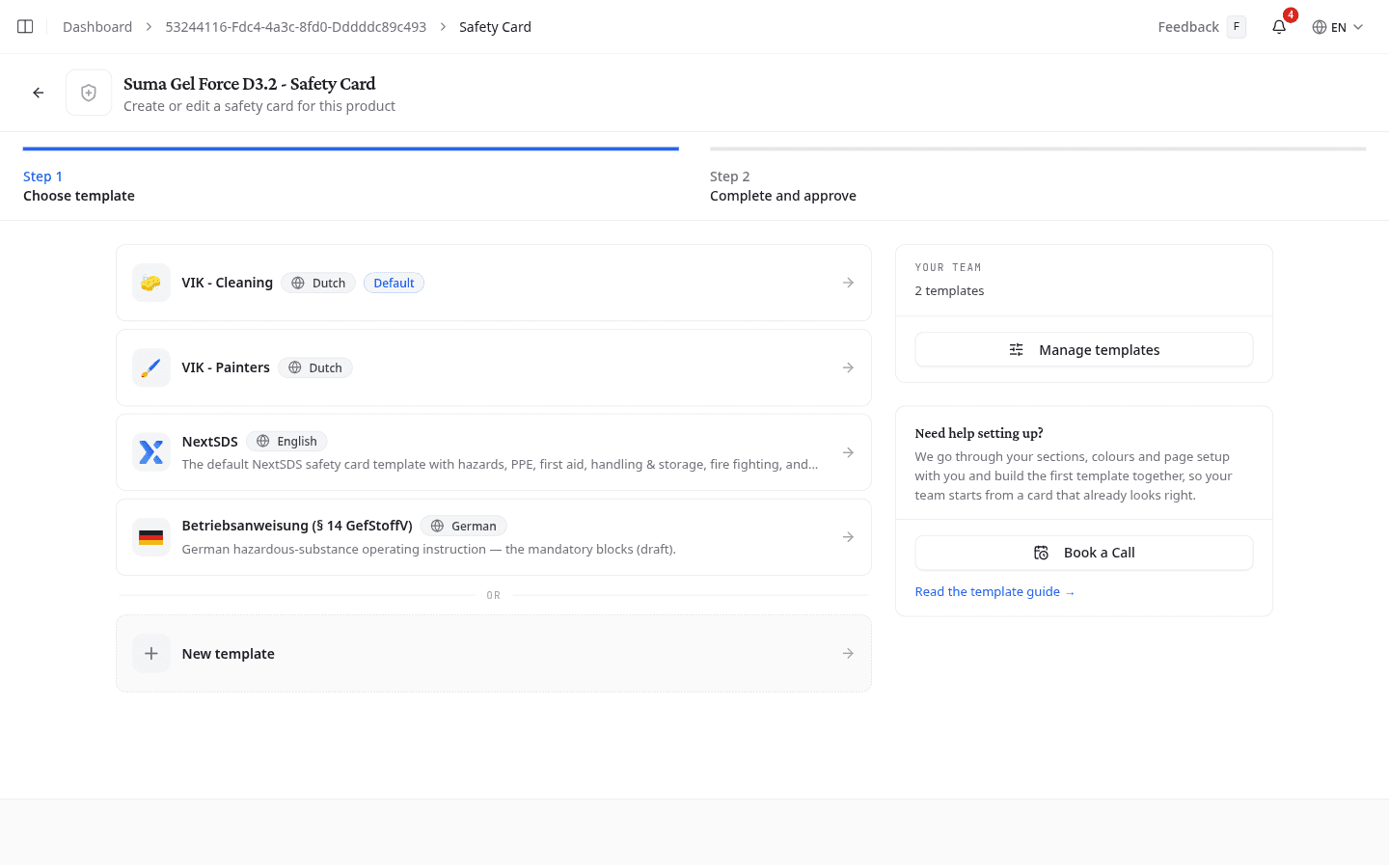
One list holds everything you can build a card from: your team's own templates first, then the ones NextSDS ships, each with its language and a Default badge where one applies.
Select a row to build the card on that template. It decides the sections, the page size and orientation, the colours, and the language the card prints in. To change any of that, change the template, in SIC Templates.
A template your team has disabled is not offered here. If the list is short, that is where to look.
New template opens the builder without losing the card you started. Save it there and you come straight back to this product, with the new template applied. See Build a SIC template.
Select the SDS
This step appears only when the product has more than one active SDS, in different languages or for different markets. Pick the one the card should be based on. Each file lists its language, target markets, and when it was last updated. Archived files still appear, but you cannot base a card on one.
When the product has a single sheet, NextSDS uses it and the step does not appear.
Complete and approve
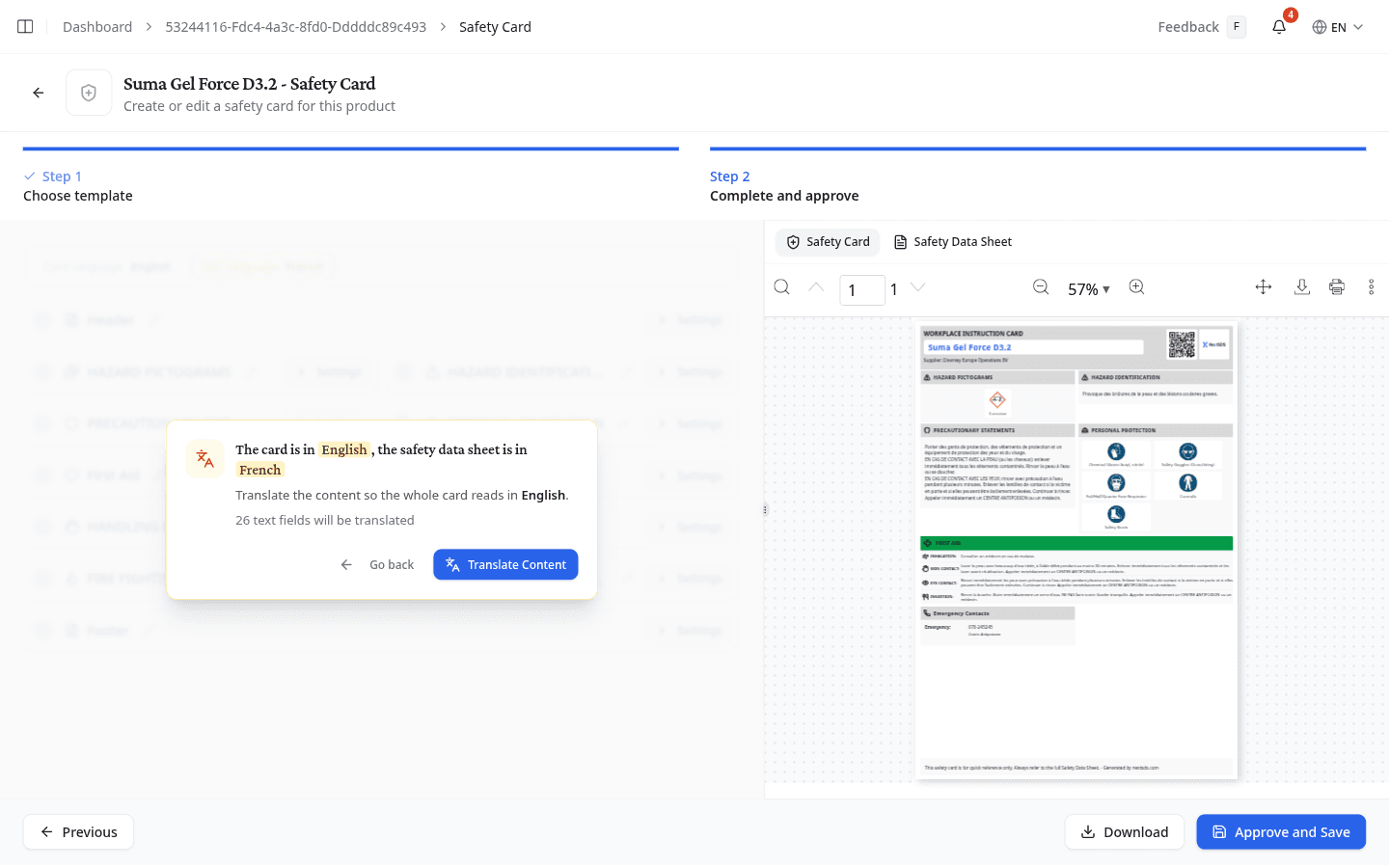
Every edit to a section shows in the card straight away. Switch the preview between Safety Card and Safety Data Sheet to check a section against the sheet it came from.
For what each section prints, how to edit its text, and how to rearrange the blocks for this one card, see Safety Card sections.
Translate the content first
When the card's language differs from the language of the SDS, NextSDS says so and holds the sections until you deal with it. Translate Content translates the card text into the card's language. Go back returns you to the template list, which is the answer when the card was started on the wrong template altogether.
Save or download
Download produces the PDF and stores nothing.
Approve and Save keeps the card in the product's attachments. Enter a Card Label. When the product already has saved cards, Replace existing card lets you overwrite one of them; it starts on Create new card, so leaving it alone adds another.
Reopen a saved card
A card built in the wizard can be opened again from the product's Safety cards tab, with the template, sections and text it was saved with. Change what you need and save it over the original. Cards uploaded as a finished PDF have no settings to reopen.
What to do next
With Safety Instruction Cards in place, open your workplace locations to run risk assessments and score each product's risk at the point of use.