Generate and download a report
Run a compliance report, follow its progress, and export the result.
A report runs in the background, so you can start one and come back to it. The steps are the same in every framework; only the report types on offer differ.
Generate a report
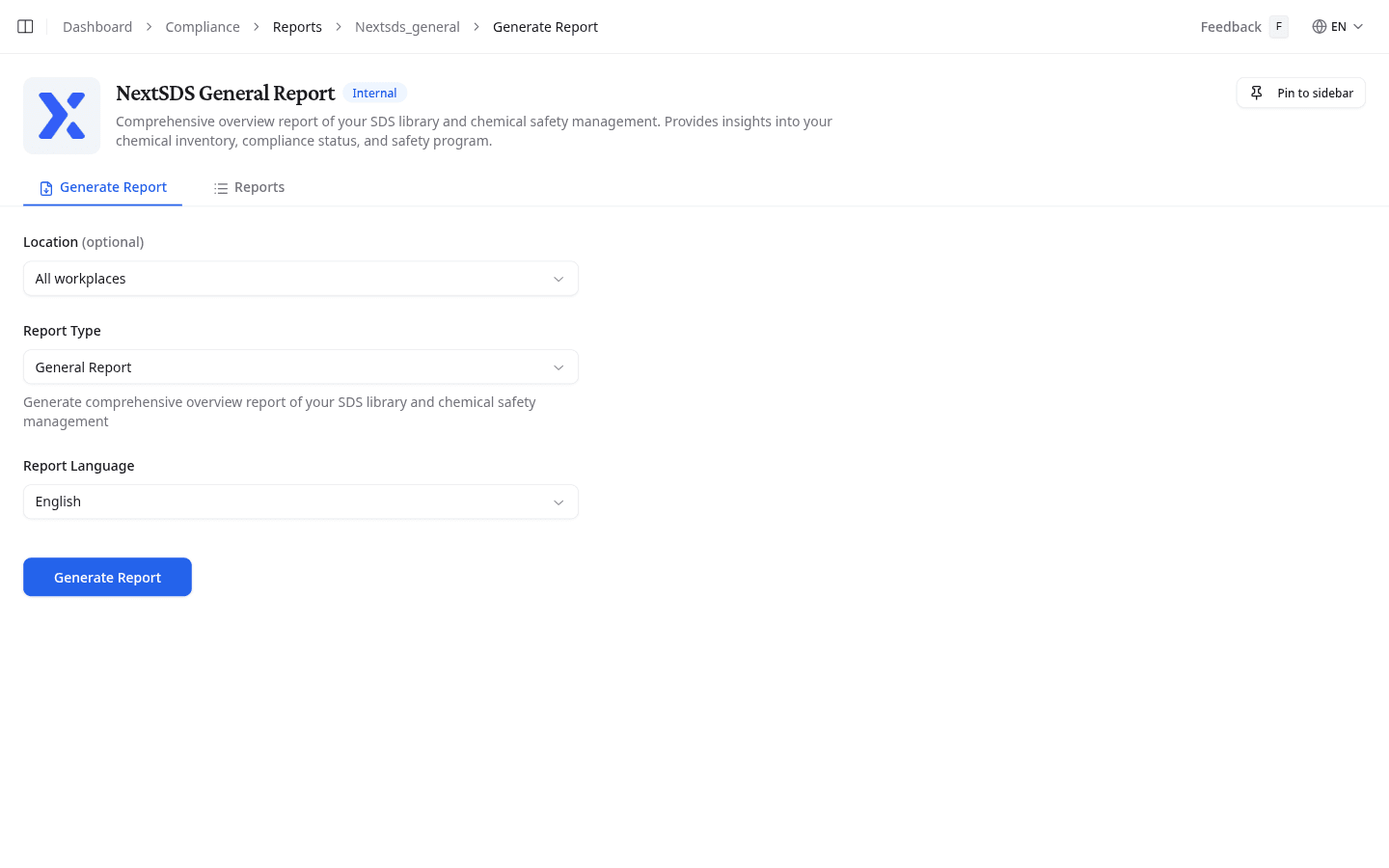
- Open the Generate Report tab.
- Select a Report Type. Some frameworks offer several, for example inventory, risk assessment, or both combined.
- Select a Report Language for the output.
- If the framework offers a Location field, select a workplace. Leave it on All workplaces to cover your whole inventory.
- Select Generate Report.
The report runs in the background. Leave the page and come back later. Results appear without a page refresh.
Inventory reports need at least one workplace. If you have not created any yet, go to Workplaces first.
Horizon Scan adds a regulatory list selector to this tab. See Horizon Scan.
Review past reports
The Reports tab keeps your report history.
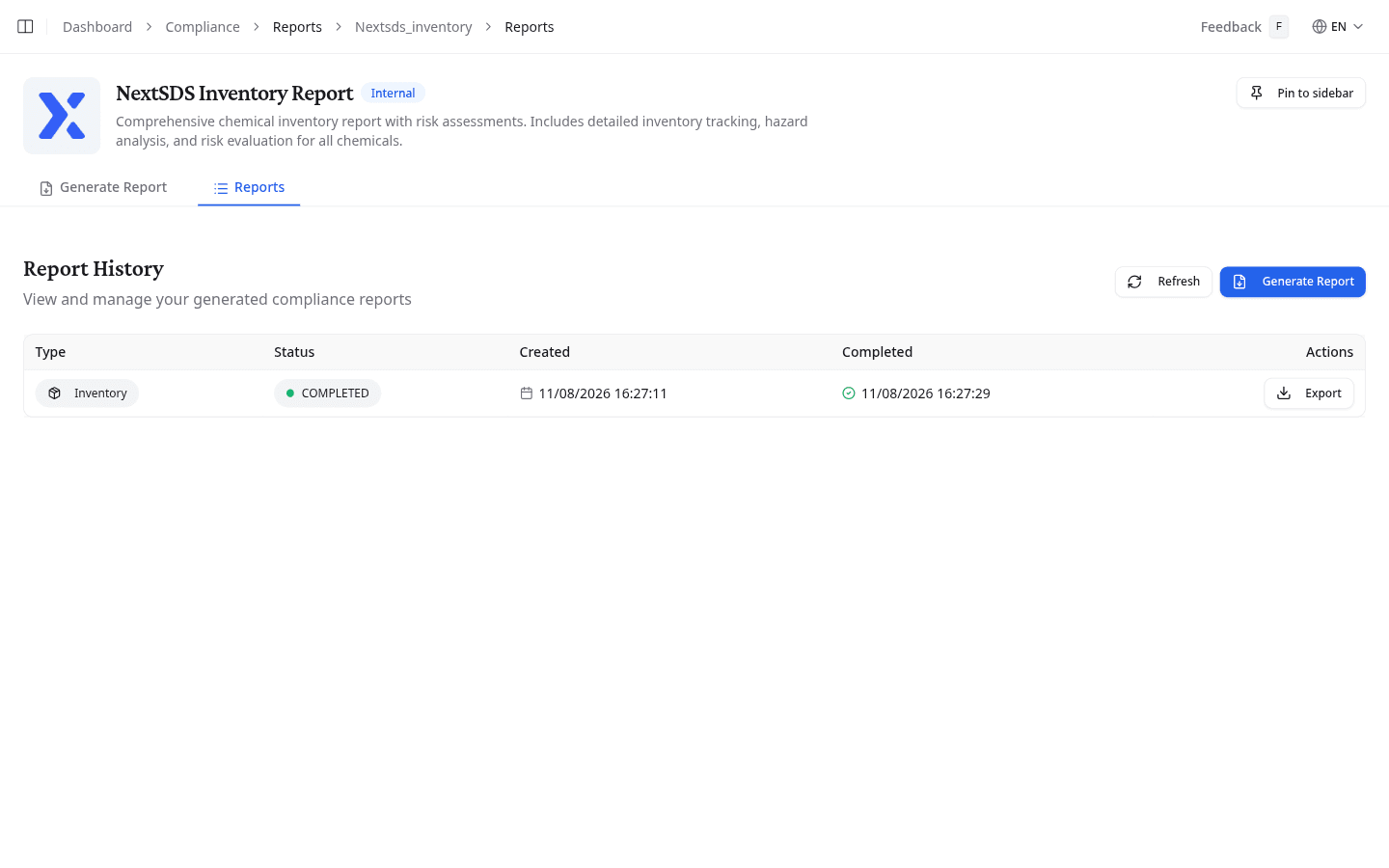
| Column | What it shows |
|---|---|
| Type | The report variant that was generated |
| Status | Completed (green), queued (yellow), running (blue), or failed (red) |
| Created | When you requested the report |
| Completed | When the report finished |
The actions on a completed report depend on the framework:
- View Report: open the report in NextSDS
- Export: for inventory reports, choose Inventory only, Risk Assessment only, or both combined as PDF. The same menu downloads the inventory as a spreadsheet.
- Export Excel: for classification reports, download a structured spreadsheet
Some reports finish their spreadsheet before the readable version is ready. In that case the row offers Export Excel first. Download it straight away and come back later for the full report.
Open a completed report
Select View Report. The report opens in full, with your team name, the analysis date, and the framework it was run against.
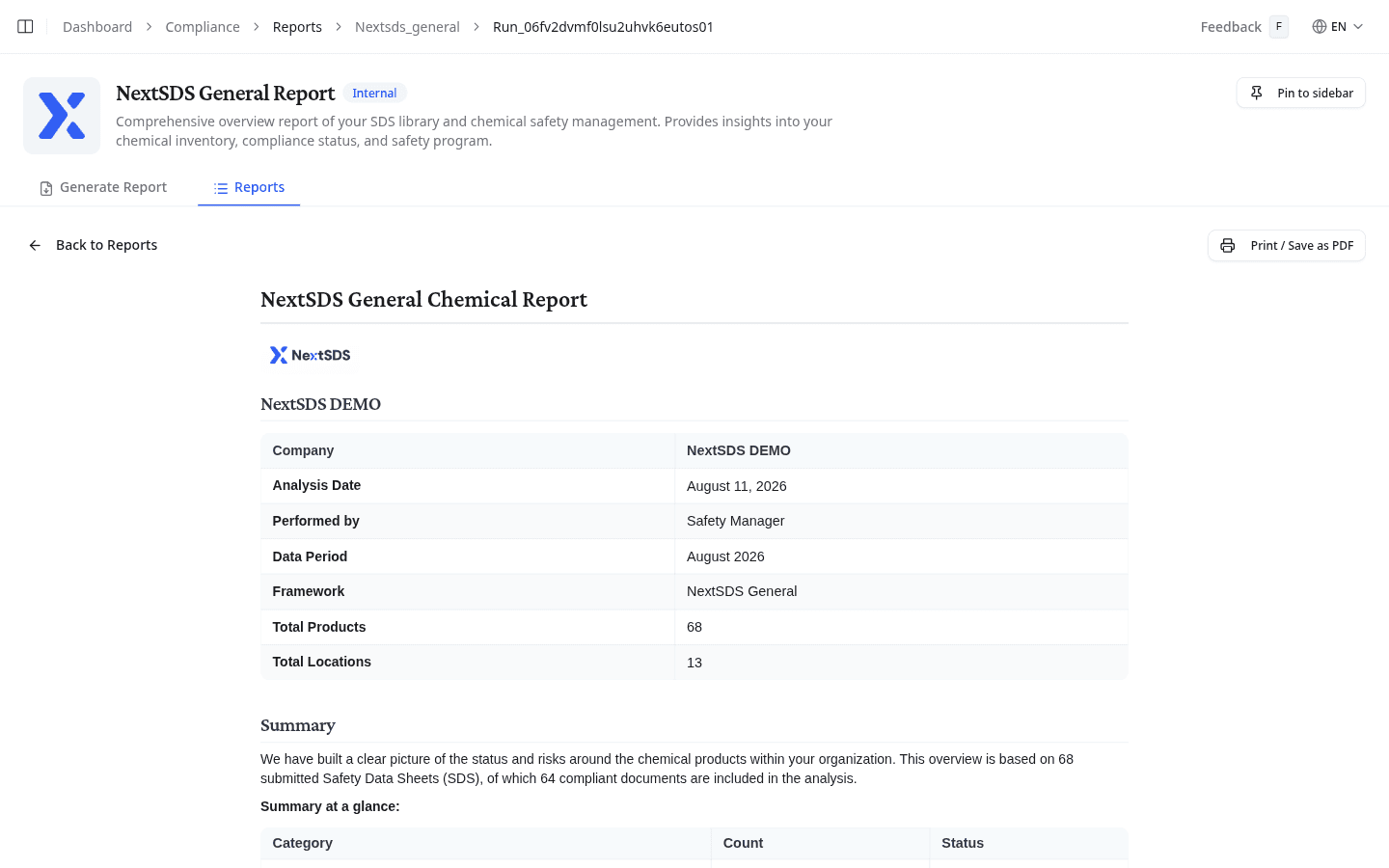
Select Print / Save as PDF for a printable copy. Select Back to Reports to return to the history.
What to do next
Check the framework settings and controls behind the numbers in your report.