Review an SDS document
View the full extracted data from a Safety Data Sheet, organised by GHS section, and check its data quality score.
Each SDS record opens with its data quality score, then gives access to all 16 GHS sections.
Open an SDS record
Select SDS Summary on any library row to open a quick preview. Select Show all on any section to see the complete record.
You also reach a record from a product's Related tab when comparing SDS versions.
Check the document's quality score
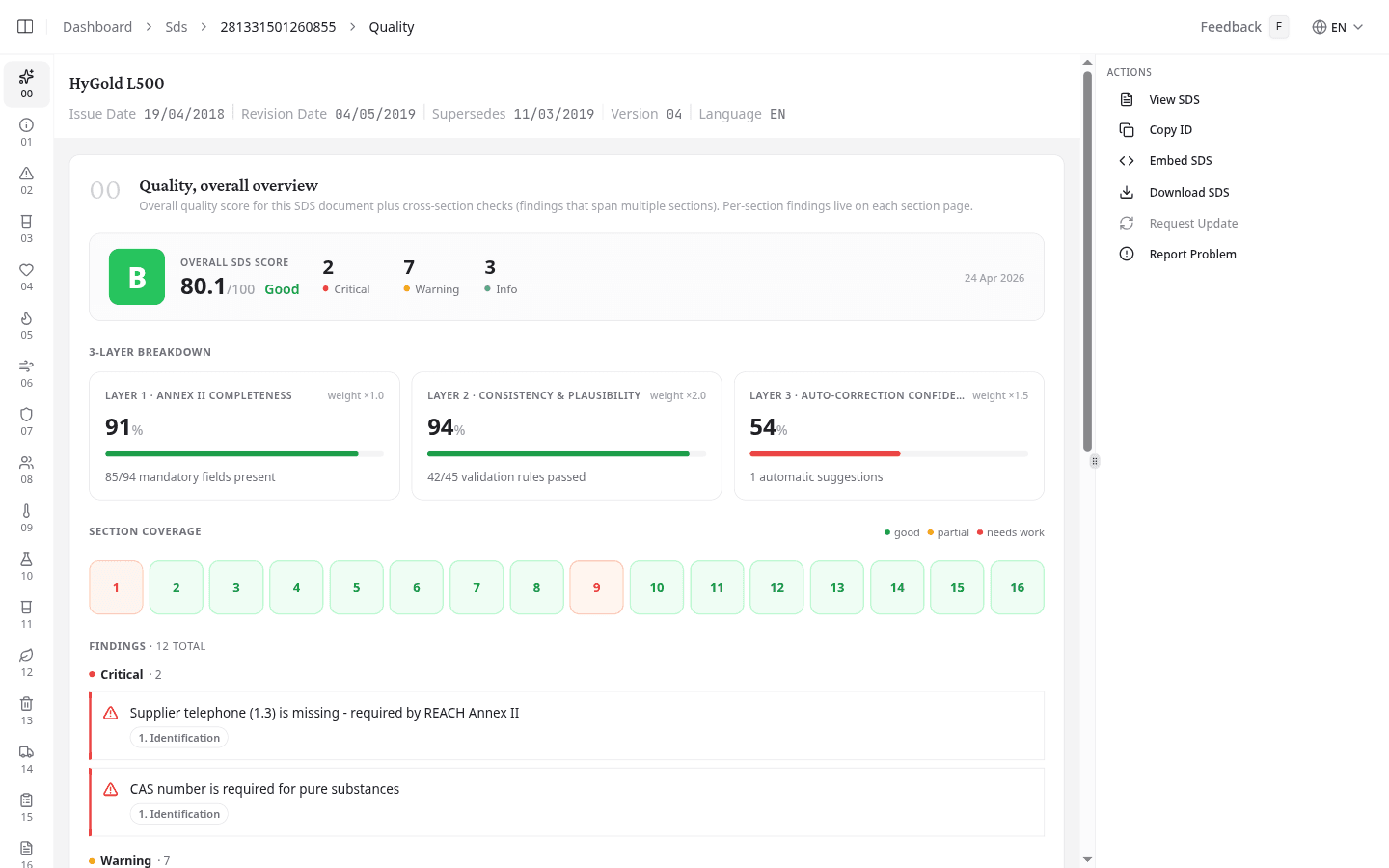
The Quality tab opens first. It shows an overall score and letter grade, a breakdown across three scoring layers, section-by-section coverage, and a list of findings.
| Grade | Score |
|---|---|
| Excellent | 90-100 |
| Good | 80-89 |
| Sufficient | 70-79 |
| Insufficient | 60-69 |
| Poor | Below 60 |
Findings are grouped by severity: Critical, Warning, and Info. Each finding names the section it came from. To read that section in full, select it from the numbered section list.
Review the GHS sections
Sections 1 through 16 follow the standard GHS/SDS structure: Identification, Hazard Identification, Composition, First Aid, Firefighting, Accidental Release, Handling and Storage, Exposure Controls, Physical Properties, Stability and Reactivity, Toxicological Information, Ecological Information, Disposal, Transport, Regulatory, and Other Information.
Request an updated SDS
Select Request Update in the Actions panel to ask the supplier for a fresh revision. Use this when the revision date is outdated or the classification has changed.
Request Update is only available once this SDS is linked to a product in your library.
View, download, or embed the source document
The Actions panel also lets you:
- View SDS: open the original PDF in a preview panel
- Download SDS: save the source PDF file
- Embed SDS: copy an iframe snippet to show this document on an external page
- Copy ID: copy the document's ID for reference
Report a problem with this document
Select Report Problem to send a description of the issue to NextSDS. Use this for extraction errors, missing data, or anything else that looks wrong.
The same report can be sent from a library row.
What to do next
To generate a Safety Instruction Card or CLP label, open the product linked to this SDS. To determine the required control level, run an EMKG risk assessment.