Organise workplaces into folders and labels
Restructure your workplace hierarchy by dragging items into folders, and tag workplaces with labels for filtering and reporting.
Two ways to structure a long workplace list: folders give it a hierarchy, labels cut across it.
Organise workplaces into folders
Switch to the Organize tab to restructure your workplace hierarchy. Drag items vertically to reorder, or drag horizontally to nest a workplace inside a folder.
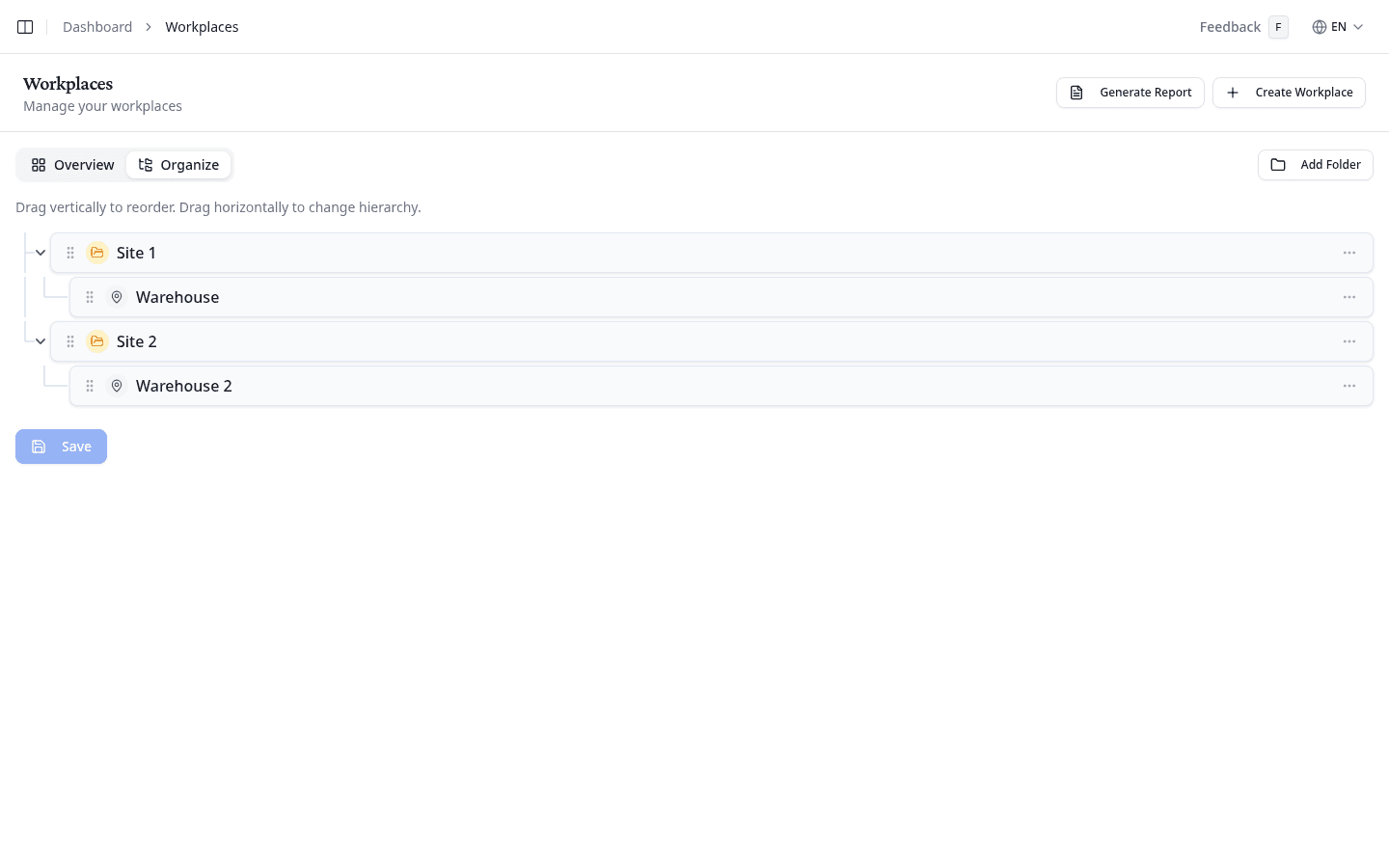
Select Add Folder, name it, and confirm with Create Folder. A description is optional. The folder lands at the top level unless you choose a Parent Folder, which starts at None (top level).
Moves you make by dragging are not saved until you select Save. While you have unsaved moves, Discard changes appears beside it and puts the tree back the way you found it.
Edit or delete folders
Open the options menu (⋯) on any folder row to see the available actions:
- Edit: update the folder name or description
- Add Sub-folder: create a nested folder inside this one
- Delete: remove the folder permanently
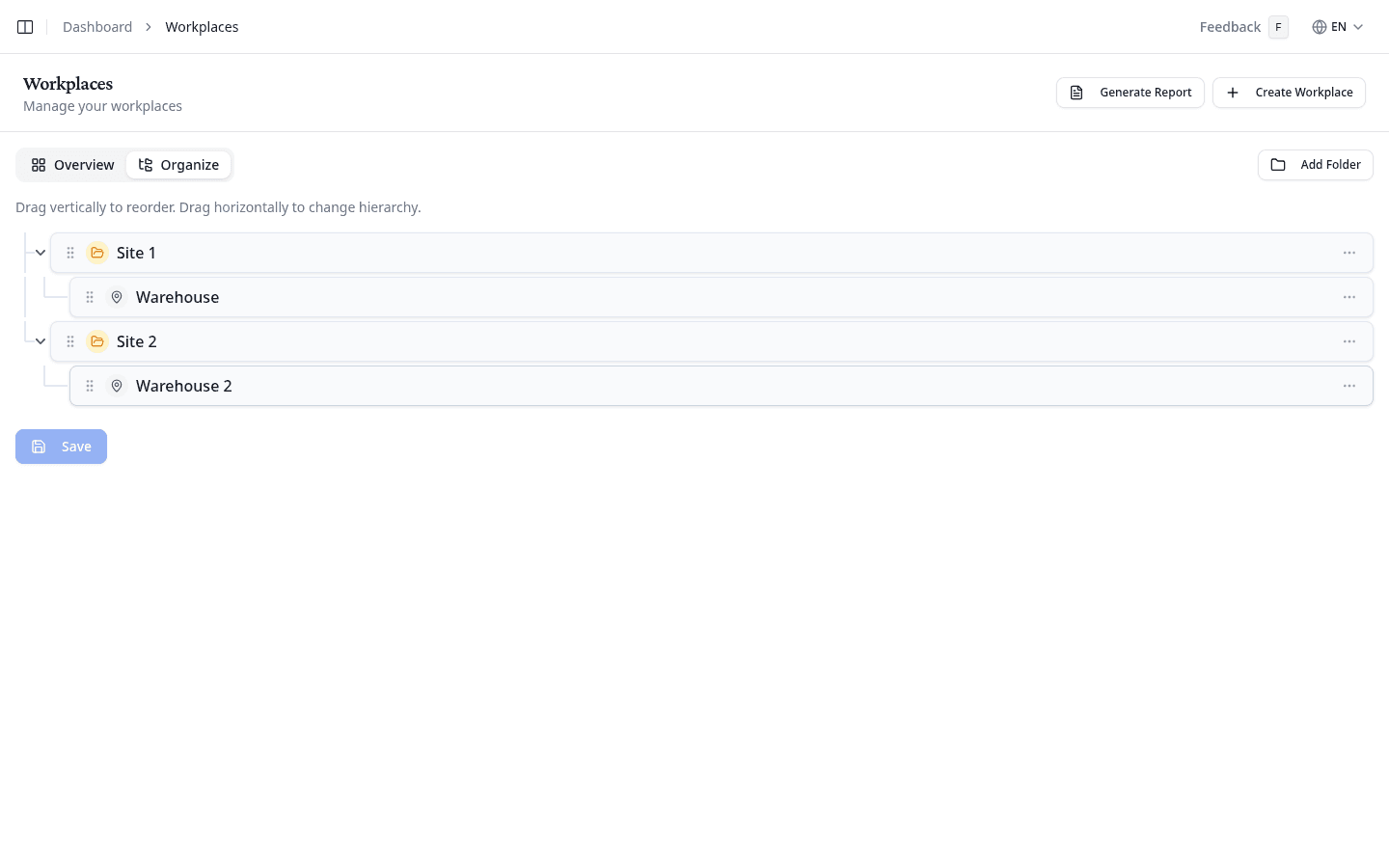
Deleting a folder also deletes all sub-folders inside it and moves its workplaces to the top level.
Filter by label
Filter appears only once you have at least one workplace label. Until then there is nothing to filter on and the button is absent, so create the labels first from the labels page.
Once it is there, select Filter and choose one or more labels. Workplaces carrying a chosen label stay in full colour and the rest fade back, so your folder structure stays in view while you scan. Each chosen label becomes a badge: remove one with its x, or drop them all with Clear.
Assign labels to a workplace
Select Label next to any workplace on the Overview tab. Choose from your available workplace labels to tag the workplace. Labels help you group workplaces for reporting, for example "Production", "Warehouse", or "Office".
What to do next
Open a workplace to view its chemical inventory.