Record your own data on products with custom fields
Set up the extra fields your team records on every product, such as an ERP number or a waste category, and fill them in on the product.
Custom fields hold what NextSDS does not track for you: an ERP article number, the person responsible for a product, a waste category. You group them into a set with a name, and each set becomes a form on every product.
Open Settings > Custom Fields.
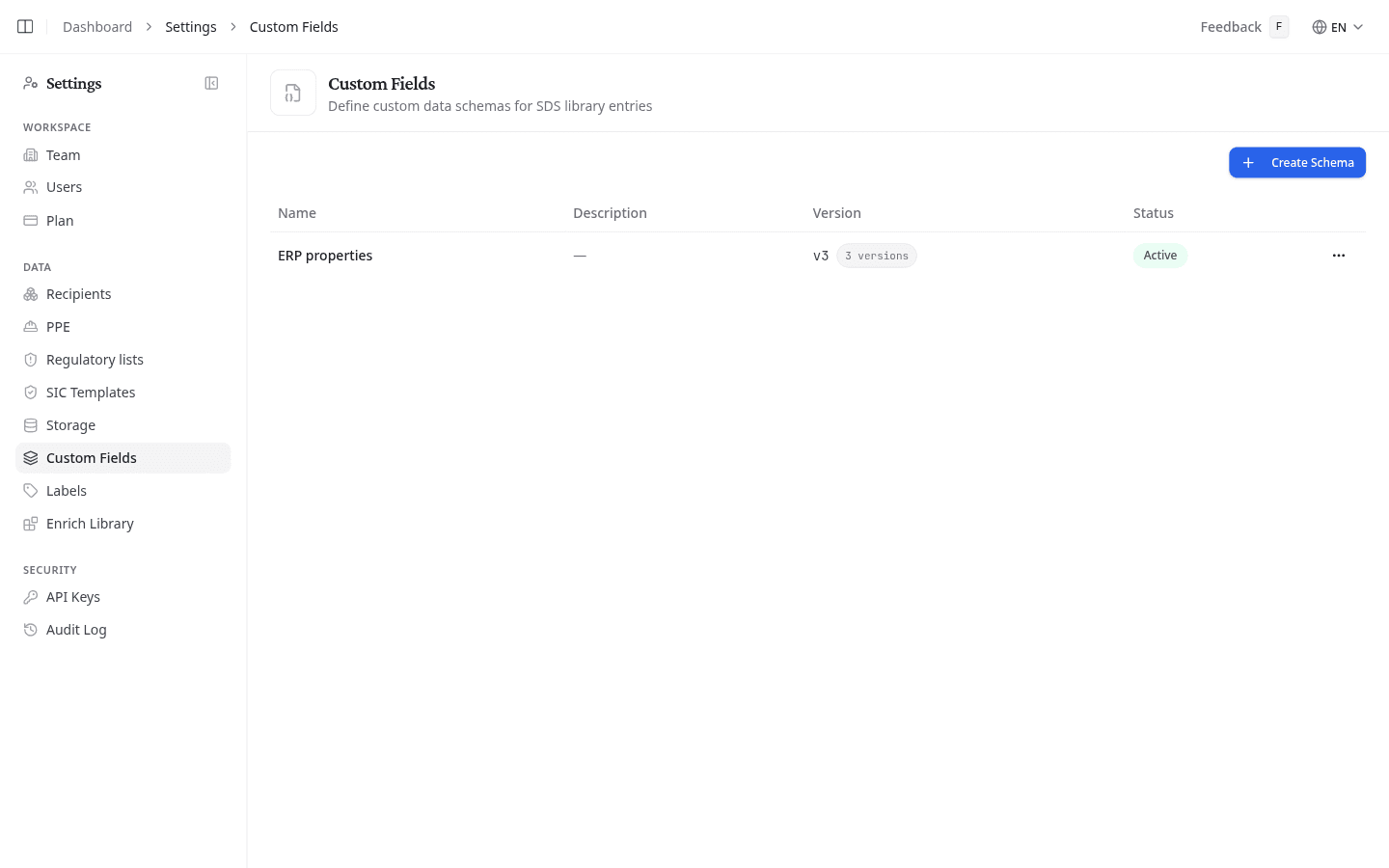
Every member of the team sees the list. Only a team owner or admin can create, change or delete a set. Anyone on the team can fill the fields in on a product.
Create a set
- Select Create Schema.
- Give the set a Name, and a Description if the name needs explaining.
- Add the fields, as described below.
- Select Create Schema to save.
Add the fields
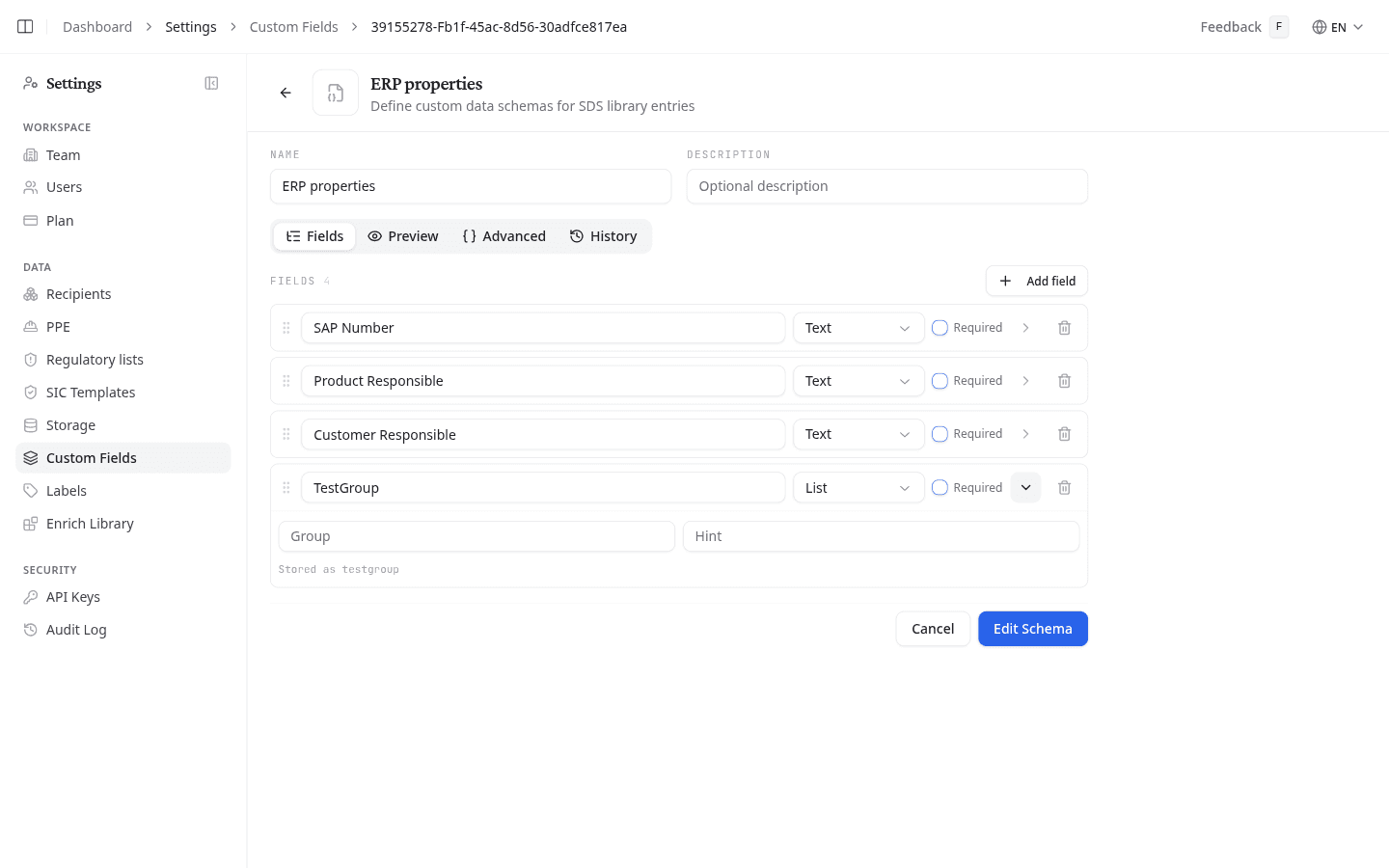
Select Add field and give the field its Label. Then pick a Type:
| Type | What it holds |
|---|---|
| Text | A short line of text |
| Long text | Several lines |
| Number | A number |
| Date | A date |
| Yes/no | A tick box |
| Choice | One value from a list you define under Choices |
| List | Several free values |
Tick Required when the form cannot be saved without it. Open a field's details to give it a Group, which puts related fields together under one heading on the form, or a Hint shown beside it. Drag fields by their handle to change their order.
On a new set with no fields yet, Add fields with AI lets you describe the fields you need in plain words. Select Generate, check the fields it proposes, and adjust them before you save.
The details also show what the field is Stored as. That name is fixed once the set is saved: renaming the label later keeps the values already entered. It is also the name the API uses.
Preview shows the form as it will appear on a product.
Change a set
Select the set's name, or Edit Schema in its options menu. Make your changes and select Edit Schema to save them.
Every save creates a new version, shown in the list as v3 with the number of versions beside it. History lists them all. Restore loads an earlier version into the form; it only replaces the current one when you save.
Advanced shows the set as JSON. Edit as JSON lets you edit it by hand, for structures the field list cannot express. Back to the field list returns to the normal editor, as long as the JSON uses nothing the field list cannot show.
Switch a set off or delete it
In the set's options menu, Inactive hides the set from products, from the library filters and from the SIC template builder. The values already entered are kept, and come back when you select Active again.
Delete Schema asks you to confirm.
Deleting a set removes every value entered in it, on every product. You cannot undo this. Switch it to Inactive instead if you might need it again.
Fill in the fields on a product
Open the product and its Product data tab. Each active set has its own tab. Fill it in and select Save. The product's Overview shows the values recorded so far.
Once values are in, you can filter your library on them, fill them from a column in a CSV import, and print them in the header of a safety instruction card.
What to do next
Open a product's Product data tab in your library and fill in your new fields.