Manage your SDS library
Search, filter, and manage all Safety Data Sheets your team has uploaded.
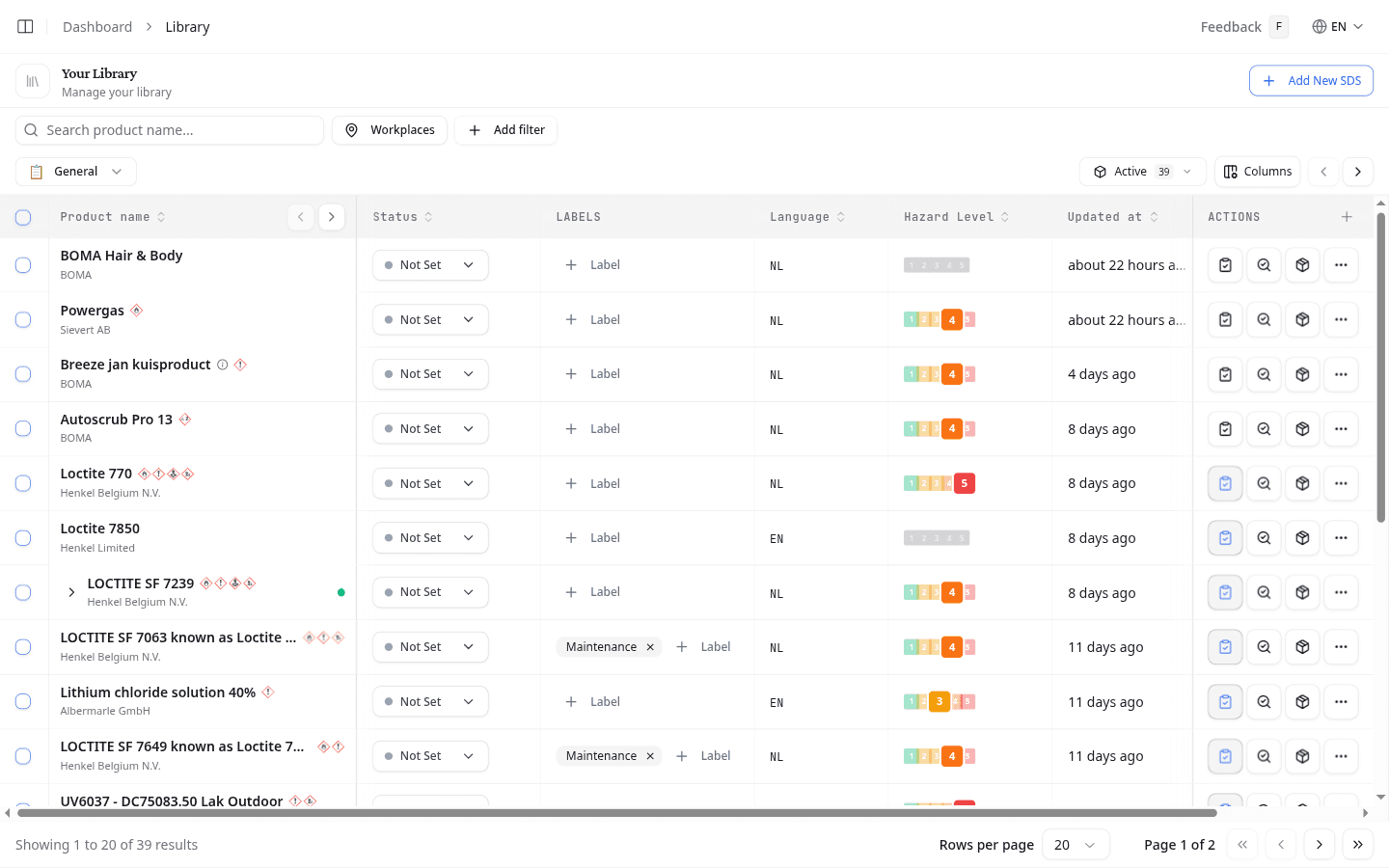
Every SDS your team uploads lands in your library. NextSDS reads each document and fills the columns for you. From this one list you find a product, check its hazards, and act on it.
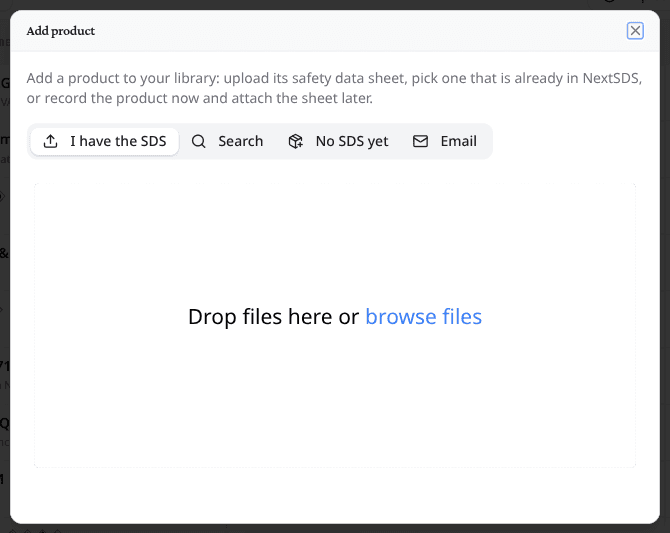
Add a product
Select Add product. Four tabs cover the ways a product reaches you.
| Tab | Use it when |
|---|---|
| I have the SDS | You have the PDF. Drop the files in, or browse for them. |
| Search | The sheet is in the NextSDS database. Search Product opens the search, where you pick the product and add it to your library. |
| No SDS yet | The product is already on site but its sheet has not arrived. Record its name, your internal product code and its barcode number, then select Create product. Upload the sheet later and NextSDS attaches it to this product. |
| Your suppliers send sheets by email. The tab shows your team's Magic Mailbox address, and anything mailed there becomes a product. |
NextSDS extracts the data in the background. Continue working while it runs.
The same address is listed in Team Settings, where you can copy it once and give it to a supplier.
Find a product
Type a product or supplier name into the search box. Results update as you type.
To narrow the list further, add a filter:
- Select Add filter.
- Pick a field. Fields are grouped as General, Composition, Hazard, Physical, EMKG, and Classification. If your team has custom fields, they appear in groups of their own.
- Pick the values you want, then select Apply.
Each filter becomes a chip. Select the × on a chip to remove it.
What the third step offers depends on the field. Fields with a fixed set of values list every value with a count, and you can search within that list. Number fields take a range instead.
Text fields match on part of the value, and most offer Without value to find products where the field is empty. Select Back at any point to choose a different field.
Some fields also let you choose how several values combine. These are workplaces, labels, suppliers, GHS pictograms, H-codes, P-codes, CAS numbers, regulatory lists, and your own custom fields. On those, a chip with two or more values gets a small AND / OR button. OR matches products with any of the values. AND matches only products with all of them.
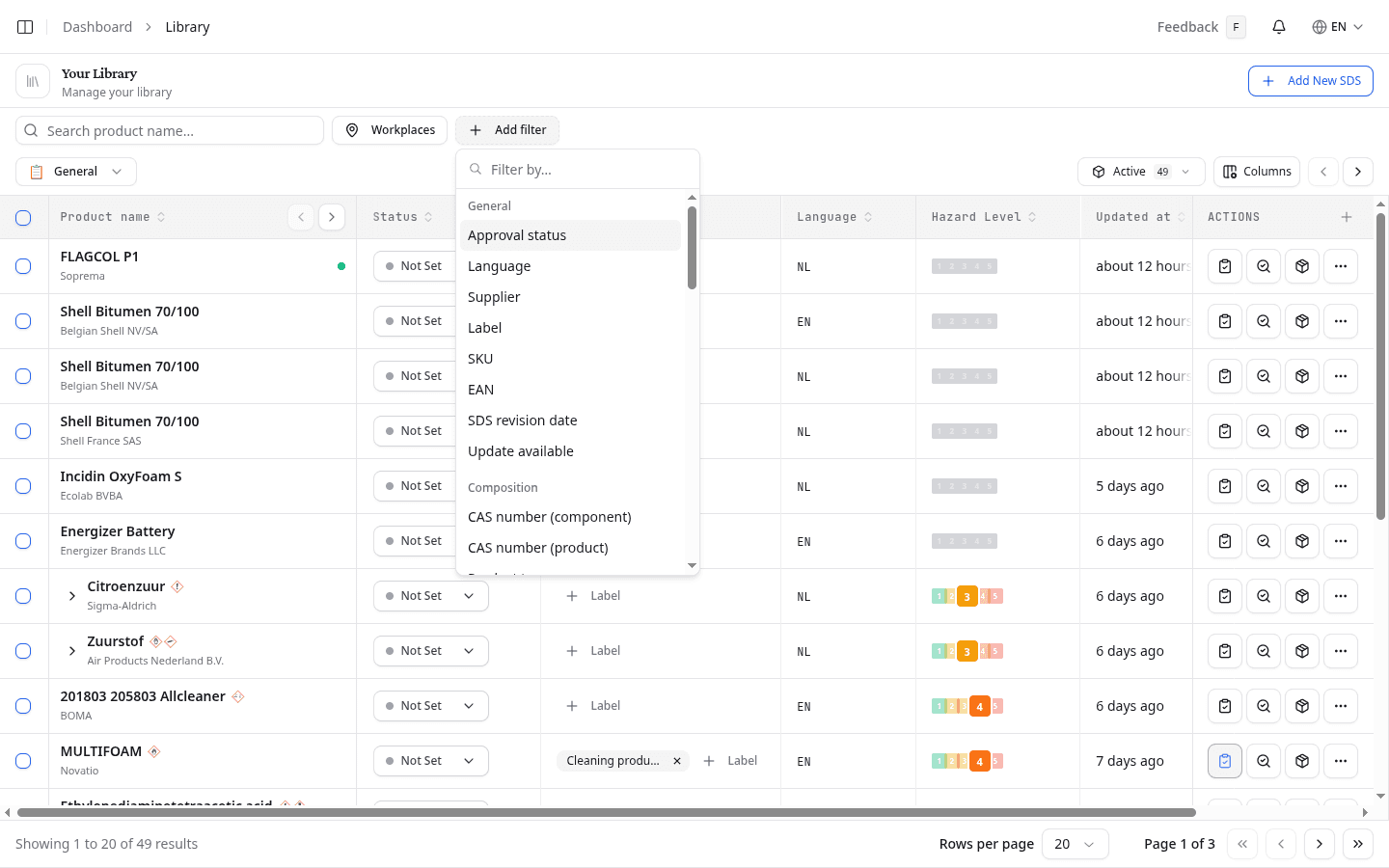
Workplaces have their own button, Workplaces, which opens your location tree. Select the workplaces you want. Select No workplace to find products that are not assigned anywhere yet.
Filter by SDS age
Add the SDS revision date filter. It offers four presets: less than 1 year, 1 to 3 years, 3 to 5 years, and over 5 years. Use the last two to find documents that are due for a refresh. Optionally, set your own date range.
Find a product by CAS number
The Composition group holds two CAS filters, and they read different parts of the sheet. CAS number (component) matches the components listed in section 3, so it finds every product that contains that substance. CAS number (product) matches the CAS number in section 1, which is what a sheet gives for the product itself. Use the first to trace a substance through mixtures, and the second when you know the sheet names a CAS for the product.
Find products with a newer SDS
Add the Update available filter, then pick Update available for the products whose SDS has a newer revision waiting, or No newer version known for the rest. A green dot beside a product name carries the same signal while you scan the list.
These are the products Library health works through. Filter them here when you want that work narrowed to one supplier or one workplace first.
Move through long lists
The list shows one page at a time and tells you which page you are on. Step through the pages, jump straight to the first or last one, or change how many rows each page holds.
Show failed, rejected, or archived documents
The Active button with a count controls which documents the list shows. Select it to switch to:
- Failed: documents NextSDS failed to read
- Rejected: documents rejected during processing
- Not an SDS: files that turned out to be something else
- Archived: products you have hidden from the active list
Each option shows the number of documents it contains. An option with no number is empty.
What to do next
Save the list you just built as a segment, so you can come back to it in one click.