Let the SDS Agent find a safety data sheet
Have NextSDS look for a product's safety data sheet at the supplier, then pick, import or request the right one.
When a sheet is neither in your library nor in the NextSDS database, the SDS Agent looks for it on the web, at the supplier. A sheet that clearly matches the product is attached automatically. Anything less certain waits for you.
The SDS Agent is switched on per team. If you do not see it under Find, contact support.
Each product the agent searches uses 10 credits. See Check your plan and credits.
Start a search
- In Product Search, select Search with SDS Agent when nothing matches, or under Not the right version? when the sheets found are not the one you need.
- On the dashboard, type the product name in the SDS Agent tab.
- When you import a product list, Search the products without an SDS with the SDS Agent is on by default in the preview step. It searches every imported product that has no sheet.
Choose the language, and optionally the market, of the sheet you want before you start. The search keeps running in the background, so you can leave the page.
Follow the results in Activity
Open Find in the sidebar and select Activity under SDS Agent.
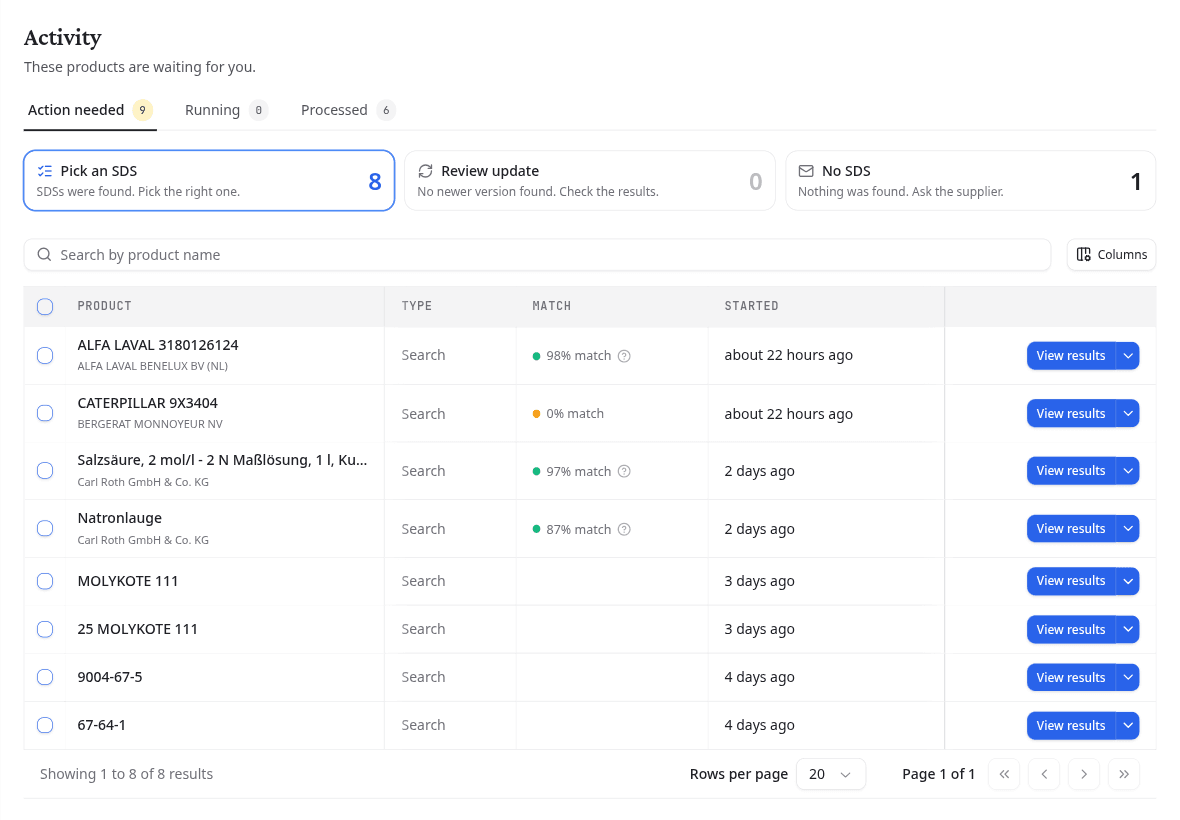
Action needed lists the searches waiting for you, in three groups:
| Group | What happened | What to do |
|---|---|---|
| Pick an SDS | Sheets were found, but none matched well enough to attach automatically | Compare them and choose one |
| Review update | A check for a newer revision found nothing newer | Check the results |
| No SDS | Nothing was found | Ask the supplier, or add the sheet yourself |
Running shows searches still in progress. Processed shows what is finished, including sheets the agent attached by itself.
Select View results to open a search. The menu beside it offers Cancel, which takes the search off the list and adds nothing to your library.
Pick the right sheet
The search lists every sheet it found, each with its supplier, language, revision date and a Match score for how closely it fits the product you searched for. Select one to read it beside the list.
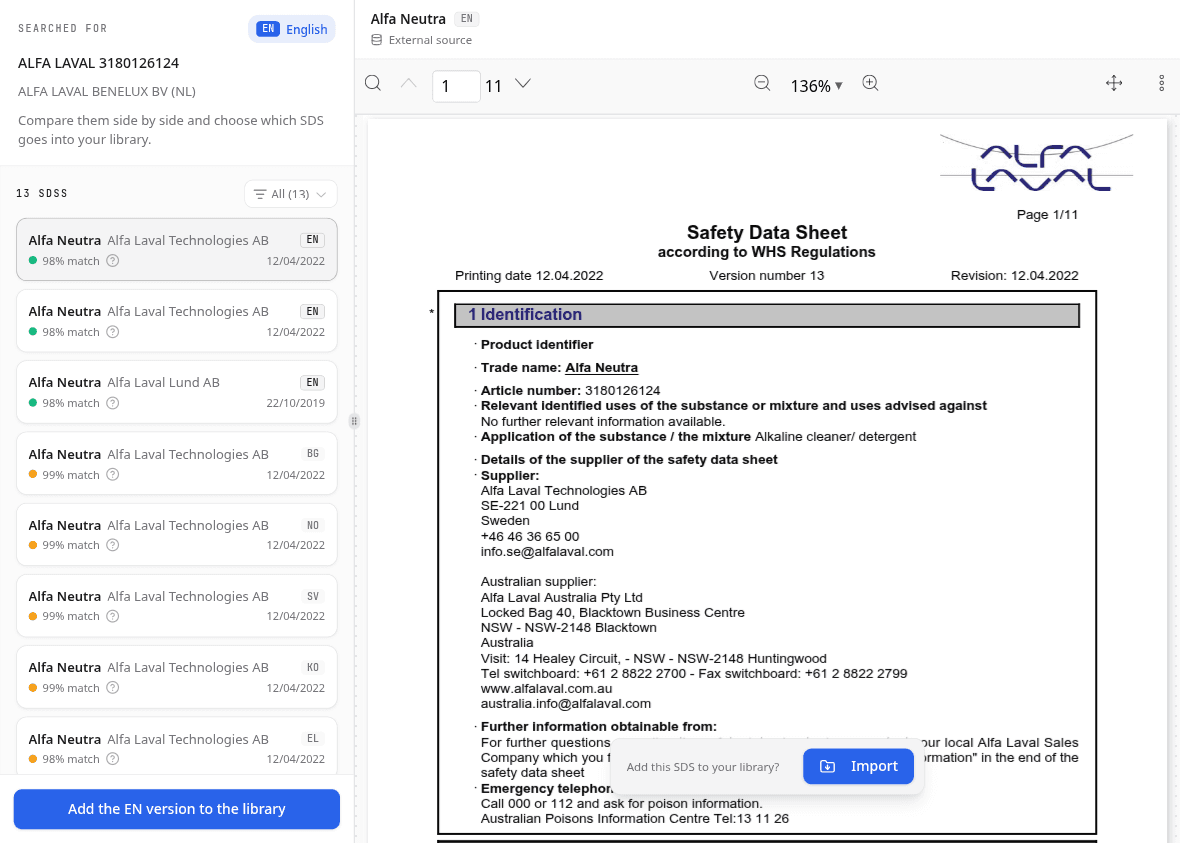
When the sheet is right, select Import. To take the sheet in the language you searched for, select the button at the bottom of the list, for example Add the EN version to the library.
When nothing was found
Open the search from No SDS. Three ways forward:
- Ask the supplier: check the email NextSDS drafted, choose its language, and select Send request. NextSDS sends it on your behalf, and replies arrive in your inbox.
- Search again with a different name or supplier.
- Upload to library if you have the PDF after all.
What to do next
Open the imported product from your library to check the extracted data.