Build a SIC template
Set the sections, layout, colours and page format that every Safety Instruction Card built from a template starts with.
The template builder edits a layout, not a card. Nothing you change here touches cards that already exist. No SDS content is stored either: the preview fills every block with sample values, and the real text arrives when someone makes a card from the template.
How to get here
Open Settings > SIC Templates. New template opens the builder on the NextSDS layout. To change a template you already have, select its name, or choose Edit template from its options menu.
To start from the German Betriebsanweisung, or from another of your own templates, select Duplicate on that row instead. See SIC Templates.
Name the template
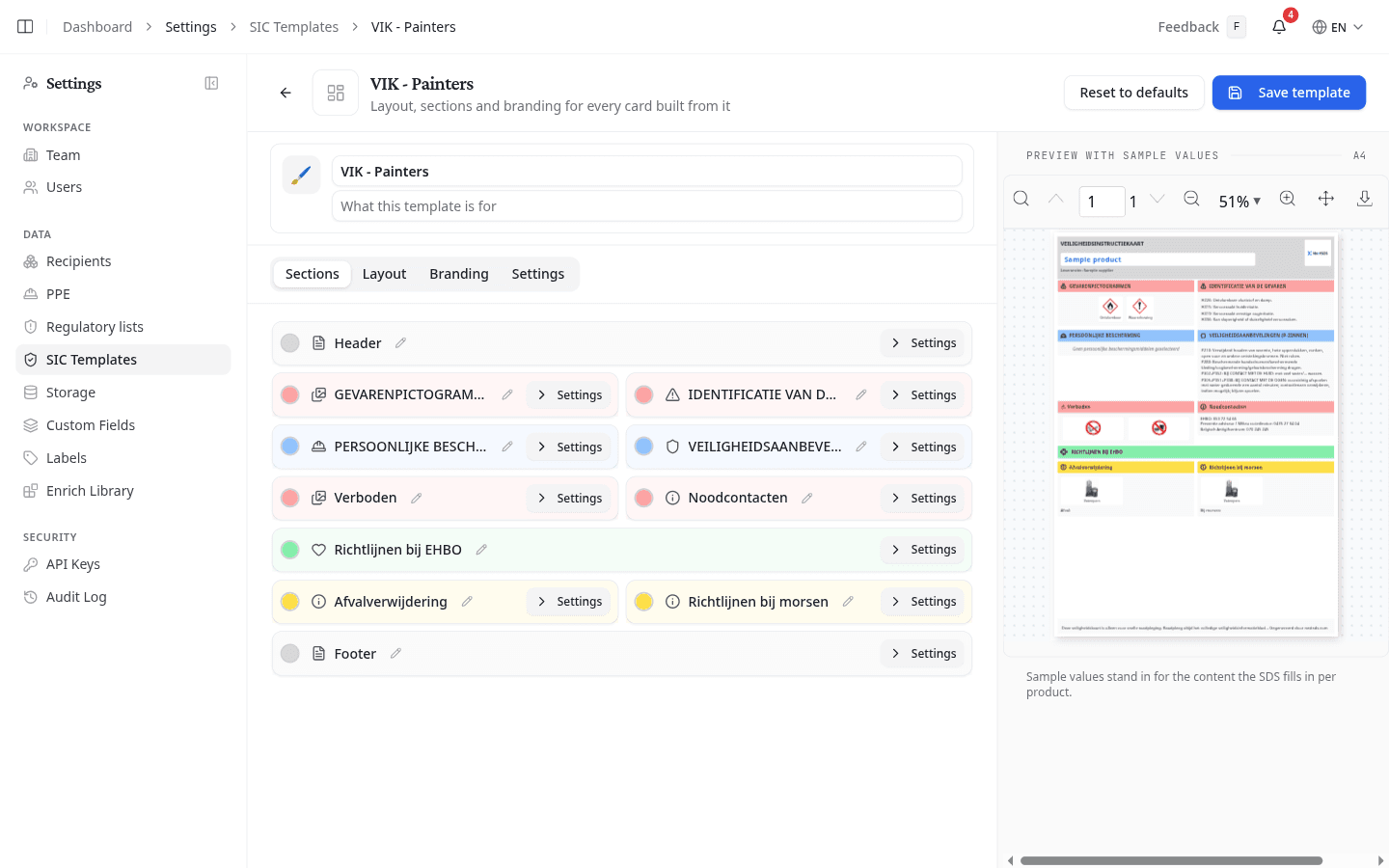
Template name is required. The builder refuses to save without one, and names have to be unique within your team, so a name already in use is rejected when you save.
Icon picks an emoji and Description says what the template is for. Both show on the template's row when someone chooses a template for a card, which is how two similar layouts are told apart.
Nothing is saved until you select Save template. Leaving the builder before then discards the whole draft.
Choose which sections the card shows
Each row on the Sections tab is one block on the printed card. The preview redraws as you work, so you can see the effect of every change before you save.
Select Settings on a section to open its own options, such as whether Hazard Identification prints H-codes alongside the statements. These are the same section settings the card wizard offers, described in Safety Card sections.
The coloured dot beside a section name sets that section's header colour. Select it, pick a colour, and choose Reset to default to hand the section back to the colour from the Branding tab.
Rearrange the layout
The Layout tab holds the same sections, as rows you can move around.
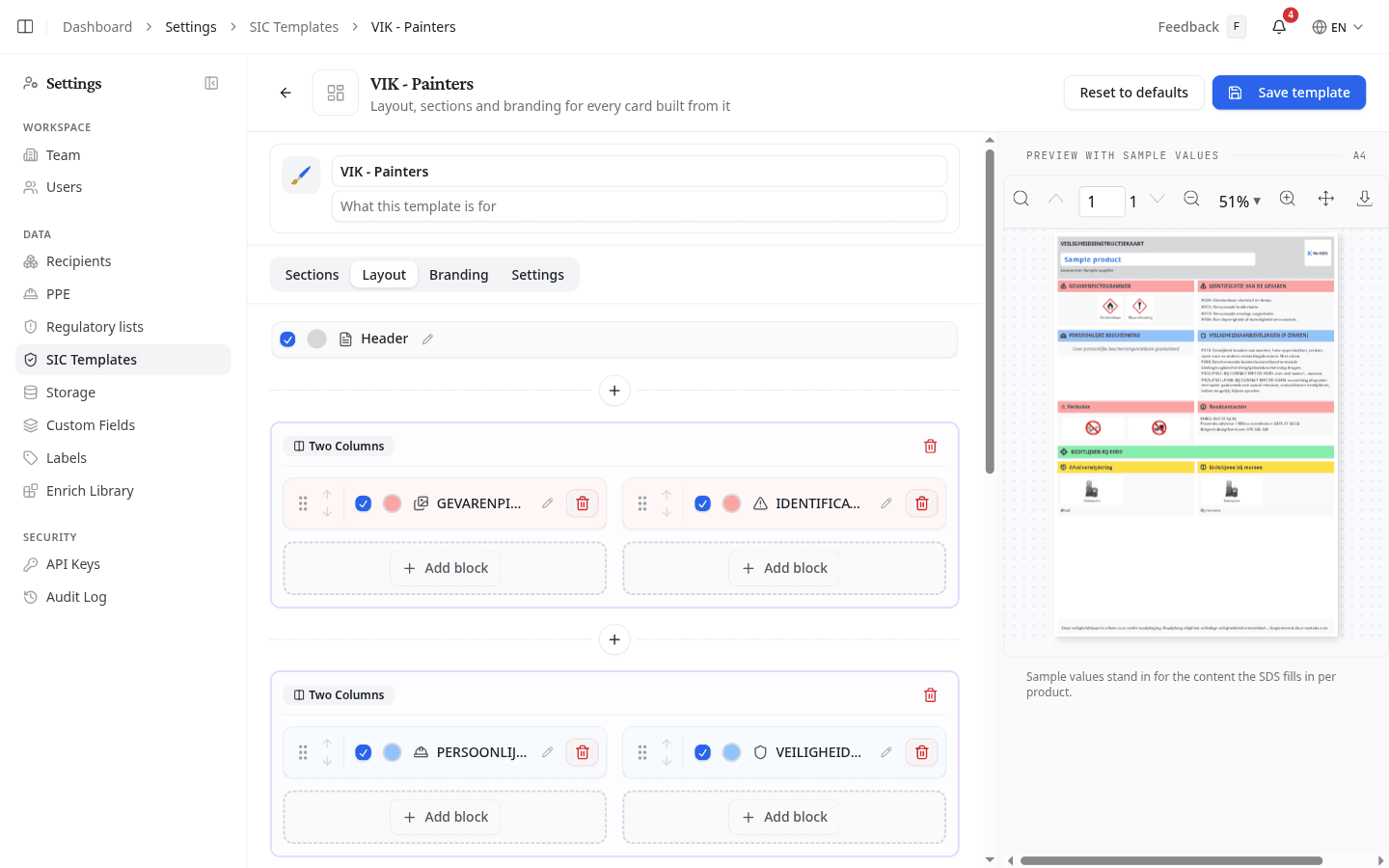
On this tab you can:
- Clear a section's tick box to leave it off the card
- Drag a section by its handle, or use the arrows to move it up and down
- Select Add block inside a row to put another section there
- Select the + between rows to add a Full Width Row or a Two Column Row
Switching off Hazard Identification, First Aid, Personal Protection or Transport Information removes information the card is legally expected to carry. NextSDS warns you when you do.
Apply your team's colours
The Branding tab sets the colours every card from this template prints with:
| Group | What it covers |
|---|---|
| Section Headers | Header background, header text and icons, and the product name with its underline |
| Content | Body text, row and section backgrounds, table lines, and the page background |
| Signal Words | The text and badge colours behind Danger and Warning |
| Page Border | A coloured edge around the page, its width, and a different colour for danger, warning and cards with no signal word |
A section with its own header colour keeps it and ignores Section Headers.
Set the page format and language
The Settings tab decides how the card is printed:
- Document language: the language the card prints in, separate from the language you use NextSDS in. Section headings and phrases follow it.
- Document Size: A4 or A5
- Document Orientation: Portrait or Landscape
- Include QR code for quick access to SDS: prints a code that opens the full SDS
A card whose document language differs from its SDS has to be translated before it can be finished, so set this to the language your workplace reads.
Save or start over
Select Save template to store your changes. A new template joins the list. Cards already made from an existing template stay exactly as they are.
When you opened the builder part-way through making a card, the button instead reads Save and return to that product, and the finished template is applied to the card you left behind.
Reset to defaults puts every section, colour and setting back to the NextSDS layout. NextSDS asks you to confirm first, and the stored template only changes once you save afterwards.
What to do next
Set the template your team reaches for first in SIC Templates, or apply one to a product in Generate a Safety Instruction Card.