Screen a product for procurement
Run the 3 Green Lights check before approving a new chemical, and record the procurement decision.
The screening checks a product against three criteria and gives each one a green, amber, or red light. Run it before you approve a new chemical.
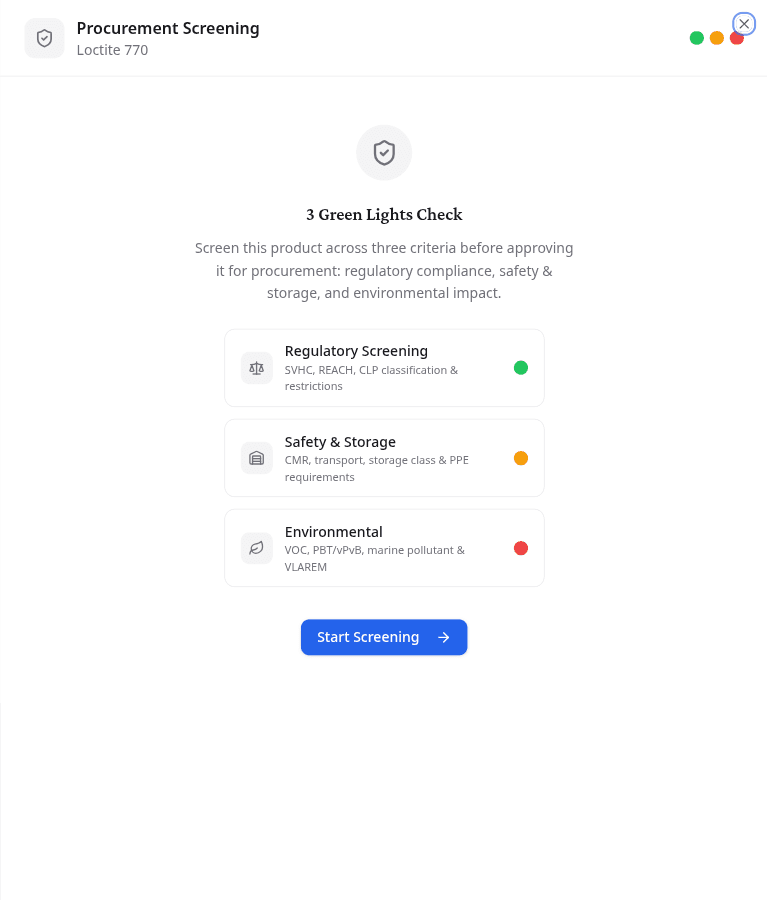
Start the check
You can reach the same check from two places:
- Run Screening in a library row's options menu
- On the product page, the dashed Run Screening badge beside the product name, or Run Screening in the actions list
Select Start Screening to work through the four steps.
Step 1: Regulatory Screening
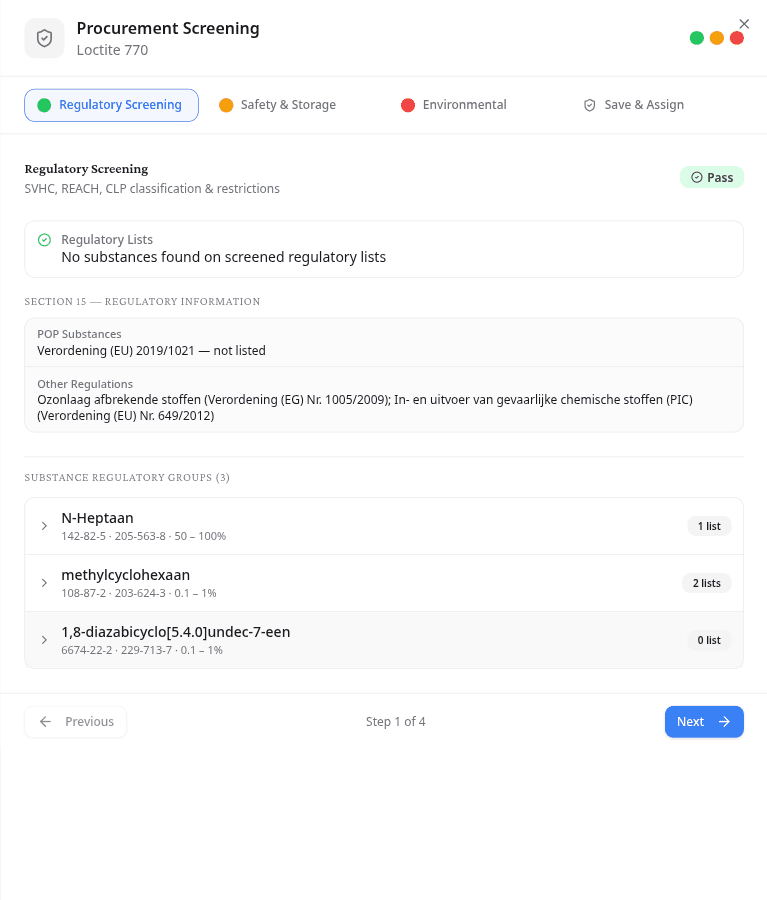
NextSDS checks every component substance against the SVHC Candidate List, the REACH Authorisation and Restriction Lists, POPs, and other concern lists such as diisocyanates, endocrine disruptors, and Prop 65. Each match shows its severity: red means action is required, amber means review is needed.
When the supplier filled in Section 15, those declarations appear below the database results. Compare the two to see whether the supplier declared everything the databases found.
Step 2: Safety and Storage
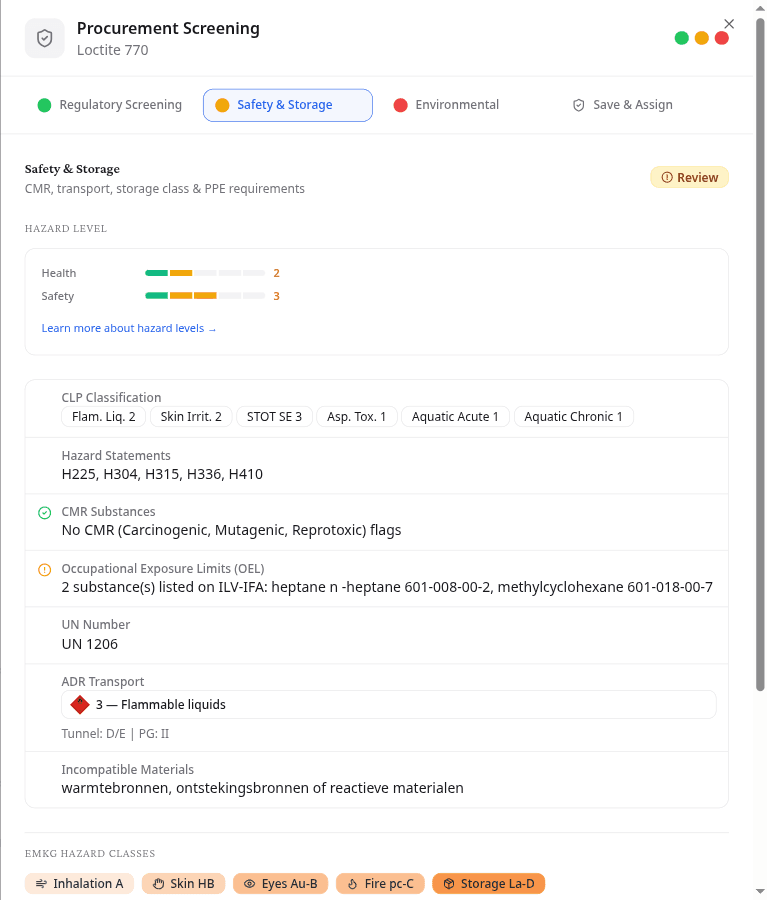
This step opens with the Health and Safety hazard levels, then shows the CLP classification and hazard statements, CMR status, occupational exposure limits from the ILV-IFA database, the UN number, the ADR transport class, and incompatible materials. CMR substances are always flagged in red. The five EMKG classes complete the step.
Step 3: Environmental
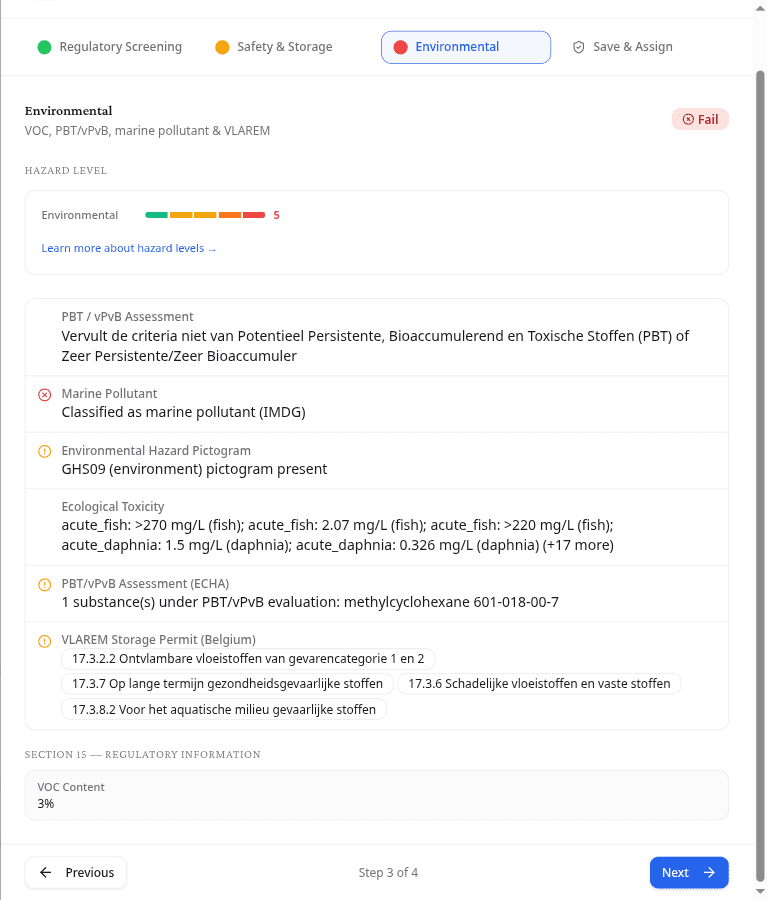
This step opens with the Environmental hazard level, then covers the PBT/vPvB assessment, marine pollutant status under IMDG, the environmental pictogram, ecological toxicity data, and the VLAREM storage permit rubriek.
Step 4: Save and assign
Assign the product to one or more workplaces, then set the procurement decision: Review, Accepted, or Rejected. A decision is required. Select Save to store the result and update the product's status in the library.
Read and change a saved decision
Once a decision is saved, the dashed badge on the product page is replaced by a plain one showing the decision, Review, Accepted or Rejected, with a coloured dot. That badge only reports the outcome.
To change a decision, reopen the check from Run Screening in the actions list.
What to do next
Record where you store the approved product on the product's Workplaces tab.