Act on a product from the library
Use the buttons and options menu on a library row to open, update, label, or archive a product.
Every row has three buttons and an options menu, so most work needs no detour through the product page.
- Chemical Safety Card: open the safety card wizard
- SDS Summary: open a short summary of the product's key safety data
- View Product: open the product page with all its details. When no product record exists yet, this button opens the original PDF instead.
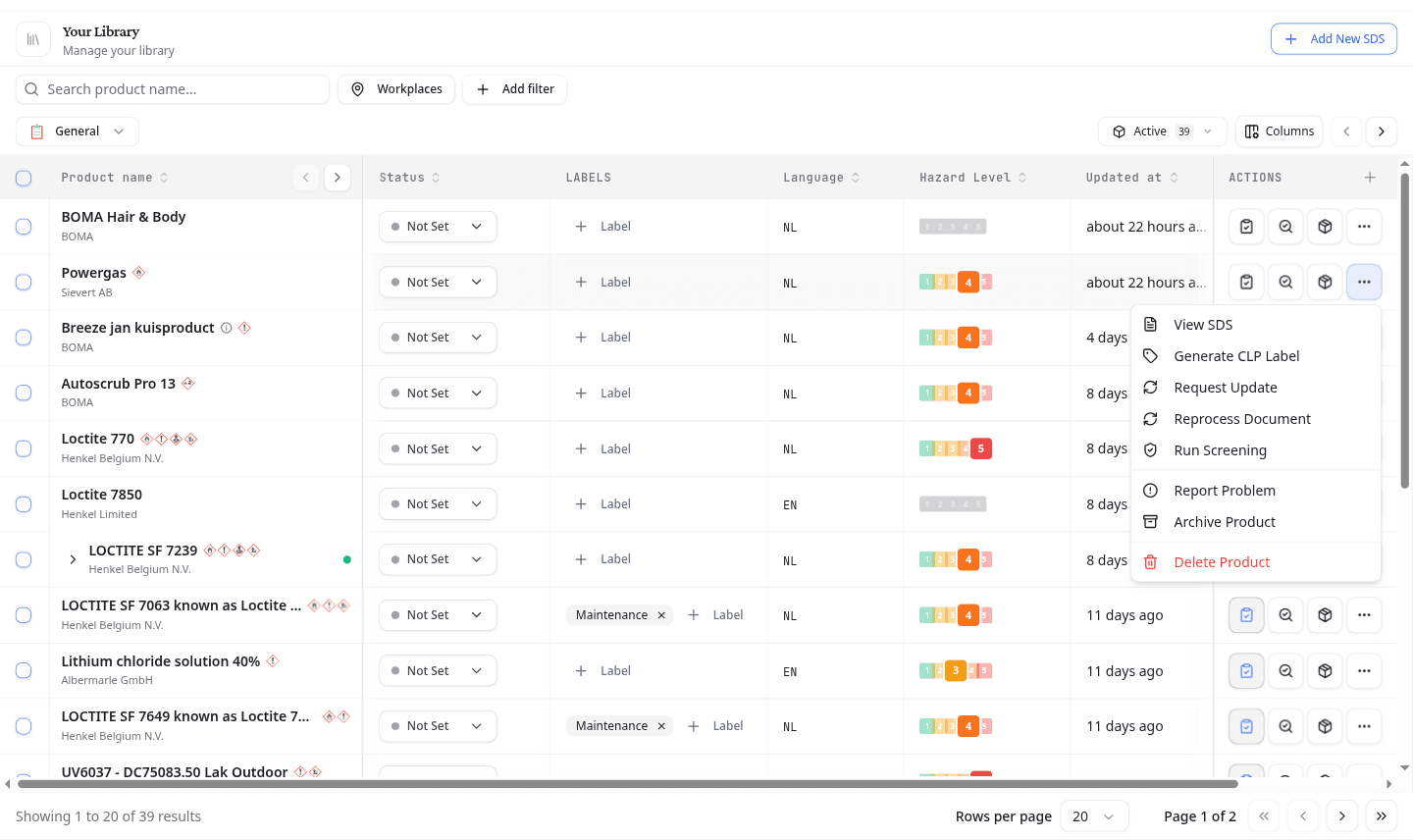
The options menu contains:
| Action | What it does |
|---|---|
| View SDS | Open the original PDF |
| Generate CLP Label | Open the CLP label wizard |
| Request Update | Ask the supplier for a fresh SDS |
| Reprocess Document | Read the PDF again and refresh the extracted data |
| Run Screening | Run the procurement check |
| Report Problem | Flag an error in the document |
| Archive Product | Hide the product from the active list |
| Delete Product | Remove the product and its data |
Deleting a product removes it and its SDS data permanently. Archive it instead if you need it for a future audit.
Ask the supplier for a newer SDS
Select Request Update in the row options menu. NextSDS shows the product, how old its SDS is, and when it was last updated, so you can judge whether a request is worth sending.
Then choose which organisation to contact. The list comes from the SDS itself, with each organisation's role and email address. Select Submit Request to send it.
Report a problem with a document
Select Report Problem when NextSDS has read something incorrectly. Describe what is wrong under Problem Description and select Submit Report. The product and document reference travel with the report, so you do not need to quote them.
The same report can be sent from the SDS record when you already have the document open.
Label a product
Every row has a Label button in the Labels column, so you can label a product without opening it. Select it, then pick an existing label, or type a name and select the Create option that appears.
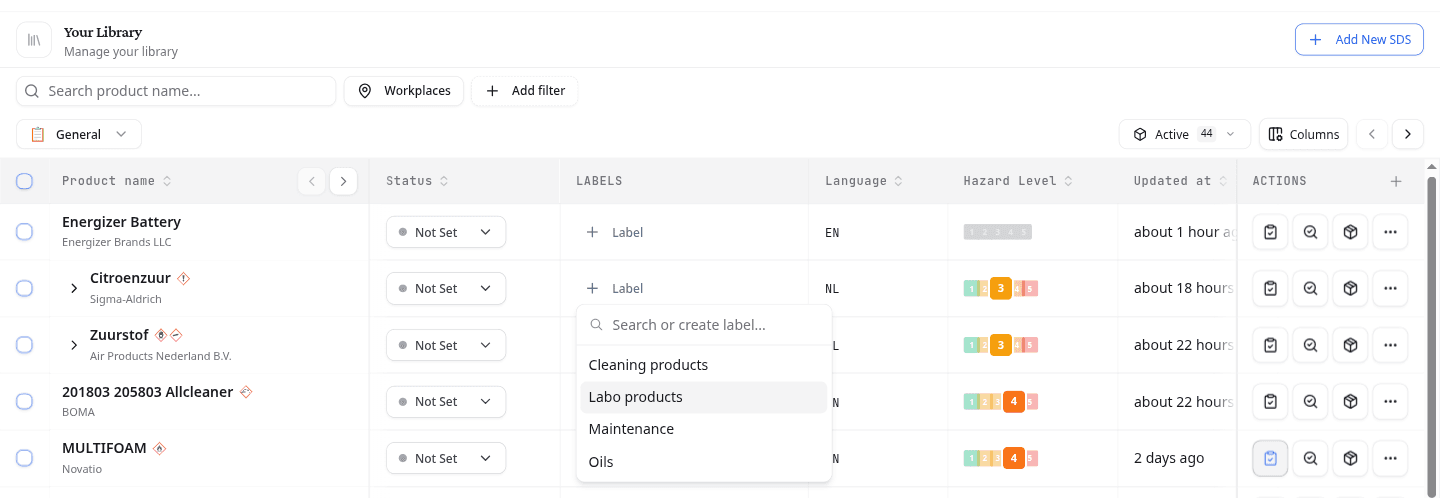
Creating, renaming and deleting labels is covered under Labels.
See a product's other SDS files
When a product has more than one linked SDS file, an arrow appears next to its name. Select the arrow to list every linked file with its language, target markets, and revision date. The crown marks the primary file.
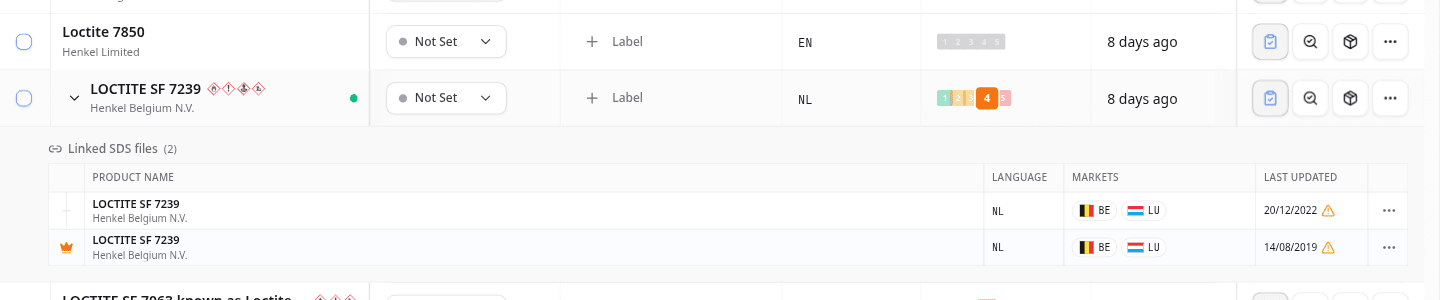
Each file has its own options menu:
| Action | What it does |
|---|---|
| SDS Details | Open the full record for this file |
| View PDF | Open the original PDF |
| Make Primary | Make this the product's primary file |
| Compare with Primary | Show this file's differences against the primary one |
| Request Update | Ask the supplier for a fresh SDS |
| Archive SDS | Hide this file from the active list |
| Remove from Product | Unlink the file, without deleting it |
Compare with Primary appears on the other files, not on the primary one.
On a file you have already archived, Archive SDS reads Unarchive SDS instead. Archived files sit in their own Archived SDSs group with a count, which the panel shows only when the product has one.
What to do next
The product page groups the same files by relationship, under Related SDS versions.