Import a regulatory list from a file
Create a substance list from a spreadsheet, or update one with a newer version of the file.
One row becomes one substance on the list. Running a newer version of the same file later updates the list, so you can keep a published list such as the SVHC candidate list current without rebuilding it.
Open Settings > Regulatory lists, then:
- select New list to create a list, or
- open a list you created and select Update from file.
Creating a list has five steps. Updating one has four, because the list already has a name.
Prepare your file
Save the list as a .CSV file (comma or semicolon separated) or as an Excel file. One import takes up to 20,000 rows.
Select Download CSV template on the first step to get a file with the column headers the import recognises. A file built from it, or exported from ECHA, usually arrives with every column already mapped.
| Field | What it holds |
|---|---|
| Substance name | Required, unless the row has a CAS or EC number. |
| CAS number | Identifies the substance exactly. |
| EC number | Identifies the substance exactly. |
| Synonym | Another name for the substance. Several columns can feed it. |
| Status | Where the entry stands: LISTED, PROPOSED or WITHDRAWN. |
| Part | Where in the regulation the entry sits, such as an annex, table or schedule. |
| List data | What the list records about the substance, such as a classification or sub-list. |
| Listing date | When the substance was added to the list. |
| Note | A remark or footnote. |
Step 1: Upload file
Drag the file onto the upload area, or select Choose a file. Columns found and Rows found confirm the file was read in full. Select Next.
Step 2: Name the list
Only when you create a list. NextSDS proposes a List name from the file name. Change it if it does not read well.
Choose a Source: Government, Industry, Customer, Standard, Internal or Other. A source and a name are required. Type, Region, Country, Link and Description are optional, and help when you have many lists to tell apart.
Step 3: Map columns
Each column in your file is matched to a list field. NextSDS proposes a field for each column, so most files arrive mapped.
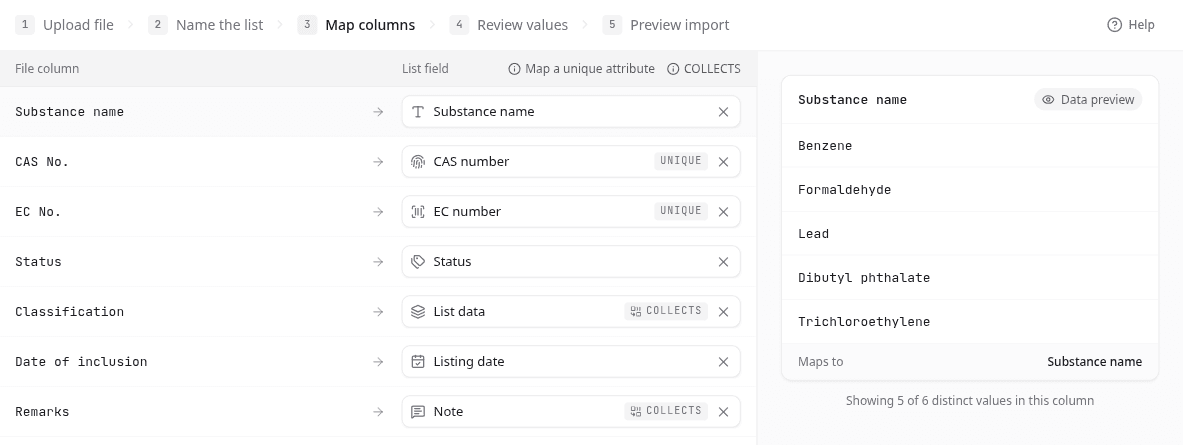
Check each column and correct any field that is wrong. Select a column to see its values.
Map a CAS number or EC number column whenever your file has one. Without either, rows are matched on the substance name alone, and two substances sharing a name are merged into one. The import warns you before you continue.
A list can name the same substance on several rows, for example once per sub-list. Fields marked COLLECTS keep every value those rows give, so the substance ends up carrying all of them.
Step 4: Review values
The review shows each value in your file against what will be written. Most are mapped automatically. Check Status values that are not LISTED, PROPOSED or WITHDRAWN, and dates that could be read two ways, such as 03/04/2026.
Step 5: Preview import
The preview counts the substances it will add, update and remove, and marks each row with what it will do.
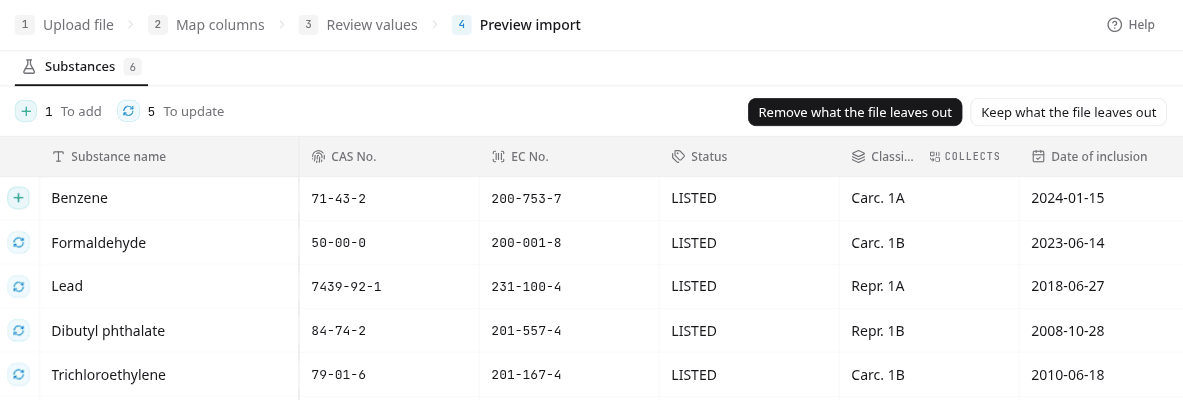
When you update a list, choose what happens to substances the list holds but the new file does not name:
| Option | What happens |
|---|---|
| Remove what the file leaves out | The list ends up matching the file exactly. This is selected by default. |
| Keep what the file leaves out | Nothing is removed. New substances are added and existing ones updated. |
If you import a partial file, such as only this year's additions, select Keep what the file leaves out. Otherwise every substance missing from the file is removed from the list.
To leave a row out, select Leave this row out of the import on it. Select Import when the counts are right.
After the import
Import finished reports how many substances were added, updated and removed. Rows with no name and no registry number are skipped and counted. Select Open list or Back to the list to check the result.
What to do next
A new list is switched on as soon as it is imported. Run a Horizon Scan to see which of your products it names, or switch it off until you need it.