Decide which products to assess first
Rank your products by hazard and by how much you use, so the riskiest ones get a risk assessment first.
Before assessing every product at every workplace, find the few that matter most. NextSDS ranks each product High, Medium or Low from two facts: how hazardous it is, and how much of it you use in a year compared with the rest of your inventory. The method follows SEIRICH, the INRS tool for ranking potential chemical risks.
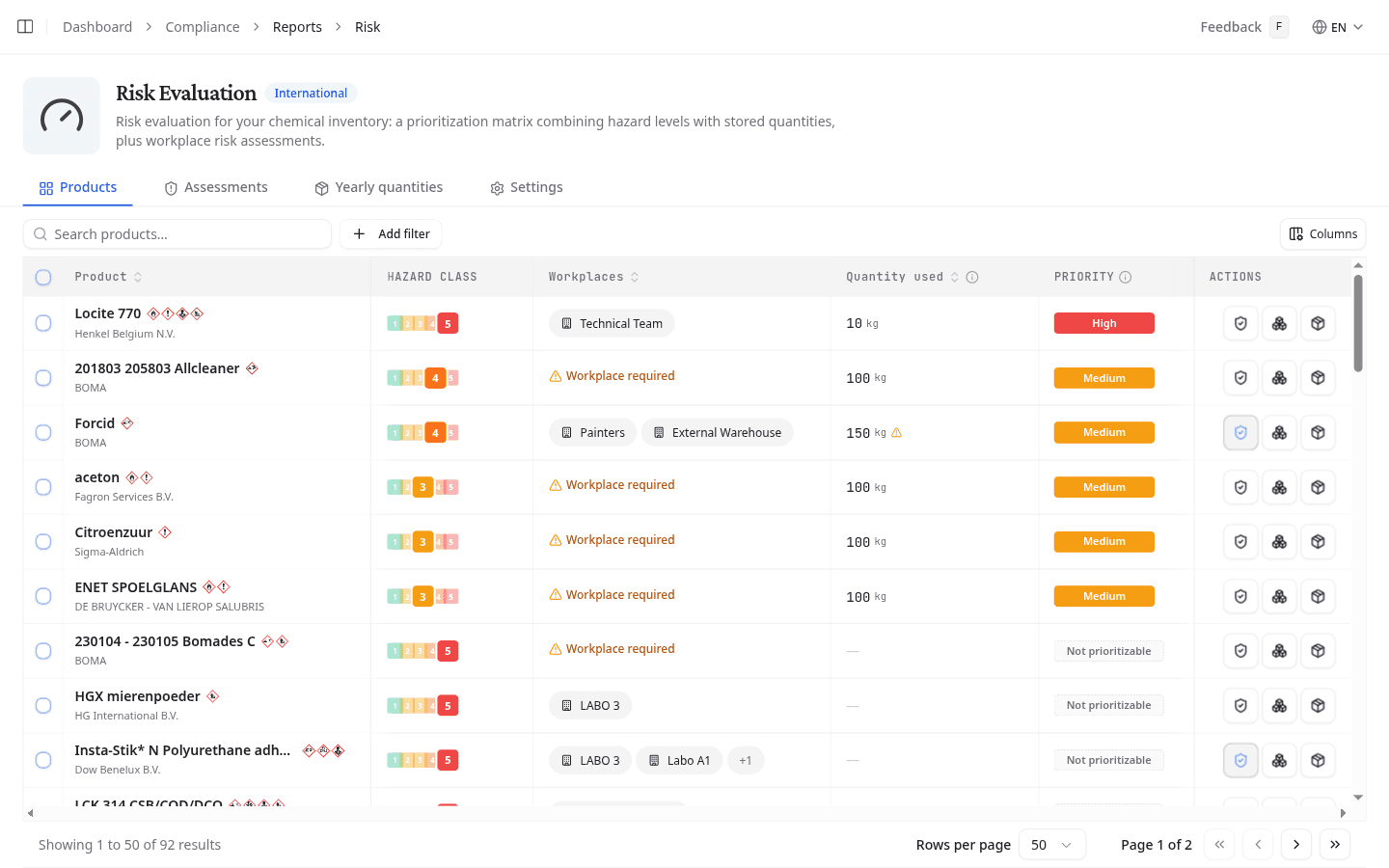
Open Risk Evaluation in the sidebar. The Products tab opens first.
Read the ranking
| Column | What it shows |
|---|---|
| Hazard class | The product's hazard level, 1 to 5, from its safety data sheet |
| Workplaces | Where the product is used. Workplace required means it is linked to none, so it cannot be assessed yet. |
| Quantity used | How much is used per year. Litres are converted to kilograms. |
| Priority | High, Medium, Low or Not prioritizable. Hover it to see how it was worked out. |
Select a column header to sort on it. Columns shows more, such as the density and the exposure class.
Narrow the list
Search for a product by name, or select Add filter:
- Assessment: Not yet assessed lists the products still waiting for one, Assessed the products done.
- Priority and Hazard class: one or more bands.
- Domain: rank on the Health, Safety or Environment hazard instead of the overall one.
- Workplace: the products at one or more workplaces.
How the priority is worked out
The hazard class and the quantity each give a score, and the priority comes from the two multiplied together:
- A higher hazard class weighs ten times more than the class below it.
- The quantity is compared with a Reference quantity (P95), set by the largest yearly quantities your team uses. The closer a product comes to that reference, the higher its exposure class.
- A product with hazard class 1 is always Low.
A product is Not prioritizable when it has no hazard level or no yearly quantity. Fix the sheet, or enter the quantity, and it is ranked.
Assess from the ranking
Tick the products you want to assess and select Create assessments. To assess one product, select New assessment on its row instead. The button turns blue once the product has an assessment, and then reads Edit assessment. Both open the assessment screen for those products, at every workplace that holds them.
The other two row actions are Manage quantities, which opens Yearly quantities on that product, and Open product.
Enter yearly quantities
Open the Yearly quantities tab.
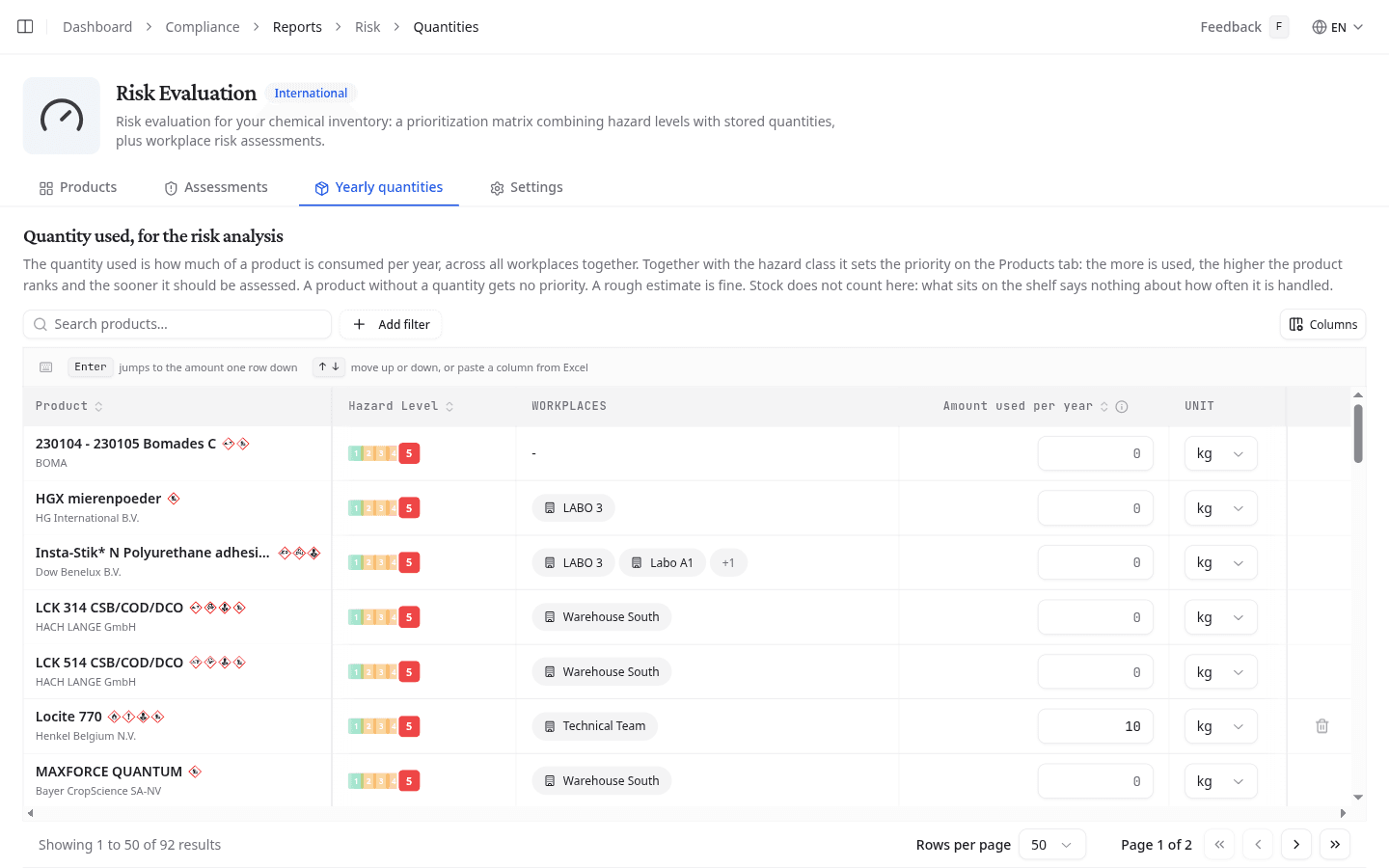
Enter the Amount used per year for each product, across all your workplaces, and pick its unit. A rough estimate is enough: the number ranks products, it does not report stock. Enter moves to the next row, and you can paste a column straight from a spreadsheet.
Under Add filter, Only without quantity and Only with hazard level narrow the list to the products that still need a number. Save your changes from the bar at the bottom, or Discard them.
Check the reference quantity
The Settings tab shows the current Reference quantity (P95). It is calculated from your quantities, so it changes as you enter them, and you cannot set it yourself. The same tab sets the fallback density used to turn litres into kilograms when a sheet gives none.
What to do next
Filter on Priority High and Assessment Not yet assessed, tick the products and select Create assessments. See Run a risk assessment.