Create a QR code
Name a code, choose what it covers, filter it to certain products, and decide what a worker sees after scanning.
Select Create New on the QR access page, or pick a workplace in the tree first to start with that workplace already chosen.
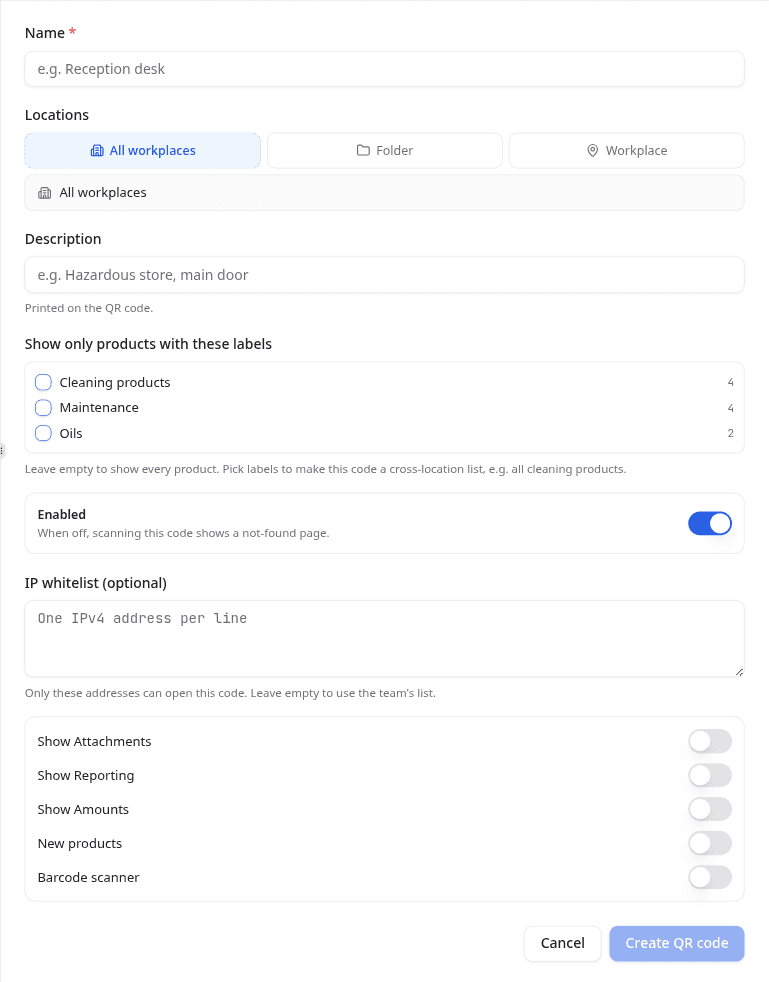
- Enter a Name. This identifies the code in your list.
- Under Locations, choose what the code covers.
- Add a Description. It is printed under the code, so write what someone standing there would recognise, such as the room or the door.
- Select Create QR code.
Choose what the code covers
| Option | What a scan opens |
|---|---|
| All workplaces | Every product your team holds, across every workplace |
| Folder | Every workplace beneath the folder you pick |
| Workplace | One workplace |
A folder code covers the workplaces beneath it as they change, so adding a workplace to that folder later brings it into the code without reprinting anything.
Show only certain products
Show only products with these labels narrows the code to the products carrying the labels you tick, with the count of products beside each one. Leave it empty to show everything.
This is what turns a code into a list that crosses workplaces: tick Cleaning products on an organisation-wide code and a scan returns every cleaning product you hold, wherever it is stored. Labels come from your label sets.
Choose what a scan shows
Five options control what appears after a worker scans. All five are off to begin with.
| Option | What it adds |
|---|---|
| Show Attachments | Files linked to a product beyond its safety data sheet |
| Show Reporting | A tab for workers to report a safety concern |
| Show Amounts | The quantity and unit held at that workplace |
| New products | A tab for workers to request a product that is not in the inventory yet |
| Barcode scanner | Scanning a product barcode opens that product's safety data sheet |
Each code carries its own set, so the code on a laboratory door can offer reporting while the one at reception does not.
Limit a code to certain networks
Enter addresses in IP whitelist (optional), one IPv4 address per line. Only visitors from those addresses can open the code.
Leave it empty and the code falls back to your team's list under safety portal settings, so a restriction you already have keeps applying.
Turn a code on later
Enabled is on when you create a code. Switch it off to prepare a code before the signage goes up: it exists and can be printed, but scanning it shows a not-found page until you switch it on.
Anyone who scans the code, or who has its address, sees the chemical list it covers. Use the IP whitelist when the inventory is confidential.
What to do next
Print the code and check it on a phone before it goes on a wall. Managing your QR codes covers the download formats.