Set up the safety portal
Configure a branded portal, control who can reach it, and share its link and QR code with your team.
Employees can browse safety data sheets and chemical information on a public portal without logging in. The portal displays your workplace locations, assigned products with GHS hazard pictograms, and downloadable SDS documents.
The safety portal is being retired. It is replaced by an organisation-level QR code that covers every workplace and product. Your portal stays online and every existing link and printed QR code keeps working, so nothing you have put on signage needs replacing. We recommend moving to QR codes when it suits you.
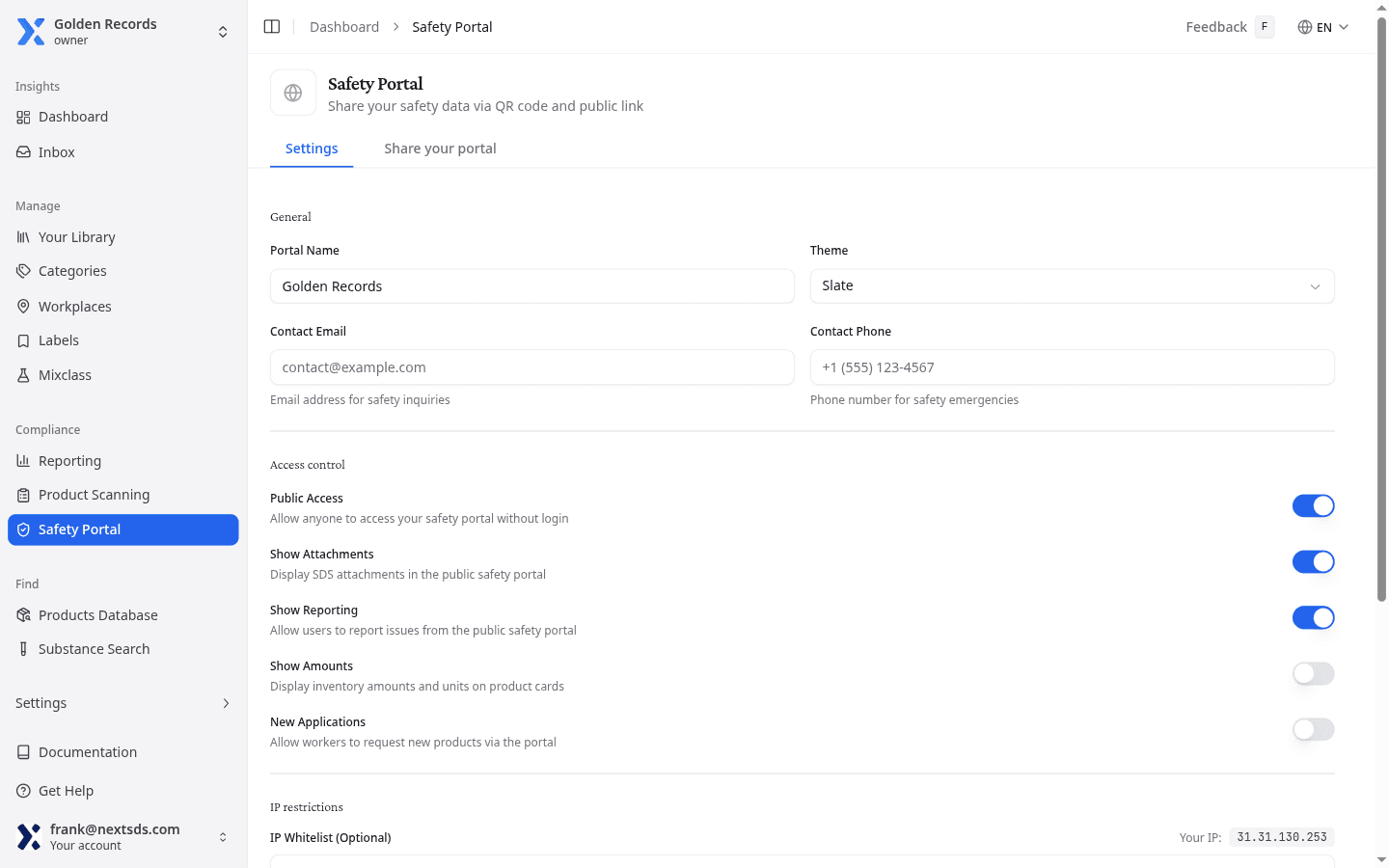
Configure the portal
Open the Settings tab to set up your portal.
- Enter a Portal Name. This appears as the heading on the public page.
- Choose a Theme colour for the portal branding.
- Add a Contact Email and Contact Phone so employees know who to reach for safety questions.
- Select which workplaces are visible under Visible workplaces. Only ticked workplaces appear on the portal.
- Select Save Settings.
Control access
Toggle Public Access to make the portal available or restrict it. When public access is off, no one can view the portal.
Switching Public Access off is permanent. You cannot turn it back on, because the portal is being retired. Switch it off only when your workers can reach their safety data sheets another way.
Enable the following optional features on the portal:
| Option | What it adds |
|---|---|
| Show Attachments | Visitors can download additional files linked to products, beyond the main SDS document |
| Show Reporting | A Report tab appears so employees can submit safety concerns directly from the portal |
| Show Amounts | Inventory amounts and units appear on each product card |
| New products | A tab appears so workers can request products that are not in the inventory yet |
| Barcode scanner | Workers can scan a product barcode to open its safety data sheet |
Limit access by network
Under IP restrictions, enter allowed IP addresses in the IP Whitelist (Optional) field, one per line. Only visitors from those addresses can open the portal. Your own address appears beside the field as Your IP:.
Each QR code can carry its own list as well. A code with no addresses of its own falls back to the list you set here, so the restriction you already have keeps applying everywhere.
Share the portal link and QR code
Open the Share your portal tab to find your portal URL and QR code. The tab is greyed out while Public Access is off, because the link would lead nowhere.
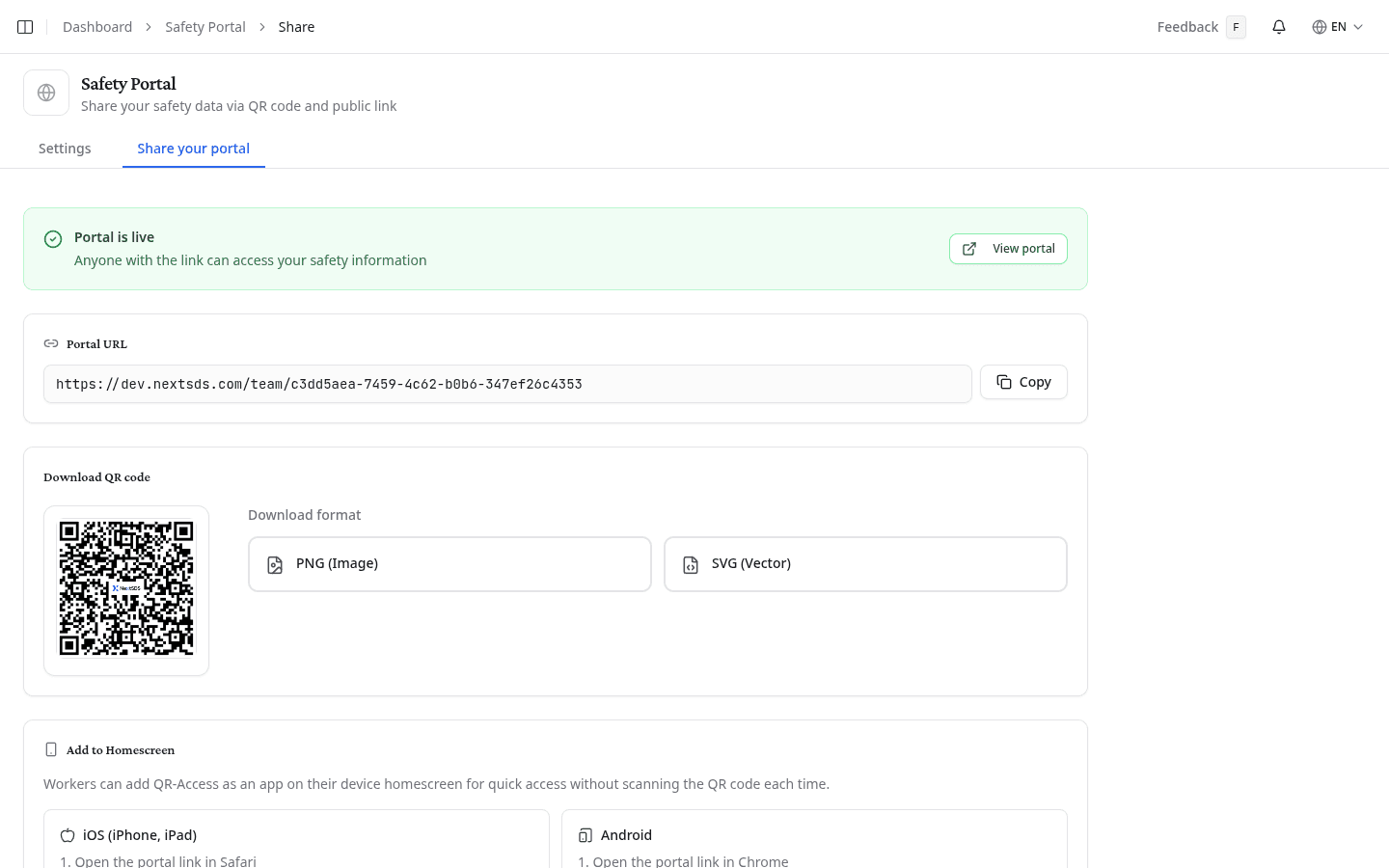
- Copy the Portal URL and share it with employees. Post it on your intranet, in break rooms, or in safety documentation.
- Under Download QR code, pick a Download format, PNG (Image) or SVG (Vector). Print it on safety signage so employees can reach the portal by scanning it.
- Select View portal to preview what employees will see.
Save the portal to the home screen
Workers can install the portal as an app on their phone. The icon shows your company logo and opens directly to your safety portal, with no QR scan needed each time.
The Share your portal tab shows step-by-step installation instructions for iOS and Android. Workers who visit the portal on a mobile device also see a dismissable banner with the same guidance.
iOS (iPhone, iPad)
- Open the portal link in Safari.
- Tap the share button (square with arrow).
- Scroll down and tap Add to Home Screen.
Android
- Open the portal link in Chrome.
- Tap the menu (⋮) in the top right.
- Tap Add to Home screen.
Anyone with the portal URL can view the listed chemical information. Use the IP whitelist or turn off public access if your chemical inventory is confidential.
What to do next
Preview what workers see on the portal before you share the link.