Grant scan access with QR codes
Create QR codes that open a chemical list for one workplace, one folder, or your whole organisation, and manage the codes you have printed.
Print a code on a door, a cabinet or a storage rack. Anyone who scans it sees the products held at that place, with their hazard information and safety data sheets, and nobody has to log in.
Open QR Access in the sidebar.
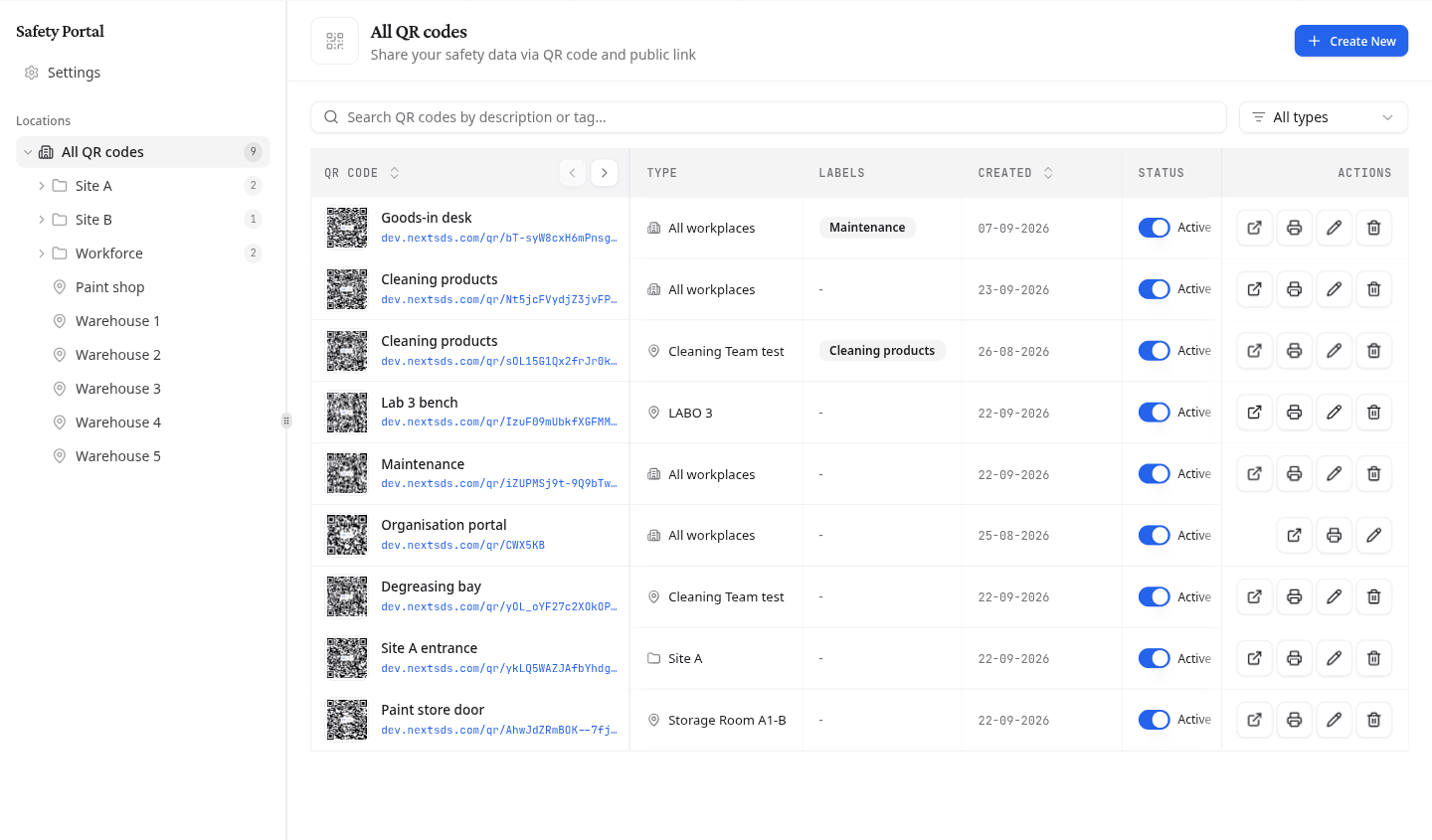
Select a level in the tree to see only its codes. Each folder and workplace shows how many codes it has. A code made on a folder belongs to that folder, so it is counted and managed there rather than repeated under every workplace beneath it.
Read the QR code list
| Column | What it tells you |
|---|---|
| QR code | The name you gave the code, with its access URL underneath. Select the thumbnail to open the download window |
| Type | What the code covers: All workplaces, a Folder, or a single Workplace |
| Labels | The product labels this code is filtered to, or a dash when it shows everything |
| Created | When the code was made |
| Status | Active or Inactive, with the switch that changes it |
Search by description or tag to find a code, or use All types to show only organisation, folder or workplace codes.
Print or download a code
Select the thumbnail in the QR code column, or the printer icon in Actions. Download QR code opens with the code drawn large and its caption underneath.
Choose PNG (Image) for signage you send to a printer, or SVG (Vector) when the code has to stay sharp at any size, such as on a large sign or an engraved plate.
Your team logo sits in the middle of the code, and the description you gave it is printed as the caption.
Change or remove a code
Each row carries four actions:
- Open portal opens the page a scan reaches, so you can check it before you print.
- Print opens the download window.
- Edit reopens the code's settings. Select Save changes when you are done.
- Delete removes the code.
Switch Status off to withdraw access without deleting anything. Scanning a disabled code shows a not-found page, and switching it back on restores access to the same printed code.
Deleting a code revokes scan access for every printed copy of it. Anyone scanning one afterwards no longer reaches the chemical list, and the code cannot be restored. Disable it instead when you may want it back.
The organisation portal
Your team starts with one code called Organisation portal. It covers every workplace, and it is the code printed on signage before anyone opened this screen.
Its name, what it covers and its label filter are fixed, and it has no Delete action. Its display options and its Status switch work like any other code, so you can still change what a scan shows or withdraw access.
Manage a single workplace's codes
Open a workplace and select its QR Codes tab to work with the codes that point at that workplace alone. The tab counts direct targets only, so a folder's code is not counted on the workplaces beneath it. Manage all QR codes takes you back to the full list.
You can also start a code from the options menu on a folder or a workplace in Workplaces, which opens the form with the target already chosen.
What to do next
Create a QR code for the place you want to cover first.