Attach files and safety cards to a product
Keep supplier documents and safety instruction cards on the product, and control which of them workers can see.
Two sections of the product record hold files that are not safety data sheets: Attachments for supplier documents, Safety cards for the instruction cards your workers read.
Keep supplier documents on the product
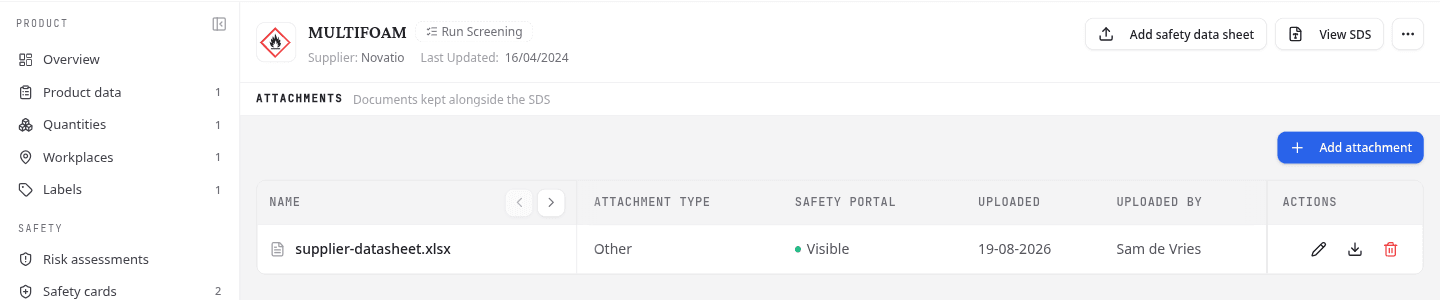
Open the Attachments section and select Add attachment.
- Pick an Attachment Type: Certificate, Test report, Technical data, Non-compliant SDS, Product photo or Other.
- Choose the files under Upload Files. NextSDS takes PDF, Word, Excel, PowerPoint, image and text files, up to 10 MB each.
- Give the file a Label and, if it helps, a Description. Without a label the list shows its file name instead.
- Confirm with the upload button, which names how many files it will add.
Each row then offers Edit attachment to change its label, description or type, plus Download and Delete.
Non-compliant SDS is the honest home for a sheet that failed the checks. It keeps the document as evidence of what the supplier sent, rather than filing it under Other. See Fix a document NextSDS could not read.
Keep the product's safety cards
Open the Safety cards section. A card can arrive two ways, and the Type column says which.
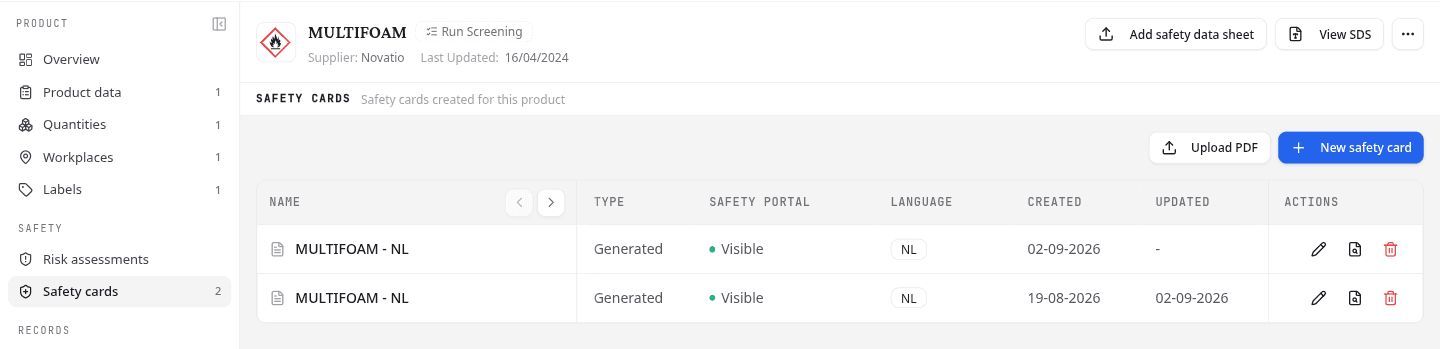
- New safety card opens the safety card wizard and builds one from the SDS data. Its Type reads Generated, and its pencil offers Open in wizard so you can change the settings.
- Upload PDF files a card you already have, whether from the supplier or from the set your team kept before NextSDS. Its Type reads PDF, and its pencil offers Rename this card instead, because an uploaded card has no wizard settings behind it.
Every row also offers Preview and Delete. The Updated column stays empty until someone changes the card, so a date there means a later revision exists.
Choose what workers can see
Both sections carry a Safety portal column with an eye button. Select it to hide a file from the safety portal, and select it again to show it. A hidden file reads Hidden beside its name; a visible one reads Visible.
Hiding changes nothing else. The file stays on the product, everyone on your team still sees it, and it still counts towards the section's number.
Files are visible on the portal unless you hide them, including everything uploaded before this control existed. Check the column before assuming a document is private.
What to do next
See what a worker gets when they scan a label: the safety portal.