Team Settings
Set your team's name, logo, and contact details so they appear correctly in reports and the Safety Portal.
Use this page to set up your team's profile. The name and logo appear in generated reports and on the Safety Portal that workers access, so keeping them accurate matters for traceability and audits.
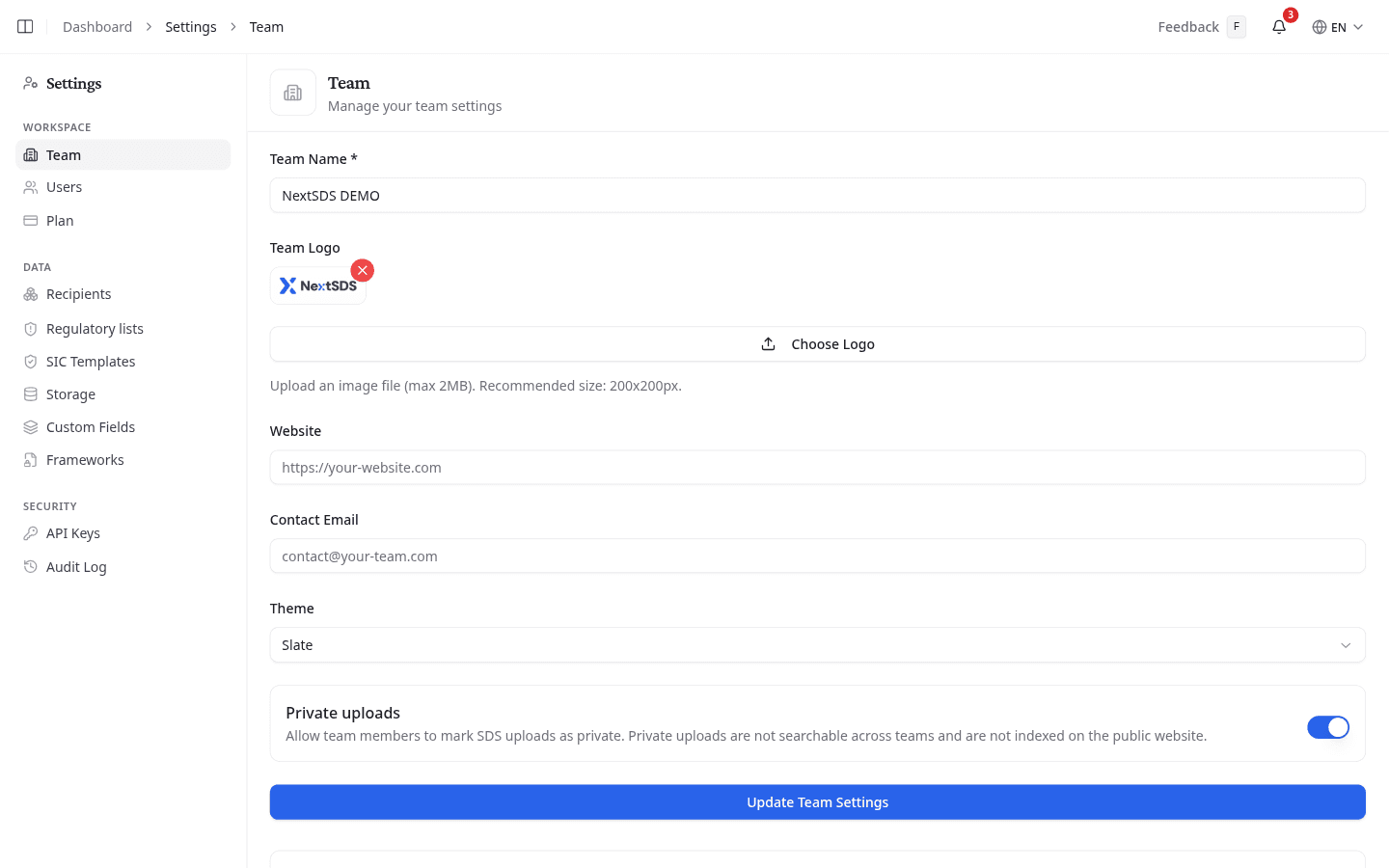
Update your team details
- Enter your team's name in the Team Name field. This is required.
- Add a Website and Contact Email if you want them included in exported documents.
- Select Update Team Settings to save. A confirmation message appears when the save is complete.
Add or change your team logo
Your logo appears on generated Safe Cards and reports.
- Select Choose Logo to pick an image file from your computer.
- The logo uploads immediately. A preview appears above the button when it's ready.
- To remove the logo, select the × button on the preview image.
- Select Update Team Settings to save the change.
The maximum file size is 2 MB. Any standard image format is accepted.
Change the colour theme
Select a colour theme from the Theme selector. The chosen colour is applied across the interface for your team. Choose System to follow the operating system's light or dark mode setting, or Light or Dark to fix it.
Let your team mark uploads as private
Private uploads is available to team admins. If you do not see it, ask your team admin to check your permissions.
Turn on Private uploads to let your team members mark an SDS as private when they upload it. A private SDS stays available to your own team, but it is left out of search across teams and is never indexed on the public website.
Leave it off if you would rather every SDS your team uploads be shareable.
Let suppliers email sheets straight in
Your team has its own email address under Magic Mailbox. Forward a safety data sheet to it, or ask your supplier to send it there, and NextSDS reads the file and adds it to your library.

Select the copy button beside the address to put it on your clipboard. The same address is offered on the library page while your library is still empty.
Audit tip: Make sure your team name matches the legal entity name used in your safety documentation. Inconsistencies between the system and your formal records can create questions during an inspection.
What to do next
Add the people who need access in Users.