Users
Control who has access to your team's chemical library and safety data.
Use this page to see everyone who can access your team in NextSDS, add new colleagues, and control what they can do.
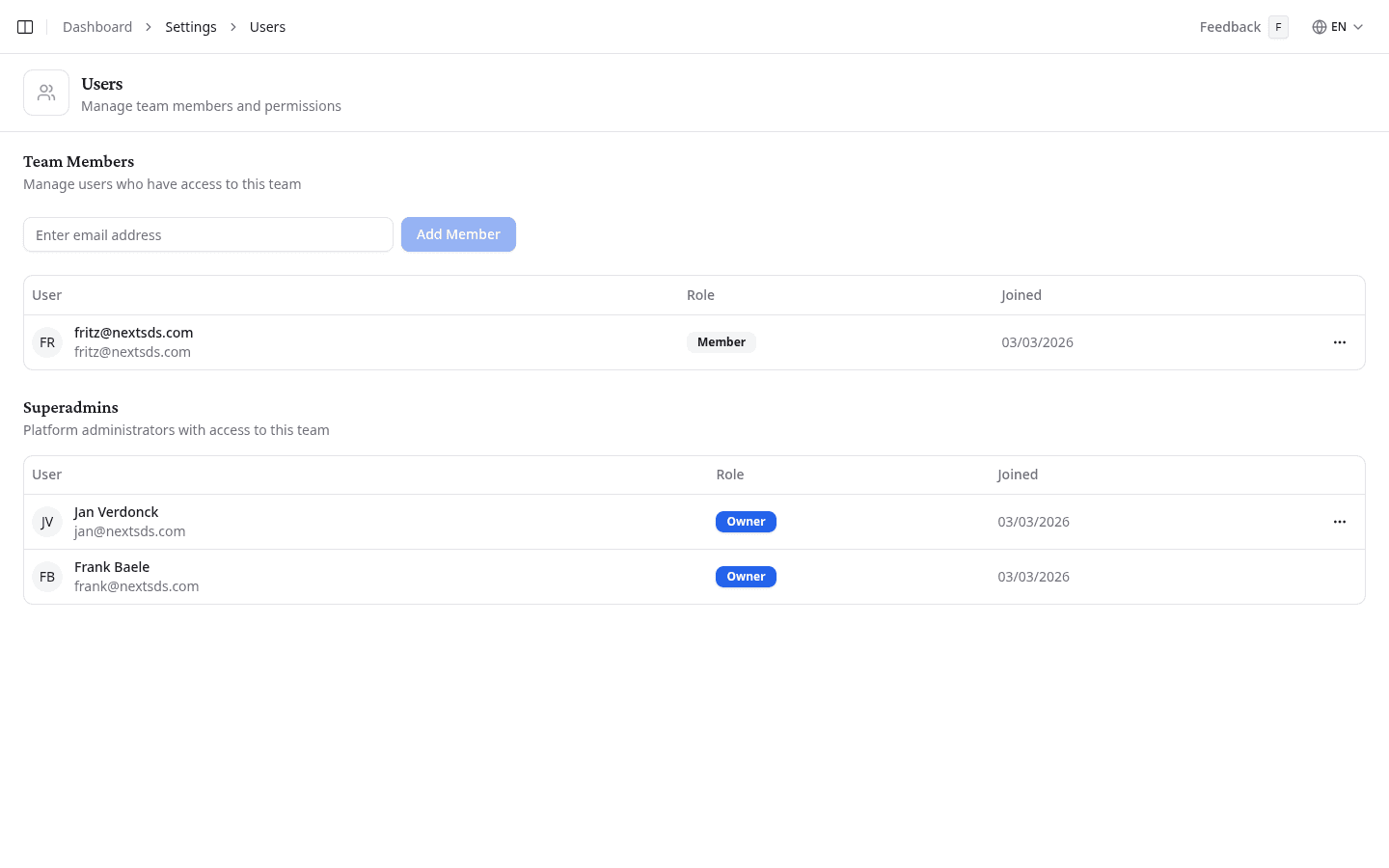
Review available roles
Every team member has one of two roles:
| Role | What they can do |
|---|---|
| Owner | Full access: can add and remove users, change roles, and manage all settings |
| Member | Can view and work with the library, SDS documents, locations, and compliance features, but cannot manage team settings or users |
Assign the Owner role only to colleagues who are responsible for administering the system.
Add a team member
- Type the person's email address into the field at the top of the page.
- Select Add Member.
If the person already has a NextSDS account, they are added immediately. If not, an account is created for them automatically. Either way, they appear in the list once added.
Only Owners can add members. If you don't see the email field, ask your team owner to add you or grant you the Owner role first.
Change someone's role
- Find the person in the table.
- Select the options menu (⋯) at the end of their row.
- Select Make owner to promote them, or Make member to reduce their access.
You can only change the role of other users, not your own.
Remove a team member
- Find the person in the table.
- Select the options menu (⋯) at the end of their row.
- Select Remove from team.
The person loses access to your team's data immediately. Their account is not deleted. They can still be added to other teams.
Removing a user is immediate and cannot be undone from this page. Re-add them using the Add Member flow if needed.
What to do next
Check the audit log to see what each member changed.