SIC Templates
Manage the layout templates behind your team's Safety Instruction Cards, including the ones NextSDS ships.
A SIC Template controls what appears on a Safety Instruction Card: which sections are shown, how they are arranged, and your team's branding. This list holds both your team's own templates and the ones NextSDS ships, so it is the one place that decides what anyone can build a card from.
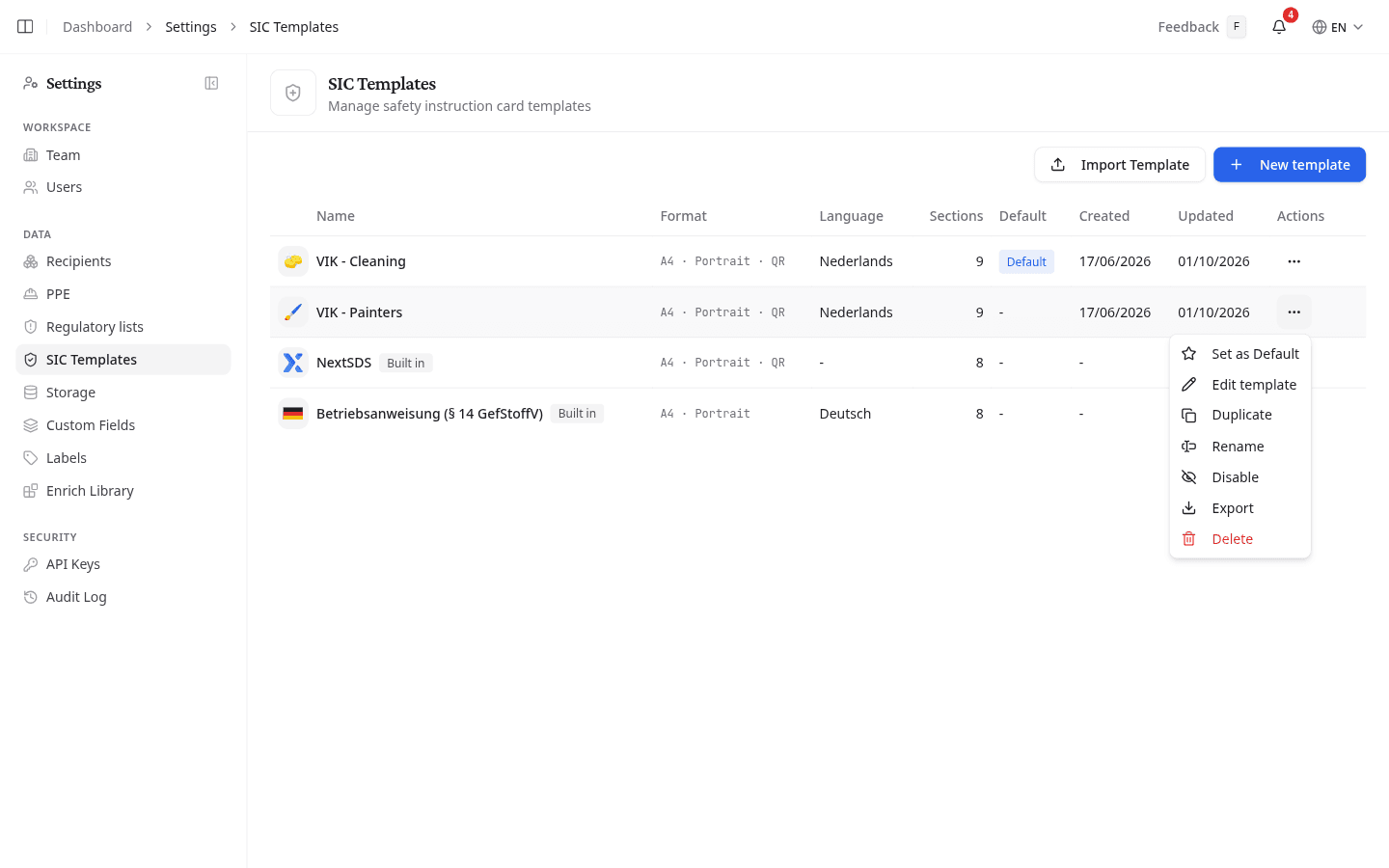
| Column | What it tells you |
|---|---|
| Format | Paper size, orientation, and whether cards carry a QR code |
| Language | The language cards print in. A dash means the card follows the language of whoever makes it |
| Sections | How many blocks the card holds, header and footer excluded |
| Default | Marks the template new cards start from |
Create a template
Select New template. The builder opens on the NextSDS layout and asks for the name there. See Build a SIC template.
To start from an existing layout rather than a blank one, select Duplicate from any row's options menu, including a built-in one. The copy arrives in the builder under a free name, and nothing you change in it touches the original.
The templates NextSDS ships
Rows marked Built in come from NextSDS rather than from your team:
- NextSDS is the standard card: hazards, PPE, first aid, handling and storage, fire fighting and transport.
- Betriebsanweisung (§ 14 GefStoffV) holds the eight blocks German operating instructions require, and appears once your team has the German GefStoffV framework switched on. See Create a German Betriebsanweisung.
You cannot edit, rename or delete these, and they improve without you doing anything. To change one, duplicate it and edit the copy.
Manage a template
Select the options menu on any template row to reach its actions.
Edit a template
Select Edit template, or select the template name. Both open the builder, where you change its sections, layout, colours and page format.
Cards already made from a template keep the settings they were made with. Editing a template changes what new cards start from, not what is already printed.
Set a default template
Select Set as Default from the options menu. A Default badge then marks the row.
The entry is missing on the template that is already the default, because there is nothing to set. Only one template can hold the default at a time, and setting a new one takes it off the previous.
Hide a template from the card picker
Select Disable to take a template out of the list people choose from when they make a card. The row stays here, marked Disabled, and Enable puts it back. This works on your own templates and on the built-in ones, and it is how you keep a team on the two layouts you want it using.
Disabling changes nothing about cards already made from the template. Only team admins can disable or enable.
Rename a template
- Select Rename from the options menu.
- Enter the new name and select Rename.
Renaming does not affect any card, and two templates cannot share a name.
Export or import a template
Select Export from the options menu. NextSDS saves the layout as a file you can share with another team or keep as a backup.
Import Template takes such a file back in, which is how you move a layout between teams instead of rebuilding it. Give the imported template a name to finish. A file that is not a SIC template is refused. Only team admins can import.
Delete a template
- Select Delete from the options menu.
- Confirm by selecting Delete in the pop-up window.
Deleting a template cannot be undone. Safety Instruction Cards already generated are not affected. If you only want to stop people using a template, disable it instead.
What to do next
Set up a template's sections and branding in Build a SIC template, or apply one to a product in Generate a Safety Instruction Card.