What workers see on the portal
How employees browse workplaces, find a product, download its safety data sheet, and report a concern.
A worker reaches the portal by link or QR code and never logs in. What they can do there depends on the options you switched on in the portal settings.
Browse workplaces on the portal
The portal opens on Workplaces. A header names your team and counts the workplaces and products a visitor can see.
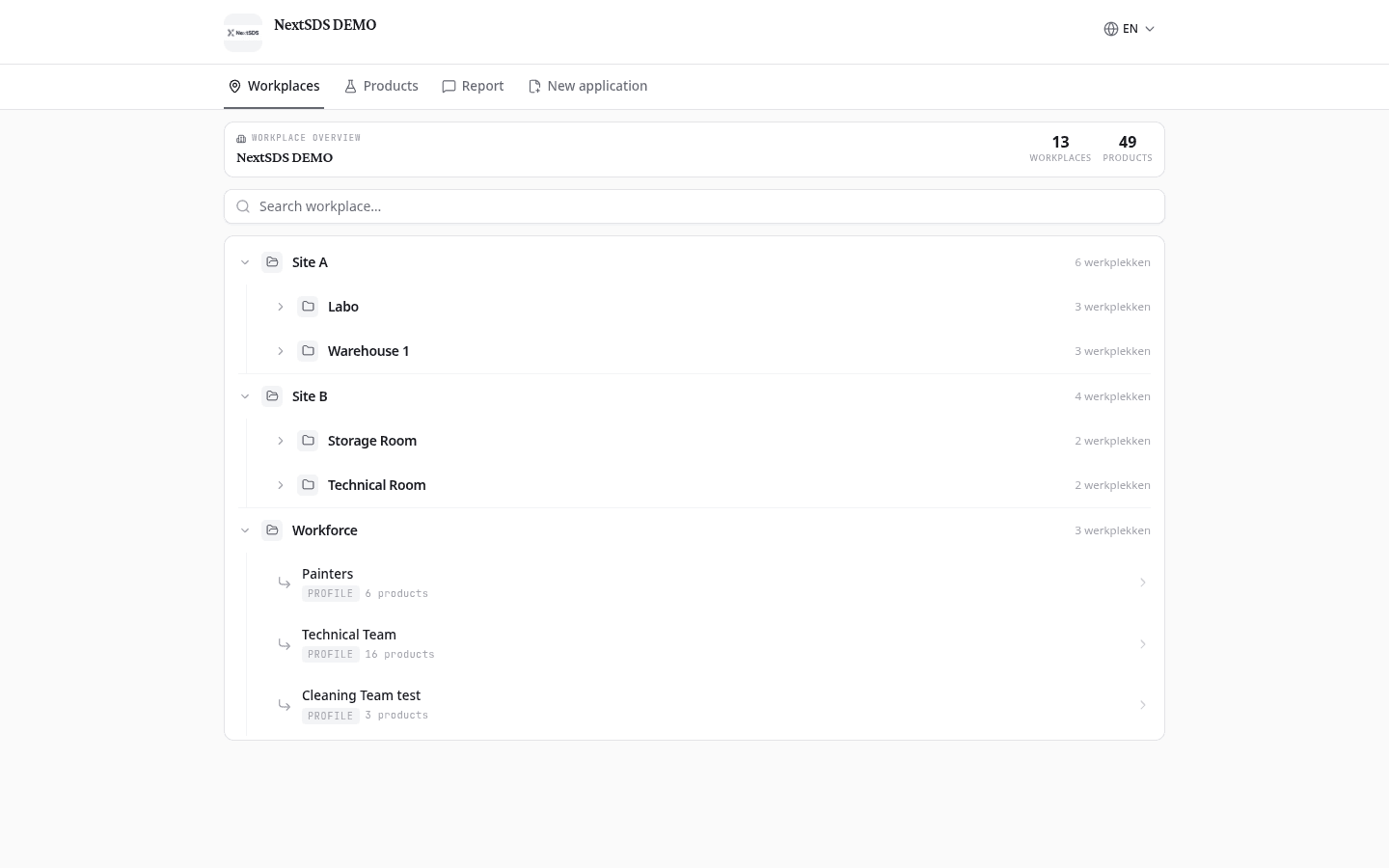
Sites open to show the workplaces inside them, and a search finds one by name. Each workplace shows how many products it holds, and its type as a small tag where your team set one, so a worker can find the list that belongs to them without knowing which room holds it.
Select a workplace to list the products stored there. Select a product for its full safety information: GHS hazard data, H and P statements, PPE requirements, and first aid measures.
Find products and download safety data sheets
The Products tab lists every product across your visible workplaces, twenty to a page. Each card carries the product name and supplier, and hazardous products also carry a signal word badge, Danger or Warning, with their GHS pictograms.
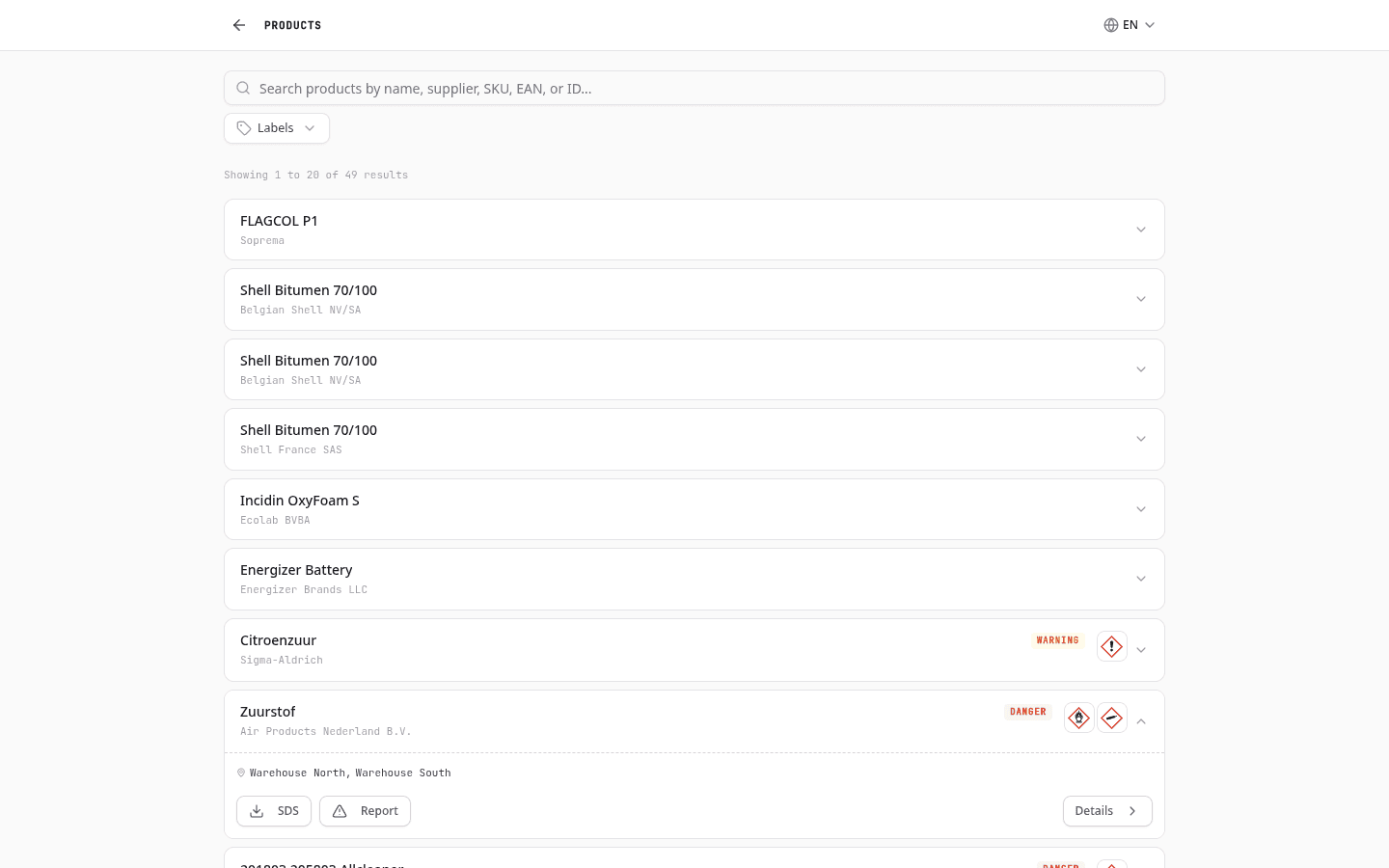
Search by name, supplier, SKU, EAN, or ID. Labels narrows the list to your own product labels.
Select a card to expand it. The expanded card names the workplaces that hold the product and offers three actions:
- SDS: download the safety data sheet as a PDF
- Report: submit a safety concern linked to this product
- Details: open the full product view with GHS data, H and P statements, and PPE requirements
Where a product has safety cards or attachments, the expanded card lists those too, each with its own count.
Report safety issues from the portal
When Show Reporting is enabled in settings, a Report tab appears on the public portal. Employees can use it to report safety concerns, missing SDS documents, or incorrect chemical information. Reports are linked to specific locations so your team can act on them quickly.
Request a new product via the portal
When New Applications is enabled in settings, a New application tab appears on the public portal. Workers fill in the product name, supplier, location, and reason, then upload an SDS file. Submissions appear in your Inbox for review.
What to do next
Reports and product requests both land in your Inbox. See Inbox.