Act on a product
Generate safety documents, screen the product, archive it, or delete it from the product's options menu.
Everything you can do to a product as a whole sits in one options menu, reachable from every section of the record.
Open the options menu
Select the options menu beside View SDS in the product header.
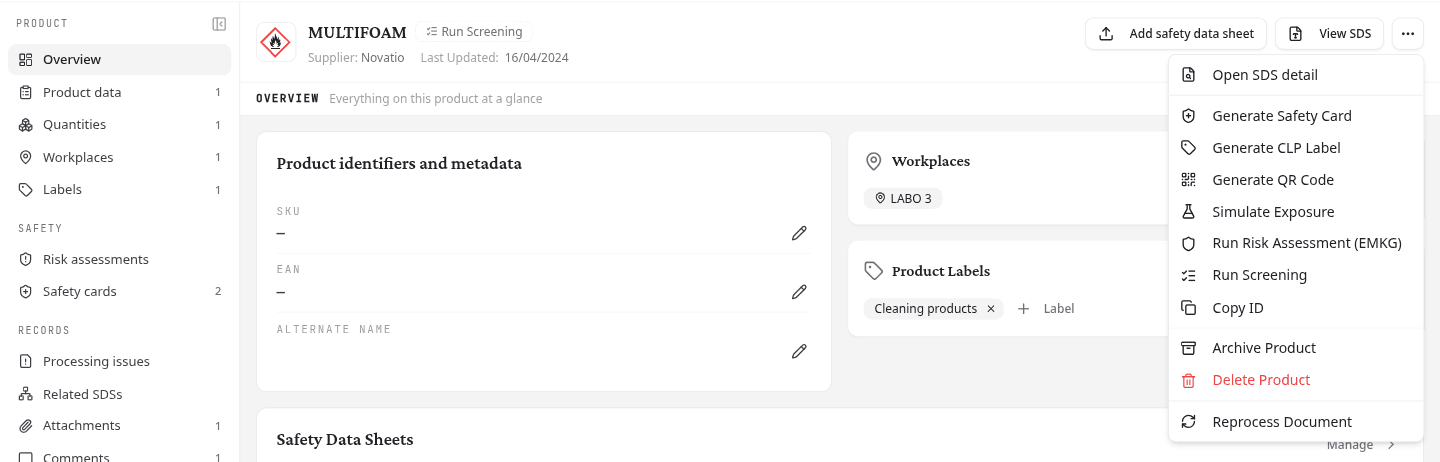
Open SDS detail opens the data NextSDS read out of the sheet. View SDS, next to the menu, opens the PDF itself.
Generate a safety document
Four entries open their own wizard:
- Generate Safety Card: generate a Safety Instruction Card
- Print Label: generate a CLP label
- Simulate Exposure: simulate workplace exposure with ECETOC TRA
- Run Risk Assessment (EMKG): assess workplace risks with the EMKG method
Generate QR Code produces a code that opens this record. Run Screening starts the procurement check. Copy ID copies the product's identifier, which support may ask you for.
Most of these need a primary safety data sheet, because they are built from its data. Without one they are greyed out and read Link a primary SDS to enable this action. Simulate Exposure and Run Risk Assessment (EMKG) are the exceptions.
Archive or delete the product
Archive Product takes the product out of the active library list and keeps everything attached to it. On an archived product the same entry reads Unarchive Product. Archiving is also how you take a product off the Library health lists and out of the safety portal.
Delete Product removes the product and its data permanently. Archive it instead if you may need it for a future audit.
Reprocess Document is available to team admins on a product that has a primary SDS. It reads the sheet again and refreshes the values NextSDS derived from it, which takes a few minutes. Your uploaded PDF is never changed. If you do not see it, ask your team admin to check your permissions.
What to do next
If nobody has screened this product yet, run the procurement check before it reaches a workplace.