Work on several products at once
Select multiple products to assign them to a workplace, merge duplicates, re-read their sheets, or export them.
Select products with the checkboxes in the first column. To select every product that matches your filters, use the checkbox in the header row.

- Add to workplace: record where the selected products are stored or used
- Merge (n): combine duplicate records for the same product
- Reprocess (n): read the sheets again and refresh the extracted data
- Export CSV: download the selected rows as a spreadsheet, with the columns your current segment shows
- Delete: remove the selected products
Each label carries the number of products it will act on, and Cancel clears the selection.
Two of them come and go with what you selected. Merge needs at least two products, and disappears if any selected product's SDS failed to read. Reprocess is available to team admins only.
Assign products to a workplace
Add to workplace opens your workplace list. Search for the workplace you want and select Add. Workplaces that already hold the product show Already Added.
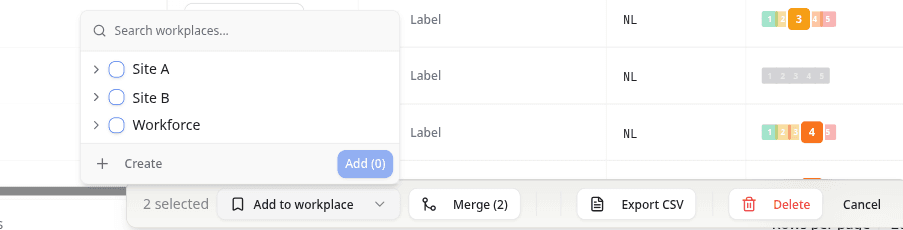
If the workplace does not exist yet, select Create and fill in the workplace details. NextSDS creates it and assigns the selected products in one step.
Merge duplicate products
When several records describe the same product, select them and choose Merge. Then pick which product to Keep. Everything attached to the other records moves across: SDS files, attachments, workplace assignments, labels and custom fields.
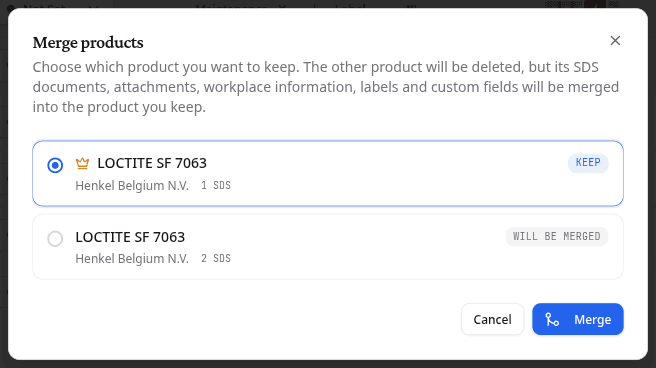
The products you do not keep are deleted. Check that you picked the right one before you confirm.
Library health detects duplicates for you and resolves them with a guided merge that handles field conflicts, which this bulk merge does not.
Re-read the sheets
Reprocess (n) opens Reprocess Configuration. Pick a Configuration Preset, either Quick Fix or Minimal Update, and confirm with Reprocess n documents.
Choose None instead to decide for yourself which of the 16 SDS Sections to read again, with Select All and Clear to set the whole list at once. Force reprocess sections re-reads even the sections that already extracted cleanly.
Reprocessing takes a few minutes per sheet and replaces the data read out of it. Your uploaded PDF is never touched.
What to do next
Now that products sit at a workplace, run a RECESS risk assessment there.